
To turn a floor plan into a realistic render with AI, draw or import the plan in ArchHomeAI's free 2D editor, open the 3D preview and click Render this view. The site captures the exact view of the 3D model and sends it with a written description of the plan (storeys, roof, every opening with its size), so the image keeps your geometry. You choose the style, materials and engine; the render uses credits, and your balance is always in the counter at the top of the page.
Key takeaways
- Plan-locked renders start from a real 3D model of your plan: the AI receives the exact view plus a written description of storeys, roof, openings and furniture.
- One dialog renders this view, all 4 sides with a shared roof and materials, or a room at eye level or from above.
- Drawing the plan and the 3D model are free; rendering uses credits, and your balance is shown in the counter at the top of every page.
- Brush edits, one-click material swaps, quick edits for light and season and a 4K upscale refine a result, each saved as a new version.
- Renders are visualisations, not construction drawings: the layout holds, small details can differ.
- Plan in 2D — Draw the plan or import a PDF, scan or DXF at real size. Free.
- Model in 3D — The plan becomes a linked 3D model with walls, openings, roof and furniture. Free.
- Render with AI — Any view of the model becomes a photorealistic image. Uses credits.
What is a floor plan render?
An architectural rendering is an image of a design that doesn't exist yet, made so that clients, buyers or family can see it before it is built (Wikipedia). A floor plan render starts from the plan, the top-down drawing of walls, doors, windows and rooms, and turns it into something anyone reads at a glance: a facade in daylight, a furnished living room, or a top view of the whole home with floors, furniture and shadows.
Traditionally a visualiser builds a detailed 3D model, assigns materials and lights, and lets a render engine simulate the light (rendering). That gives full control but needs specialist software and hours of work. AI rendering generates the image with a model trained on photographs, in a minute or two. The catch: a generic AI tool that only sees a picture of a plan has to guess ceiling heights, the roof, window sizes and materials, and it often invents them.
| Traditional 3D rendering | Generic AI from a plan picture | Plan-locked AI in ArchHomeAI | |
|---|---|---|---|
| Starting point | A full 3D model built by a visualiser | An image of the plan | Your plan as a real 3D model |
| Geometry | Exact, as modelled | Guessed from the drawing | Taken from the model view and described in words |
| Time per image | Hours of modelling and rendering | A minute or two | About 1–3 minutes |
| Control | Total, needs expertise | The prompt only | Style, materials, engine and view, plus edits afterwards |
| Best for | Final marketing images with exact detail | Quick mood images | Design checks, client presentations, comparing options |
Why ArchHomeAI renders from a model, not from a picture of the plan
A plan is flat. It shows where walls and openings are, but not how high the ceilings are, where a window sill sits or what the roof looks like. ArchHomeAI fills that gap with your own data before any AI runs. The pictures in this guide come from one real project on the site, which started as a developer's sales sheet of a three-room apartment.
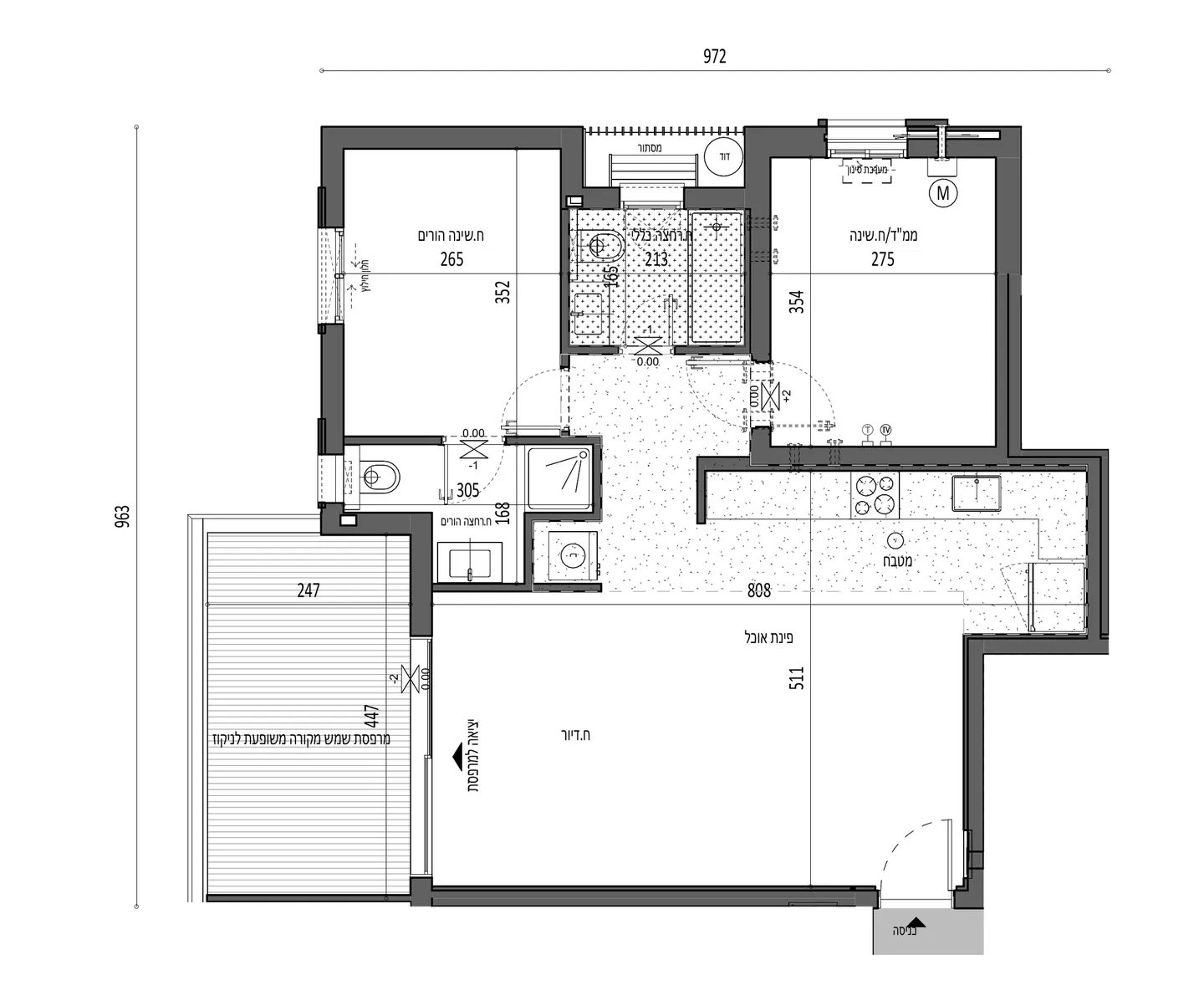
The sheet was traced in the 2D editor at real size: walls, doors, windows, rooms, kitchen, bathroom fittings and balcony furniture. Levels, wall heights and the roof are set there too. From the plan, one click builds a linked 3D model (see from 2D plan to 3D model). Drawing, editing and the 3D model are free.
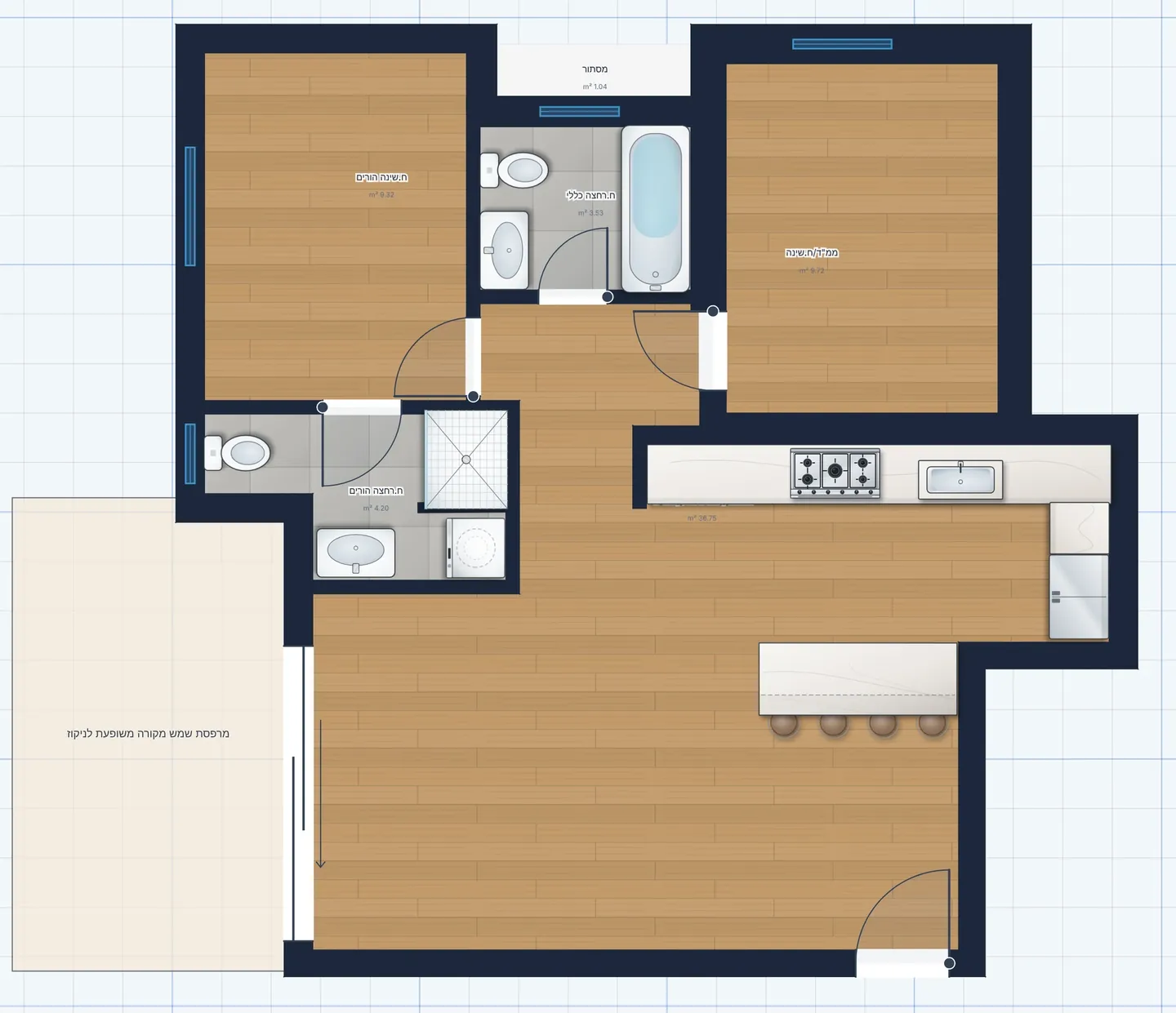
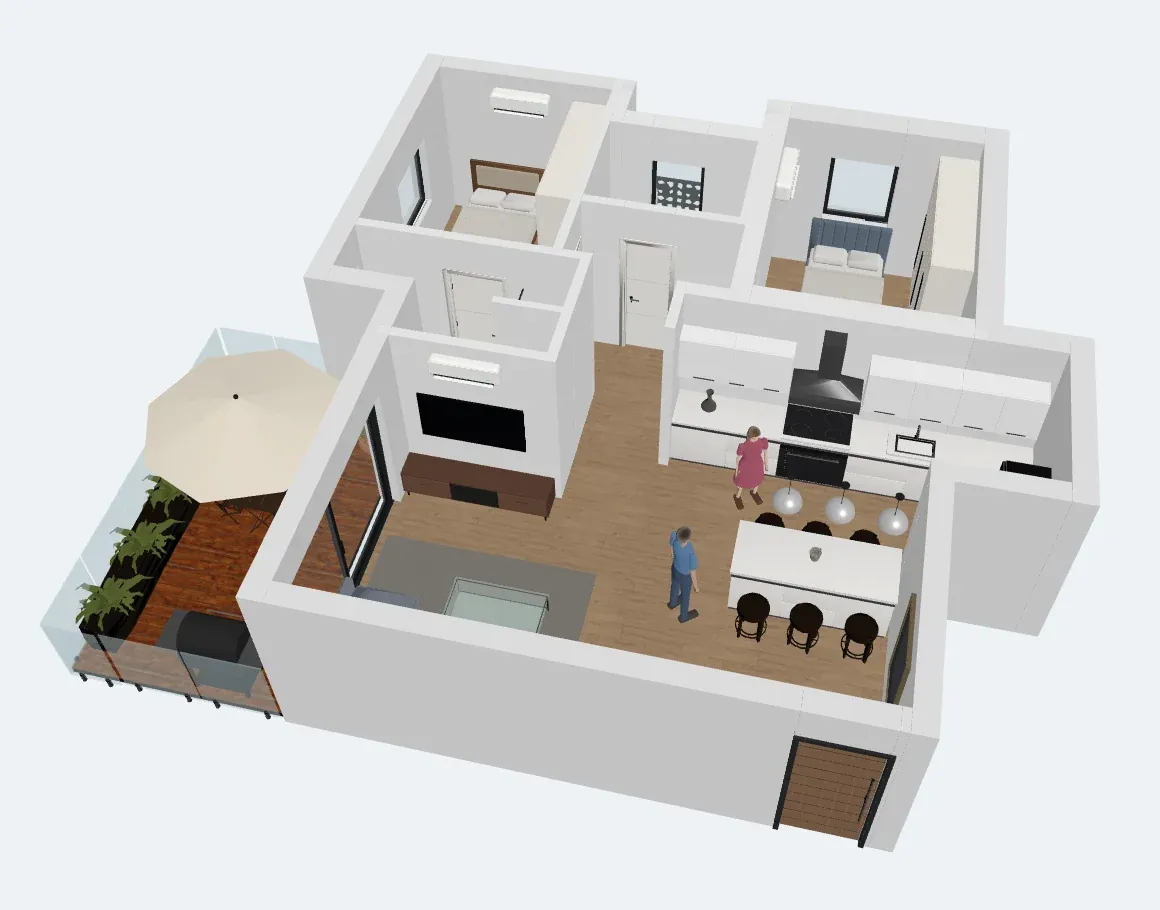
When you render, the site does three things. It captures the exact view of the 3D model as a clean image without grid or interface. It writes a description of what that view contains: the number of storeys, the roof, every opening on each facade with its width, height and sill, and where the furniture stands. And it sends both to the image engine with instructions to keep them, so the AI works on surfaces, light and atmosphere, not on the layout. When you render all four sides, they share one building description and the front is rendered first, so the other sides can match its materials and roof.
Three ways to go from plan to render
Pick the route that matches what you already have.
| Route | Start from | Best for |
|---|---|---|
| Render this view in the 2D editor | A plan drawn or imported in ArchHomeAI | Facades, all 4 sides, rooms and top views that follow the plan most closely |
| Generate Render or To studio in the 3D editor | The 3D model, with the camera where you want it | One exact angle you set up in 3D |
| Architectural Plan (optional) in AI Studio | A plan PDF or image, with or without photos | A quick visual of a plan you haven't drawn, or the Full Package |
Starting from a photo of an existing house or plot instead? That workflow is covered in how to create a house rendering.
Step by step: render a floor plan from the 2D editor
This is the most faithful route, because the AI works from the model of your own plan.
- Draw or import the plan Open the 2D editor, click New Project and draw walls, doors, windows and rooms, or import a PDF, scan, image or DXF and trace it. Add levels and set the roof for a house with more than one storey. Help with drawing: floor plan with dimensions.
- Open the 3D preview Open the 3D preview panel. Choose Free 3D to orbit with the mouse or a finger, or Front, Rear, Right or Left for a level, eye-height view of each facade.
- Click Render this view The first time, the dialog asks Which side is the front of the house? Pick the side that faces the street or the main entrance. It is saved with the plan and sets the front, rear and side views.
- Choose what to render Under What to render, choose This view, All 4 sides or Interior. The capture that will be sent is shown in the dialog before you start, so you can check the angle.
- Set the look Pick Style and Materials chips and, if you like, a short description of finishes, colours and planting. The description changes surfaces only, not storeys, roof, openings or layout.
- Choose the engine and resolution Select an Engine and a Resolution (2K only where the engine supports it). Each image uses credits; All 4 sides makes four images.
- Render and open the result Click Continue. Rendering takes about 1–3 minutes and you can keep working; the site tells you when it's ready. Click Open in the studio to see the images in the plan's own studio project.
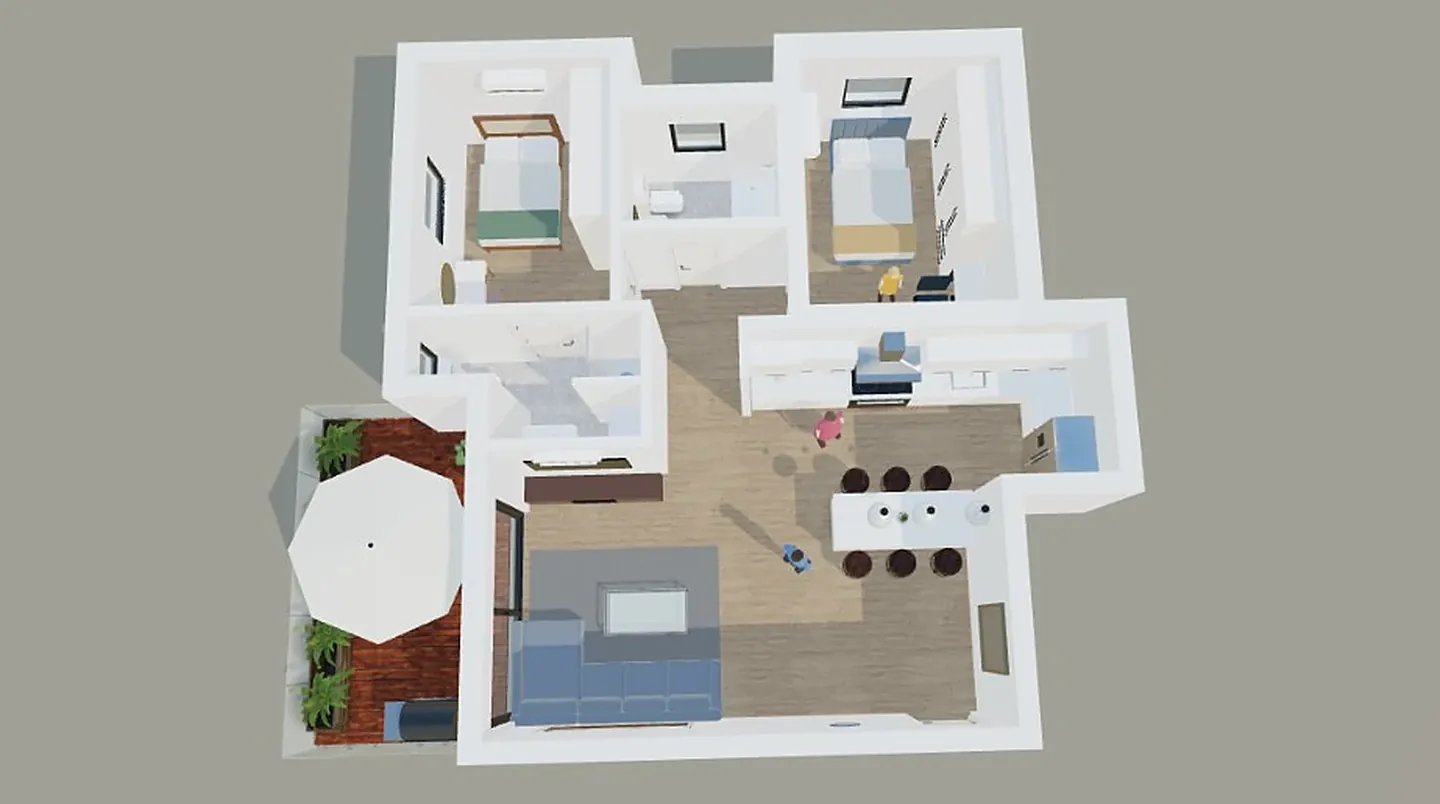
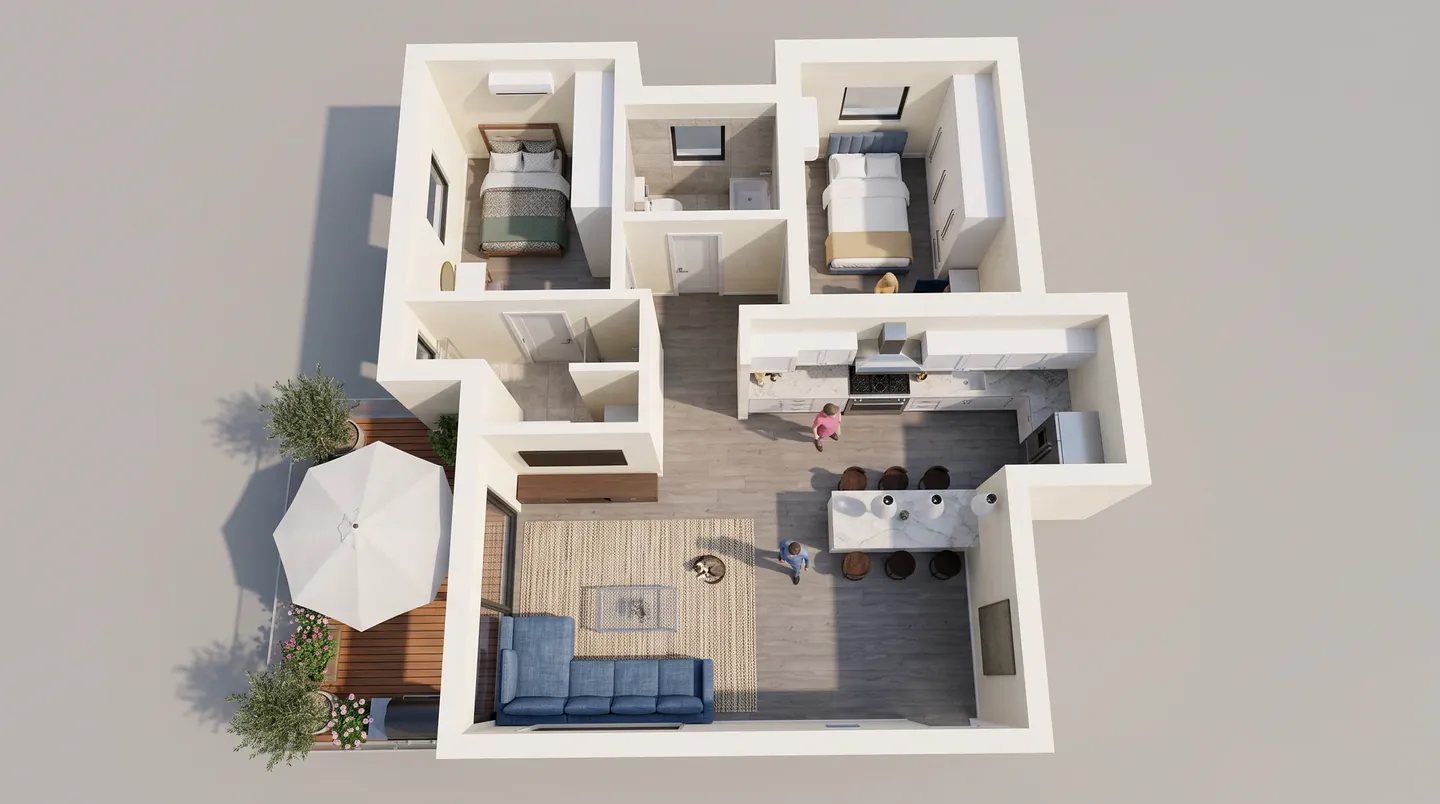
Above, the same project: the top view of the 3D model and the AI Studio render made from it. Walls, rooms, the kitchen island, the sofa and the balcony stay where they were drawn; the AI adds materials, light, shadows and plants. Credits for images that are not produced are refunded automatically.
Render your own floor plan Draw or import your plan for free, open the 3D preview and click Render this view. New accounts get free starter credits. Open the 2D editor
Rendering interiors and top views from the plan
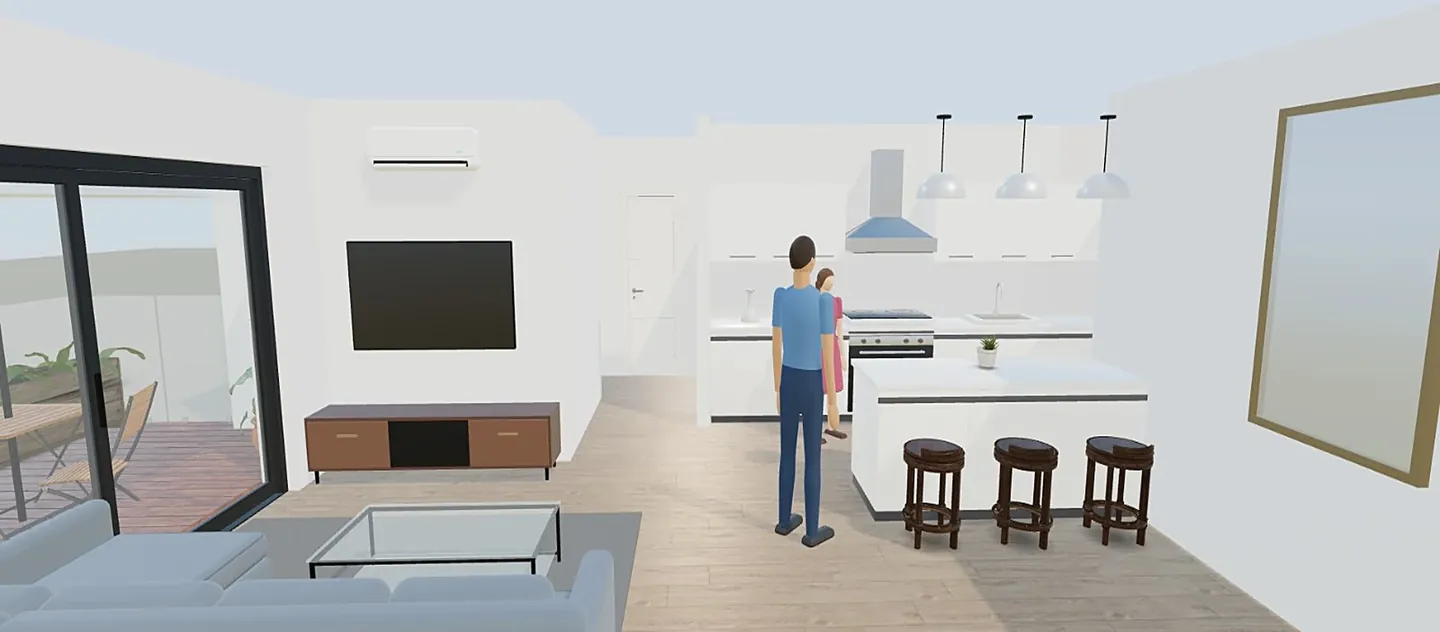
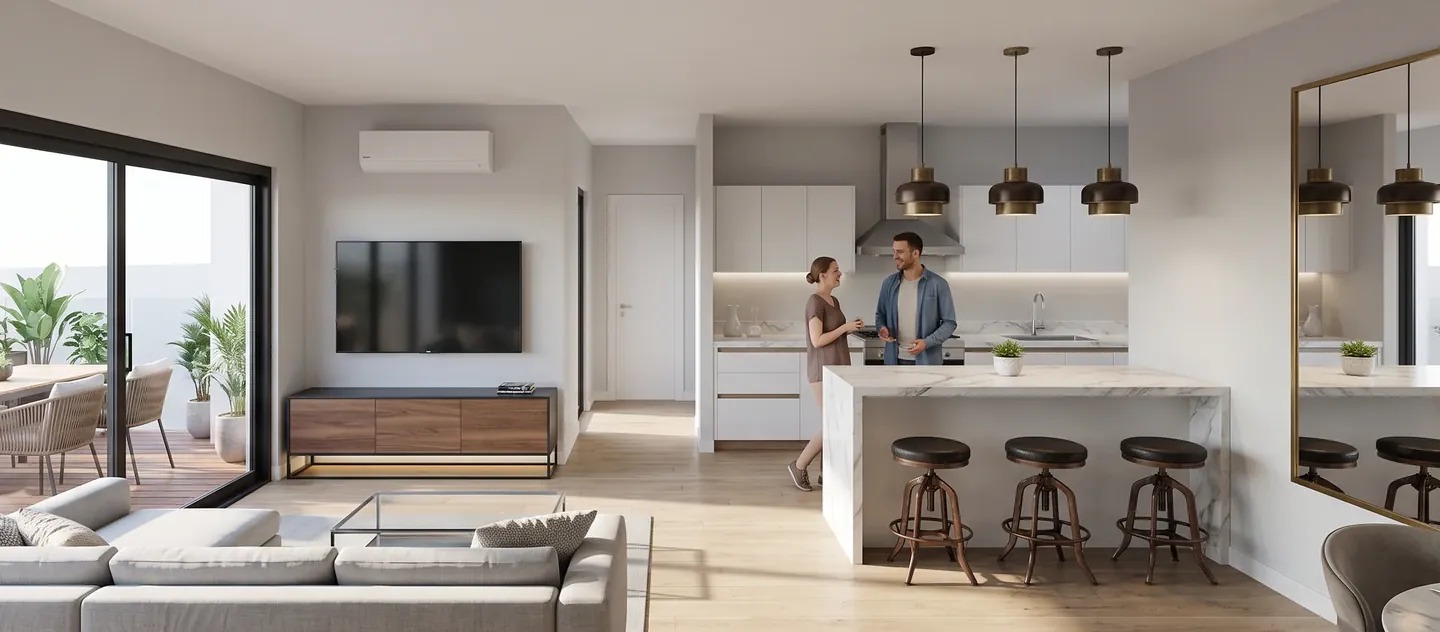
Choose Interior in the same dialog to render a room. Pick the Room and a camera: Eye level puts the camera inside the room, facing the wall with the most furniture and a window, and Turn camera moves it to the next wall. Top view — every element visible shows the room from above without its ceiling, and Whole floor (top view) shows every room of the level at once.
For interiors, the description sent to the AI names each wall as seen from the camera, with its openings and the furniture against it, for example a sink under a window. That is why kitchens and sofas stay where you drew them. Rooms need to be drawn, with their furniture, for this option to work; what isn't drawn, the AI has to invent.
From the 3D editor: Generate Render and To studio
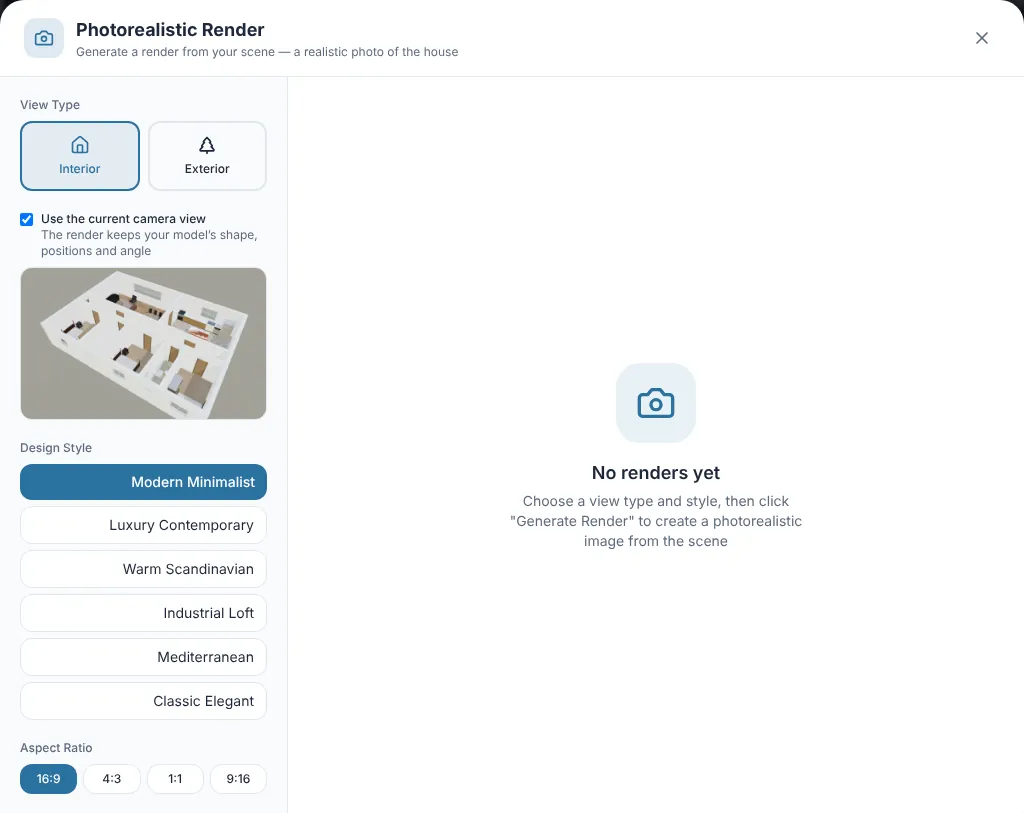
If you have set up a camera in the 3D editor, you can render exactly that angle. Generate Render opens the Photorealistic Render dialog: choose Interior or Exterior, keep Use the current camera view on so the render keeps your model's shape, positions and angle, then pick a Design Style and an aspect ratio. The server reads the model's storeys, windows, doors and roof and adds them to the instruction, so the AI doesn't add storeys or openings.
To studio sends the current view to AI Studio as a source image, free of charge, and you continue there with all the Studio settings. In Studio projects made from a model view, results open as a Side by side curtain, with the AI image on one side and the 3D model on the other, so you can check fidelity at a glance.
Uploading a plan to AI Studio
No time to draw? In AI Studio, the Architectural Plan (optional) box takes up to three PDF or image files. The AI reads the plan and matches the rendering to its specs: floors, rooms and area. You can combine it with up to four photos or 3D views under Source Images (optional), tagging the angle of each; one rendering is made per image.
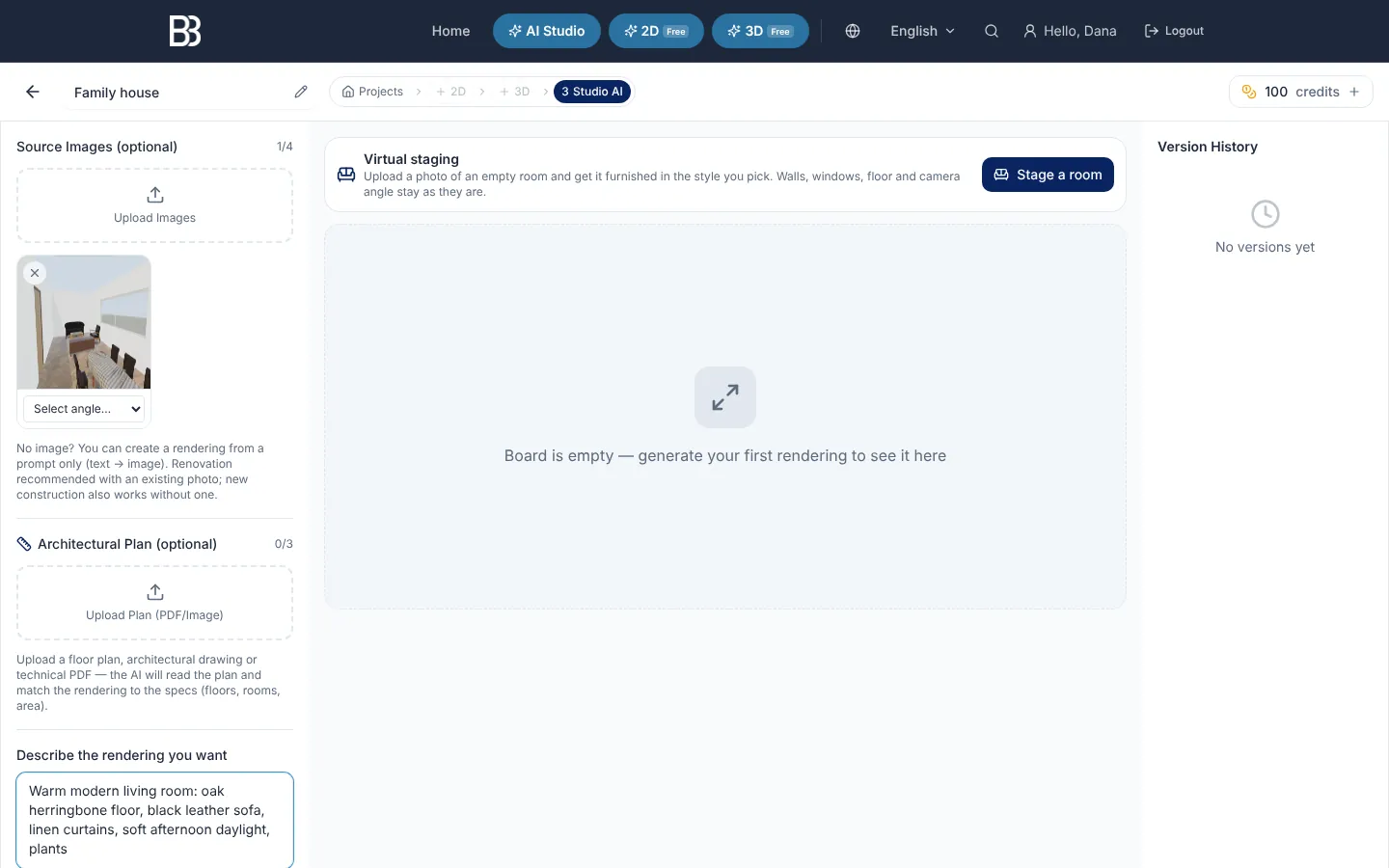
The Full Package goes further: from a plan alone it creates four exterior images (front, rear, right and left), an interior image, videos and an architectural plan in one run. The site first reads the plan (storeys, footprint, which edge faces the street, the main entrance and the garden side), so the entrance appears on the front and not on the rear, and each view is checked against the plan after it is made.
Refining the render without losing the plan
Every change is saved as a new version in the project's Version History, so the original is never lost. These tools work on any result in AI Studio and use credits.
- Edit: brush over an area (the facade, the floor, the garden) and describe the change; only that area changes. With nothing painted, the whole image is edited.
- One-click material swap: facade in white plaster, stone, wood cladding, concrete or brick; floor in oak, marble or concrete.
- Quick edits: morning daylight, golden hour, dusk with the lights on or night; summer, autumn, winter with snow or spring blossom; people, lusher planting, a clear or dramatic sky.
- Upscale to 4K: sharpens the final image for print or large screens. Do it last.
- Drag to compare: the before and after slider puts the source and the result in one frame.
- Video: under What to create, choose Video to turn the image on screen into a short clip; see the AI walkthrough video guide.
Tips for renders that stay true to the plan
- Finish the plan first: closed walls, doors and windows on their walls, rooms drawn. The QA panel finds doors and windows that are off a wall and missing rooms, and fixes them in one click.
- Set the scale of a traced plan image. An unscaled image makes the whole house the wrong size.
- Choose the front side correctly, usually the street side, so the entrance lands on the front facade.
- Describe surfaces, not geometry: "white plaster, oak floor, black aluminium frames, olive trees". The description is used for finishes, not for adding a storey.
- Render one view first, check it, then render all four sides with the same style.
- For interiors, furnish the room in 2D first. A sofa you drew stays where it is; a missing one gets invented.
Limits: what a plan render can and can't do
ArchHomeAI is in an early version, and an image model is not a measuring tool. Plan-locked rendering keeps storeys, roof, openings and layout far more closely than a picture of a plan in a generic tool, but:
- Small details can differ: window mullions, door styles, exact furniture models and colours.
- Furniture is a simple block in the capture, so the AI chooses the actual pieces.
- The front is the side you choose; the site doesn't detect the street by itself.
- On plans with oblique (non-right-angle) walls, flat roof slabs are not drawn in the capture, so views from above can look open.
- Renders from an uploaded plan image are only as good as the scan is readable.
From floor plan to photorealistic render Start in the free 2D editor, see the plan in 3D and render the views that matter. Drawing and 3D are free; AI renders use credits. Start with my plan
Frequently asked questions
Can AI turn a floor plan into a realistic render?
Yes. In ArchHomeAI the plan first becomes a 3D model, and the AI renders a view of that model together with a written description of its storeys, roof and openings. That keeps the layout much closer than uploading a picture of the plan to a generic image tool, although small details can still differ.
Will the render match my plan exactly?
It follows the plan closely: storeys, roof, the number, size and position of openings and where the furniture stands. It is still made by an image model, so details such as mullions, door styles and furniture models can differ. Never take measurements from a render.
Do I have to draw the plan, or can I upload a PDF?
Both work. Drawing or tracing it in the free 2D editor gives the most faithful renders. You can also upload up to three PDF or image files in AI Studio's Architectural Plan box, or use the Full Package to get four exterior views and an interior from a plan.
Can I render all four facades with the same materials?
Yes. Choose All 4 sides in the Render this view dialog. The four views share one building description, and the front is rendered first so the other sides can match its materials and roof.
Can I render interiors from a floor plan?
Yes. Choose Interior, pick a room and Eye level or a top view. The AI gets the room's walls, windows and furniture positions, so draw the furniture in 2D first.
How much does a render from a floor plan cost?
Drawing the plan, the 3D model and sending a view to the Studio are free. Rendering uses credits for each image, and engines and resolutions differ. Your balance is always shown in the credits counter at the top of the page, and credits for images that aren't produced are refunded automatically.
Sources
How we wrote this guide: every figure comes from the sources listed at the end and was checked in September 2026. Prices vary by city, specification and year.
- Architectural rendering — Wikipedia
- Rendering (computer graphics) — Wikipedia