
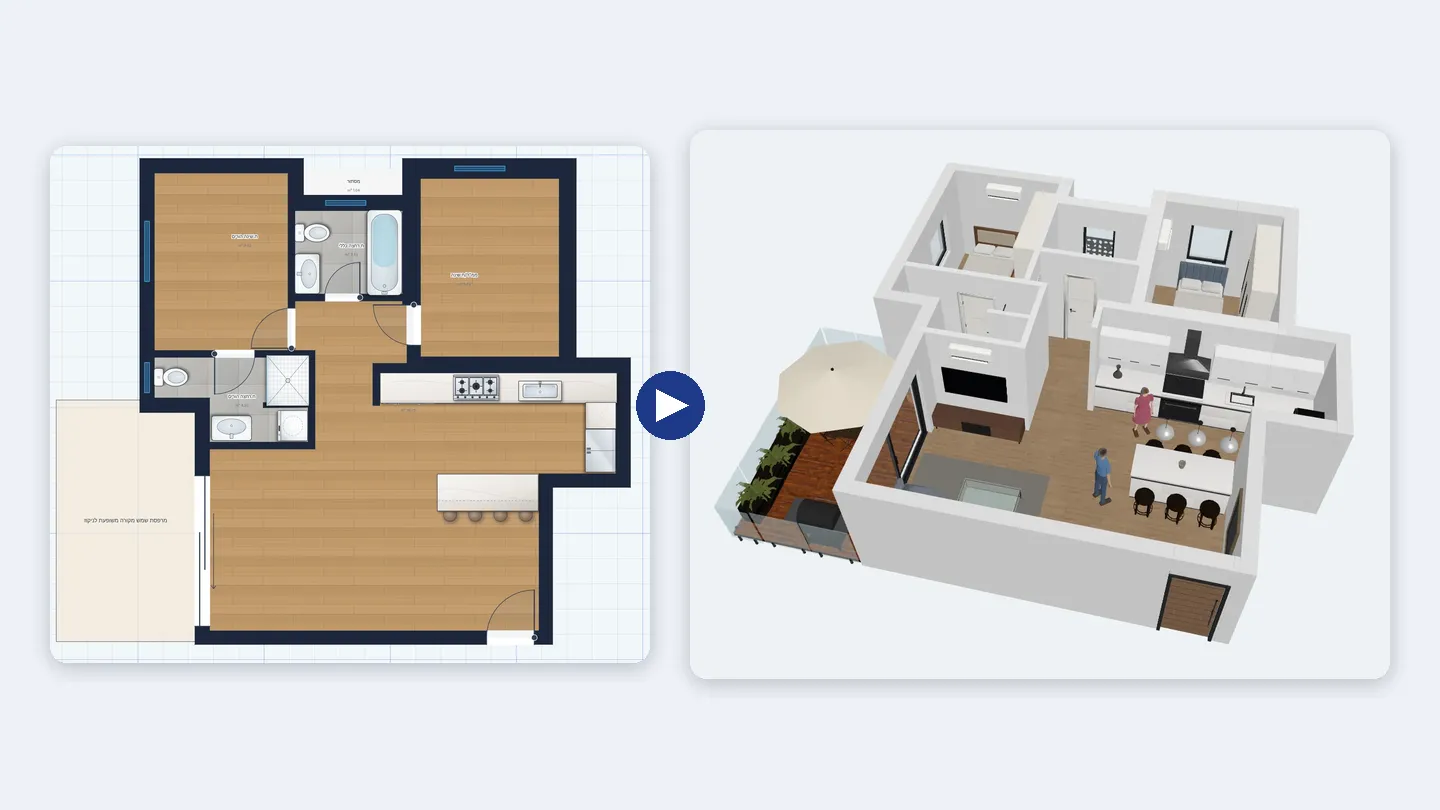
To turn a 2D floor plan into 3D in ArchHomeAI, draw or import the plan in the 2D editor and click Create linked 3D (or 3D in the flow bar). The site builds walls with real openings, doors, windows, floors, stairs and furniture from the plan in a few seconds, for free, and keeps the model linked: plan changes come in with Update from 2D to 3D, 3D moves go back with Update from 3D to 2D.
Key takeaways
- The conversion is deterministic and free: no AI and no credits are used to build the 3D model from a 2D plan.
- The 3D model stays linked to its plan: Update from 2D to 3D brings plan changes in and keeps what you added in 3D; Update from 3D to 2D sends furniture, door, window and wall moves back after you approve them.
- Side by side: 2D + 3D shows the plan and the model on one screen on a computer or tablet.
- Furnish with real CC0 models from the 3D library, walk through at eye height and export GLB, OBJ or a 360° image — all free.
- Only a PDF or photo of a plan? The basic reading is free; an optional AI reading uses credits.
- Draw or import the plan — Walls, doors, windows, rooms and furniture at real size in the 2D editor. Free.
- Create the linked 3D — One click builds the 3D model and keeps it linked to the plan. Free.
- Show it — Walk through, export, or send a view to AI Studio for a rendering (uses credits).
What a 2D to 3D conversion actually does
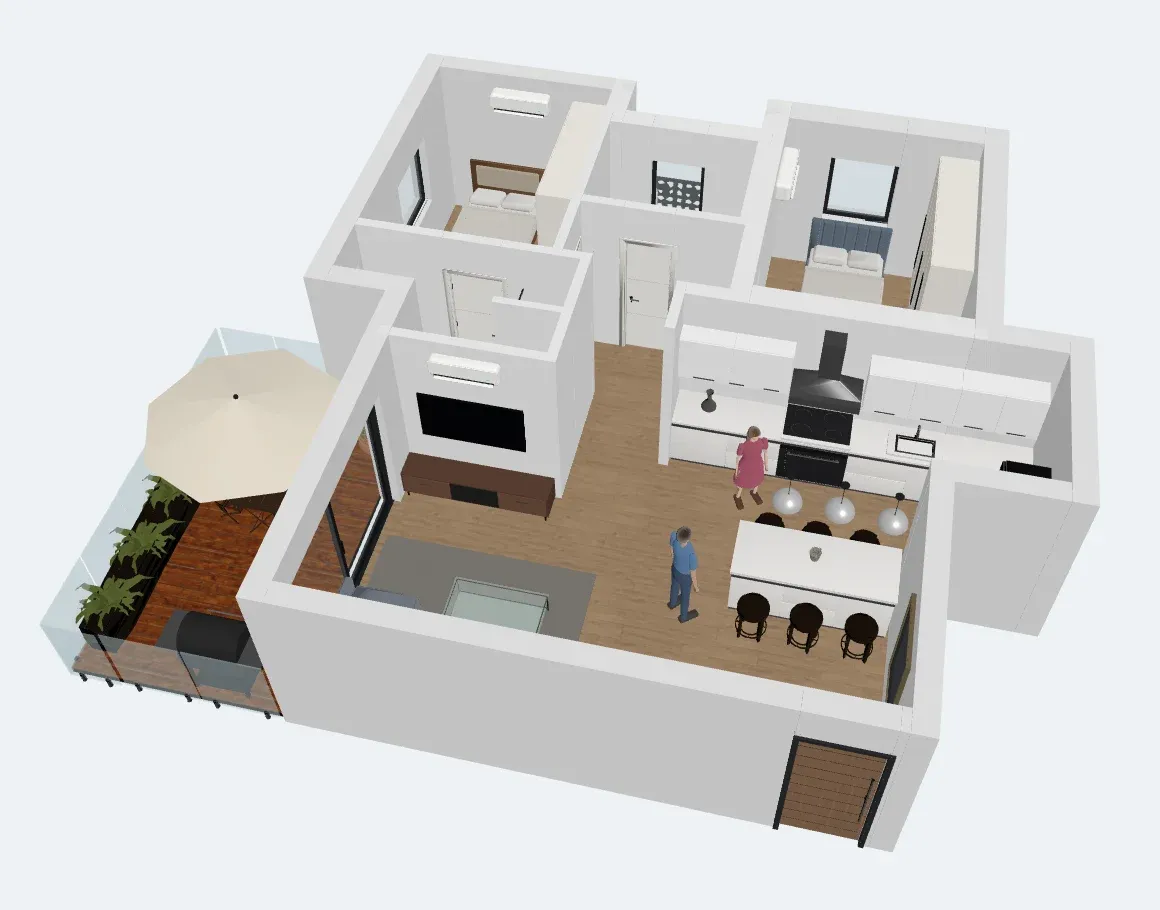
A floor plan is a horizontal cut through a building, seen from above: it shows where walls, doors and windows are and how big each room is, but not how high anything is. A 3D model adds that missing dimension. Walls get their height and thickness, openings become real holes with a lintel above and a sill below, floors get their finishes and furniture gets its volume. That is why most people — clients, families, even builders — understand a design much faster in 3D: you can see whether the island blocks the kitchen, how a corridor feels, or where the light comes in.
In ArchHomeAI the conversion is done by the site's own geometry code, not by AI. The plan is drawn in millimetres and the 3D editor works in centimetres; the converter translates every element and its position exactly, so the model has the dimensions you drew.
| In the 2D plan | In the 3D model |
|---|---|
| Walls (straight and curved) | Walls at their height and thickness; corners and T-junctions are joined automatically, with no steps or walls poking through |
| Doors and windows | Openings cut into their wall — doors stand on the floor, windows sit at their sill height |
| Rooms and floor finishes | Floors with the finish you chose (parquet, tiles, marble and more) |
| Furniture, kitchens, bathrooms | The matching item from the 3D catalogue, at the same size and rotation |
| Stairs and outdoor elements | Stairs, lawn, paths, decks, pools, trees and other yard items |
| Dimensions, text and notes | Stay in the plan — they are drawing annotations, not objects |
Three ways to start
| You have… | Start with | Good to know |
|---|---|---|
| Nothing yet | New Project in the 2D dashboard — empty, a template or the sample project | The most accurate route: the model uses exactly what you draw |
| A PDF, scan or photo of a plan | Underlay in the 2D editor: trace the walls over it, then create the 3D | Free. Or, in the 3D dashboard, New Project → Upload Blueprint or Photo → Create the model for free |
| A CAD file (DXF, DWG, IFC) | Import in the 2D editor, check the walls, then create the 3D | Clean up layers first; the 3D follows the walls you keep |
Upload Blueprint or Photo in the 3D dashboard reads walls, rooms, doors and windows from the drawing itself (JPG, PNG, WebP or PDF up to 10 MB) and builds a 3D model directly, without AI and without credits. If you also want room names, furniture and fixtures, the optional AI Analysis reads the drawing with AI; it uses credits. Either way, check the overall width it reports and correct it if needed — a blurry photo stays a blurry photo. Need a clean, measured plan first? See how to draw a floor plan with dimensions or converting a plan image to CAD.
Step by step: from 2D floor plan to a linked 3D model
- Finish the walls first In the 2D editor draw (or trace) the walls, then the doors and windows, then the rooms. Keep Snap on so wall ends meet — clean corners give clean 3D corners.
- Set the floor finishes and furniture Use Add element for furniture, kitchen and bathroom items, and the Floors group for parquet, tiles or marble. Everything you place in 2D appears in 3D.
- Create the linked 3D Click Create linked 3D, or 3D in the flow bar at the top. The scene is built from the current floor (level) in a few seconds. It is free.
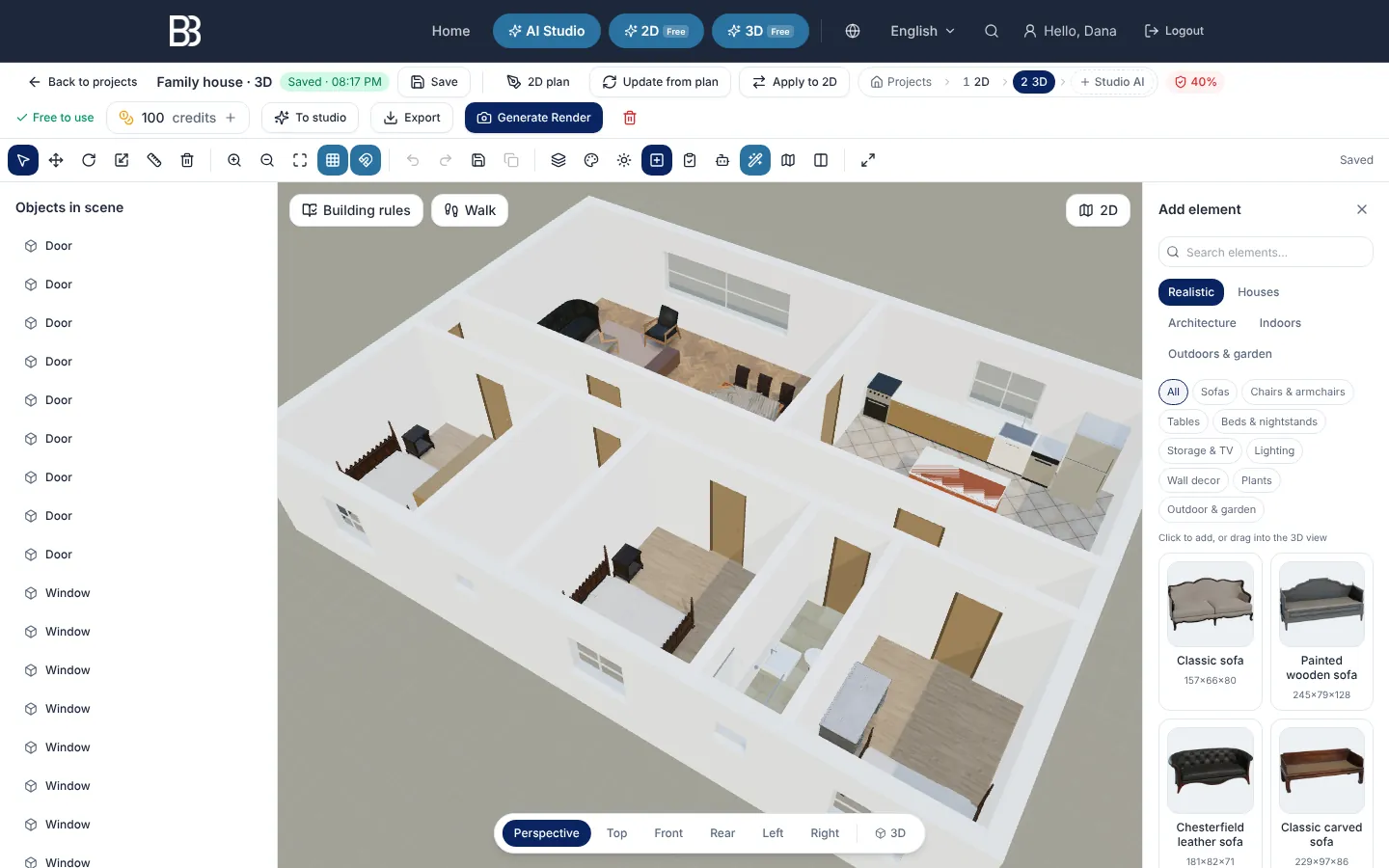
- Look around Drag to orbit, scroll to zoom and right-drag to pan, or pick Perspective, Top, Front and the other views under the model.
- Make it realistic Turn on Realistic look to draw sofas, beds, tables and plants as real models. Select a wall or floor and open Materials for plaster, brick, stone, wood or tiles; Lighting adjusts the light.
- Edit in 3D Select an object and drag it, or use the arrow keys (10 cm per press, Shift for 1 cm). Walls have handles for length, height and curve, and Properties takes exact values.
- Keep both sides in sync Changed the plan? Click Update from 2D to 3D in 3D. Moved furniture or a wall in 3D? Update from 3D to 2D lists each change and writes it into the plan only after you approve.
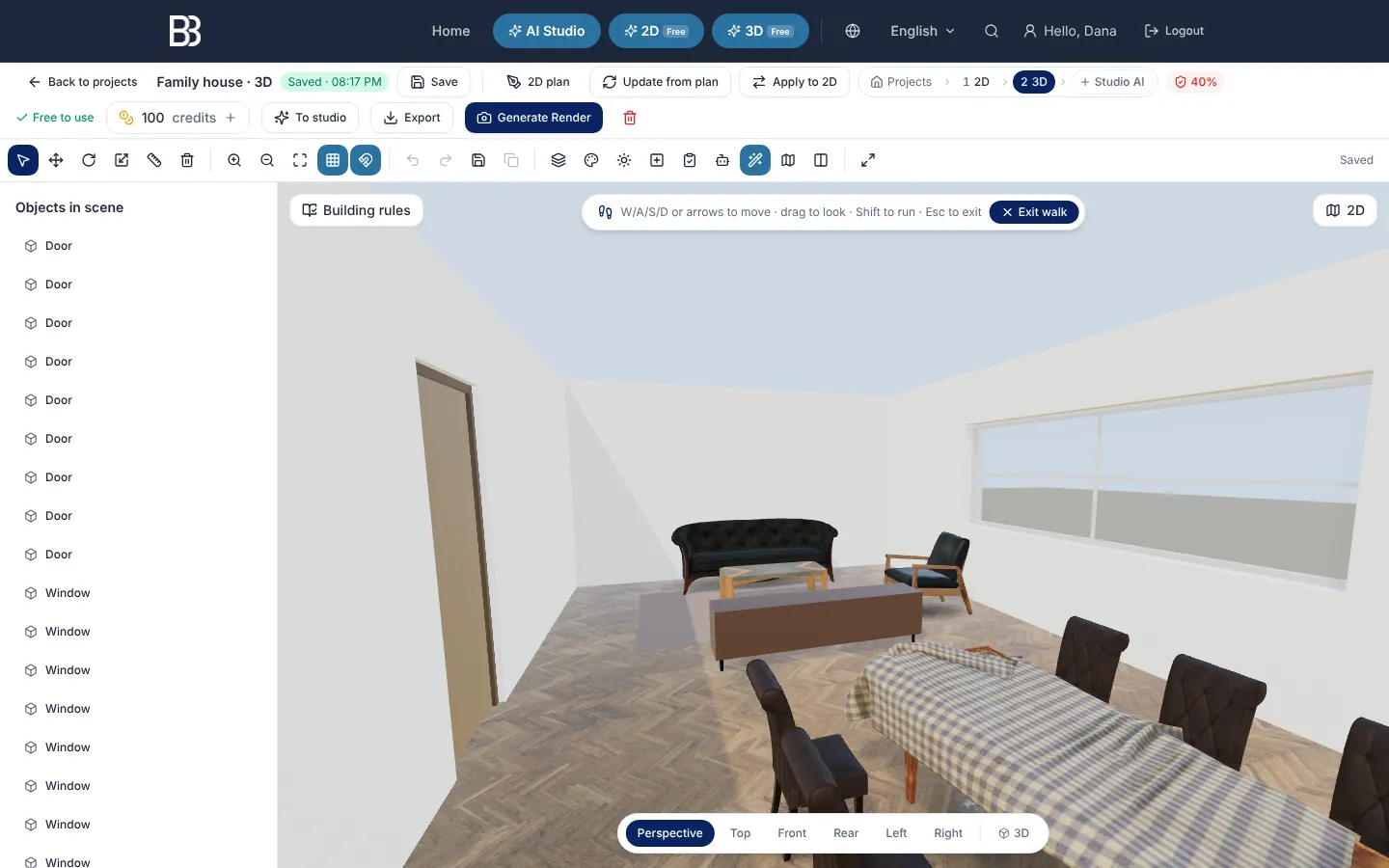
- Walk, export, render Click Walk to explore at eye height, Export for GLB, OBJ or a 360° image, or To studio to send the current view to AI Studio.
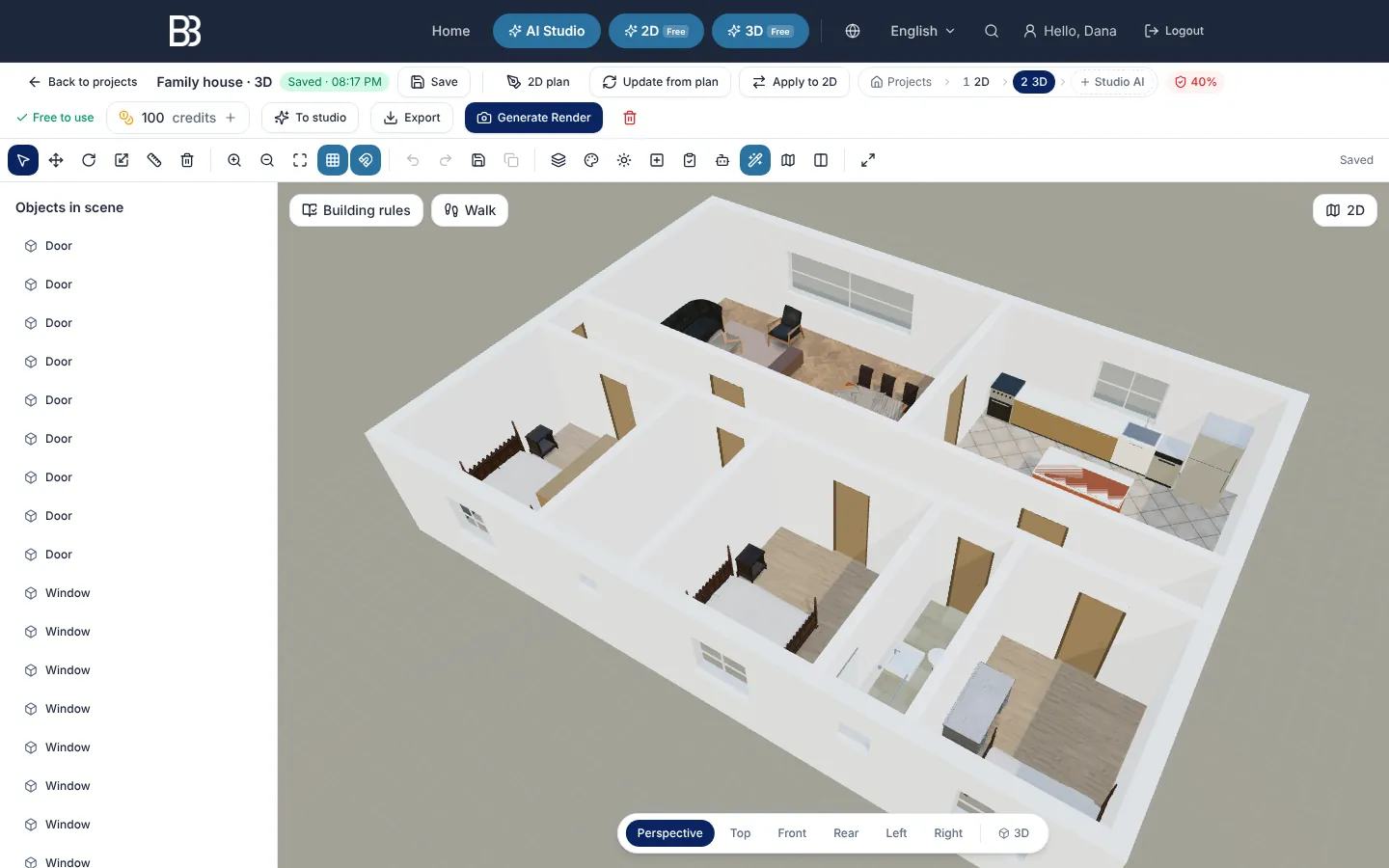
- 2D plan · Update from 2D to 3D · Update from 3D to 2D — Open the source plan, pull plan changes into 3D, or send 3D moves back to the plan.
- To studio — Sends the current view to AI Studio as the source image. Sending is free; generating uses credits.
- Export — glTF (.glb), OBJ (+MTL), 360° image and the 360° gallery.
- Panels — Layers, Materials, Lighting, Add element, QA, AI and Realistic look.
- Objects in scene — Every wall, door, window and piece of furniture. Click one to select it.
- Walk — First-person walk-through at eye height.
- Camera views — Perspective, Top, Front, Rear, Left, Right and a 2D / 3D switch.
Side by side: edit the plan and watch the 3D update
The fastest way to design in 3D is often not to leave the plan at all. In the 2D editor, Side by side: 2D + 3D splits the screen: draw walls, move a door or swap a sofa on the left and the 3D on the right follows a moment later. You can also select and drag furniture in the 3D pane — the edit goes straight into the 2D plan, and one drag is one undo step. The split view needs a wider screen; on a phone, use the 3D preview instead.
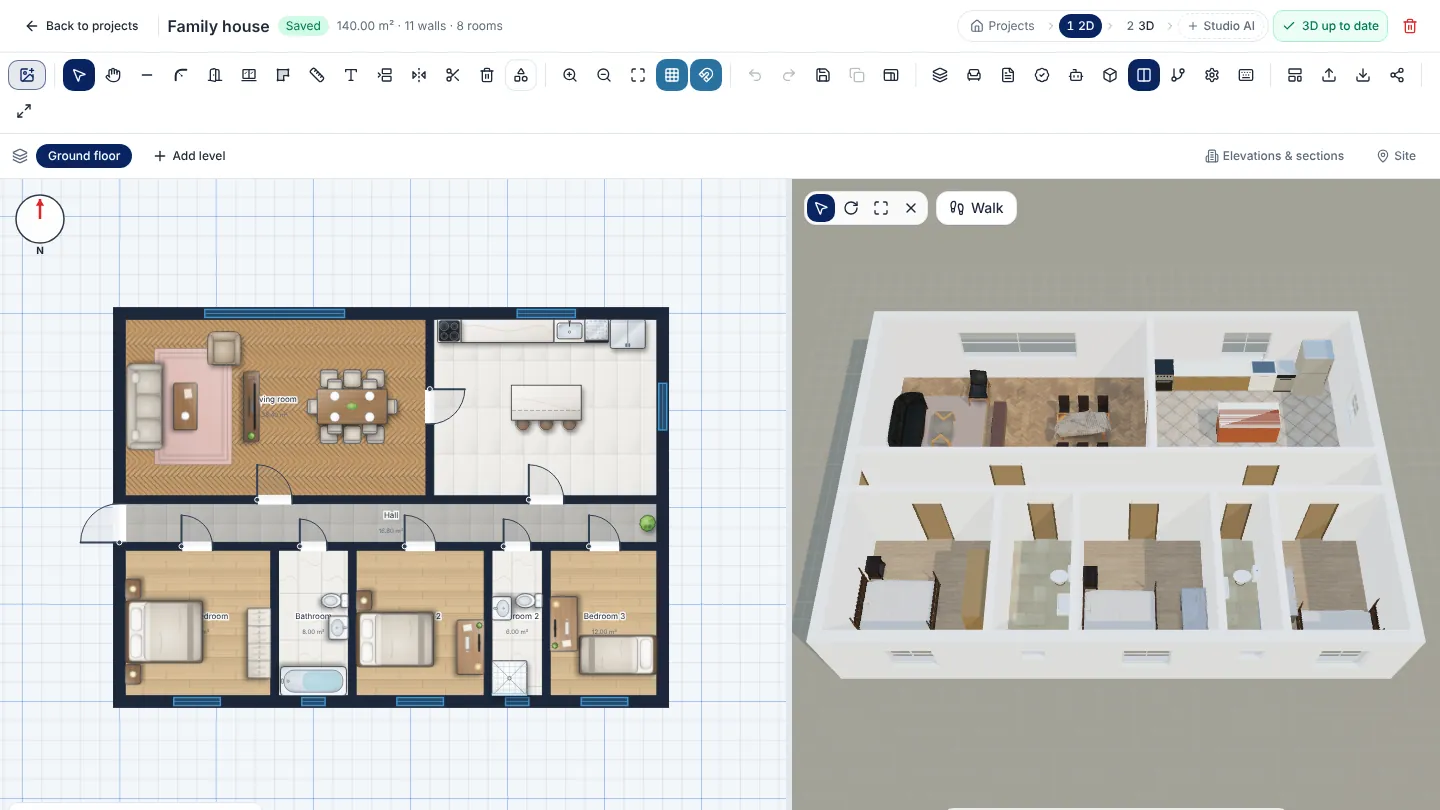
- Flow bar — Projects › 2D › 3D › Studio AI — the steps of one project.
- 3D up to date — The link status. When the plan has changed it reads “3D is out of date — update”.
- Side by side: 2D + 3D — Opens or closes the 3D pane next to the plan.
- 3D pane tools — Select and move, rotate, resize, and close the 3D view.
- Walk — Walk through the model right inside the split view.
- The plan — Every wall, door and item you draw here appears in the 3D.
How the 2D ⇄ 3D link works
| Direction | Button | What moves | What stays as it is |
|---|---|---|---|
| Plan → 3D | Update from 2D to 3D (3D editor) or the 3D is out of date — update chip (2D editor) | Walls, openings, floors and plan furniture are rebuilt from the plan | Items you added only in 3D, and the colours and materials you chose; items you locked in 3D |
| 3D → plan | Update from 3D to 2D (3D editor) or Changes from 3D (2D editor) | Moved, turned or resized furniture; doors and windows moved along their wall; whole walls moved or stretched | Colours, materials, names, height above floor and items added only in 3D — the dialog lists them and says why |
Furnish the model from the 3D library
Open Add element in the 3D editor. The Realistic tab holds real 3D models — sofas, armchairs, tables, beds, storage, lamps, wall decor, plants and outdoor items — from Poly Haven, released as CC0. The other tabs cover architecture, indoor and outdoor items, including kitchens, bathrooms, pools and garden furniture. Click a card to add it, or drag it straight into the 3D view; the size on each card is in centimetres.
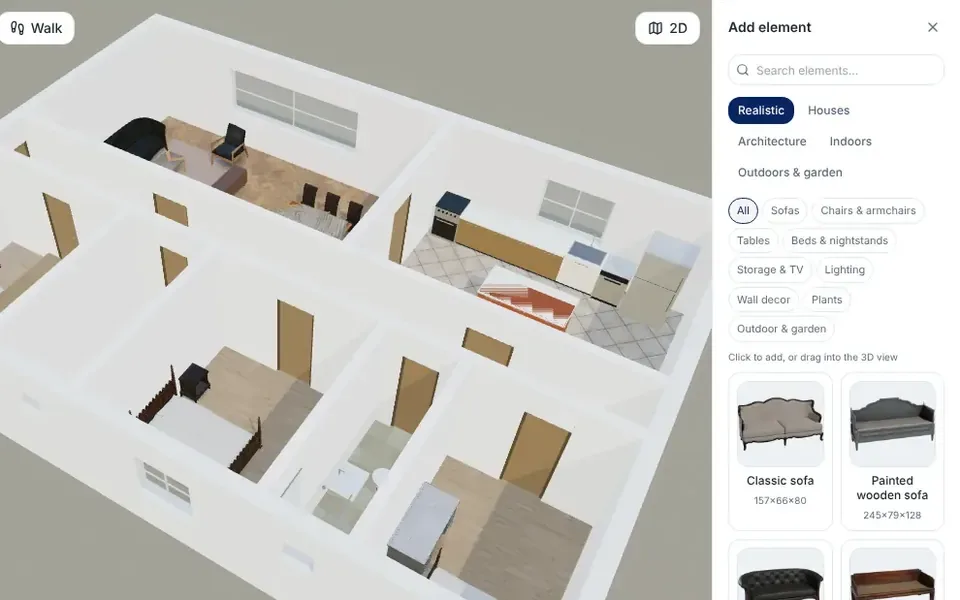
- Sofas, tables and beds stretch the smart way: arms, legs and frames keep their shape and only the middle grows.
- Fabric models can be tinted to any colour while the weave and texture stay; Original removes the tint.
- Height above floor (cm) in Properties lifts a wall cabinet, a mirror or a pendant; PageUp and PageDown do the same from the keyboard.
- Search finds items in your language, so you can type the name you know.
- The library is still growing: some items — many kitchen and bathroom fixtures, for example — are drawn as clean procedural models rather than scanned ones.
Walk through the house
Click Walk on the 3D view. The camera drops to eye height (160 cm): move with W, A, S, D or the arrow keys, drag to look around, hold Shift to go faster and press Esc or Exit walk to return to the orbit view exactly where you left it. On a phone or tablet an on-screen joystick appears. For a guided video-style tour of the model, see the virtual house tour guide.
Export and share the 3D model
| Option | What you get | Use it for |
|---|---|---|
| glTF model (.glb) | One file with the model and its textures, in metres, Y up | Blender, game engines, web viewers |
| OBJ model (+MTL) | Geometry plus a material file with colours | SketchUp, 3ds Max and older programs |
| 360° image | A 4096 × 2048 panorama that 360° viewers recognise | Sharing a room view; Save & share stores it in the 360° gallery with a link |
| Share & view in AR/VR | A link and QR code to place the house on a phone in AR | See view a house in AR and VR |
| To studio / Generate Render | A photorealistic image of the current view | Uses credits — see floor plan to render with AI |
GLB is the binary form of glTF, an open, royalty-free 3D format from the Khronos Group often called “the JPEG of 3D” (glTF). The exported files contain only the model — no grid, lights or selection markers.
Tips for a clean 3D model
- Close every corner in 2D: walls that meet in the plan meet in 3D. The 3D joins small gaps automatically, but a wall drawn far past a corner stays that way.
- Draw doors and windows on a wall, not next to it — only then are they cut into the wall.
- Make heavy layout changes in 2D and fine-tune furniture in 3D; then use Update from 3D to 2D so the plan, the sheet and the schedules stay correct.
- Click Save (or Ctrl+S) after a big change — the chip next to it shows when the scene was last saved.
- Use the 3D to check, not to build: the plan and its dimensions are the reference, and AI renders are visualisations, not construction drawings.
Turn your plan into 3D now Open the 2D editor, draw or import your plan and click Create linked 3D. It's free. Open the 2D dashboard
Frequently asked questions
Can I convert a 2D floor plan to 3D for free?
Yes. Creating the 3D model from a plan drawn or traced in ArchHomeAI, updating it, furnishing it, walking through it and exporting GLB, OBJ or 360° images are free. Only AI actions, such as an AI reading of a plan image or a photorealistic render, use credits.
If I change the 2D plan, do I have to rebuild the 3D model?
No. The model stays linked to the plan. Click Update from 2D to 3D in the 3D editor (or the out-of-date chip in the 2D editor): walls, openings, floors and plan furniture are updated, and what you added in 3D — and the colours and materials you chose — stay.
Do changes I make in 3D go back to the 2D plan?
Yes, with your approval. Update from 3D to 2D lists every change — for example “Sofa: moved 50 cm” — and writes it into the plan only when you click Apply to the plan. Colours, materials, heights above the floor and items added only in 3D are not sent, and the dialog says so.
Can I turn a photo or PDF of a floor plan into 3D?
Yes. Trace it free with Underlay in the 2D editor, or use Upload Blueprint or Photo in the 3D dashboard: the free reading builds walls, rooms, doors and windows from the drawing; the optional AI Analysis adds room names and furniture and uses credits. Check the overall width afterwards — accuracy depends on the quality of the drawing.
Which 3D formats can I export?
glTF binary (.glb) with textures, OBJ with an MTL colour file, and a 4096 × 2048 360° JPEG. For augmented reality, Share & view in AR/VR creates a link and QR code for iPhone and Android.
Does it work on a phone or tablet?
Yes. The 3D editor works with touch, and walking uses an on-screen joystick. The side-by-side 2D + 3D view needs a wider screen, so on a phone use the 3D preview or open the 3D editor.
Sources
How we wrote this guide: every figure comes from the sources listed at the end and was checked in September 2026. Prices vary by city, specification and year.
- glTF — Wikipedia
- About Poly Haven — all assets are CC0 — Poly Haven