
ArchHomeAI works in three linked steps: draw the floor plan in the free 2D editor, open it as a 3D model with one click (also free), then send any view to AI Studio for photorealistic renderings, which use credits — your balance is always shown in the credit counter at the top of the site. This guide walks through every step with real screenshots, for architects and for people who have never drawn a plan.
Key takeaways
- 2D → 3D → Studio is one project: the flow bar at the top of each editor jumps between the three steps and keeps them linked.
- Drawing, the 3D model, the walk-through and the exports are free; only AI actions (renders, reading a plan from an image, AI edits, video) use credits, and your balance is always shown in the credit counter at the top of the site.
- No CAD experience needed: start from the sample project or a template — or trace your existing plan with Underlay.
- Architects get CAD-style commands (W, DI, MI…), levels, a quality check, an architectural sheet and DXF, PDF and IFC export.
- Check every AI image before you use it: renderings are visualisations, not construction drawings.
- Draw in 2D — Walls, doors, windows, rooms, furniture and floors at real size. Free.
- See it in 3D — One click builds a linked 3D model you can walk through. Free.
- Render in AI Studio — Turn any view into a photorealistic image. Uses credits.
Looking for one specific button? The button glossary explains every button of the 2D, 3D and Studio screens.
Who this guide is for — and where to start
| You are… | Start with | Then |
|---|---|---|
| A private user with no experience | The sample project or a template in the 2D dashboard | Change sizes, add furniture, open 3D, render one view in the Studio |
| An architect or designer | Underlay (your PDF or scan) or Import (DXF, DWG, IFC, PDF) | Trace or clean up, check with QA, export DXF/PDF/IFC, render for the client |
| Renovating a room or a facade | AI Studio with a photo of it | Describe the new look, compare before and after, refine with Quick edits |
Part 1 — The 2D dashboard: draw a professional floor plan
Open 2D in the top menu (or go to the 2D dashboard) and click New Project. Everything happens on one screen:
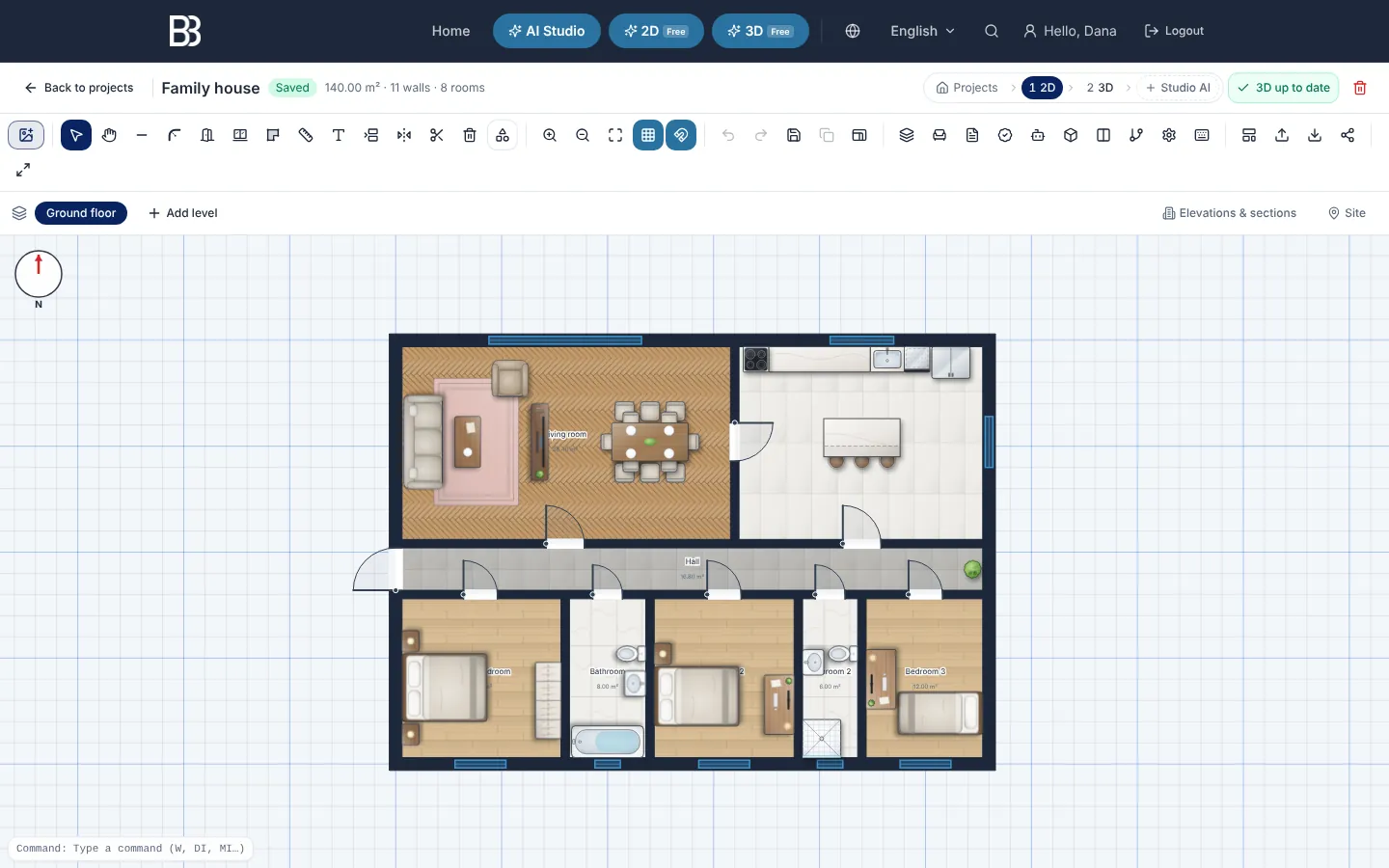
- Project flow bar — Projects › 2D › 3D › Studio AI. It shows where you are; a dashed step with + creates that step from this plan.
- Underlay — The first button: put a scan, photo or PDF of an existing plan under the drawing and trace it.
- Drawing tools — Select, Pan, Wall, Round corner, Door, Window, Room, Dimension, Text, Offset, Mirror, Trim and Delete.
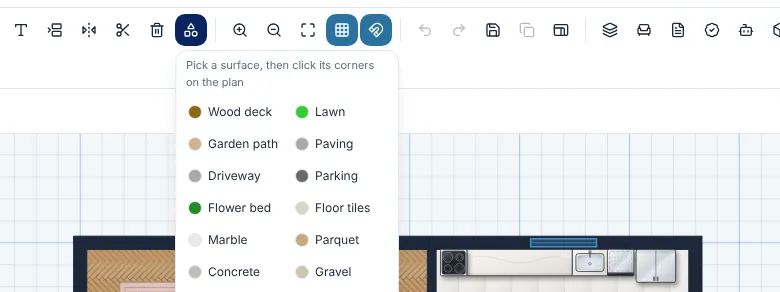
- Draw surface — Decks, lawn, paths, paving, parking, flower beds and floor finishes, drawn point by point.
- View — Zoom, fit the whole plan, grid and snap (the magnet).
- Panels — Layers, Add element, Schedules, QA, AI, 3D preview, Side by side, Versions and Settings.
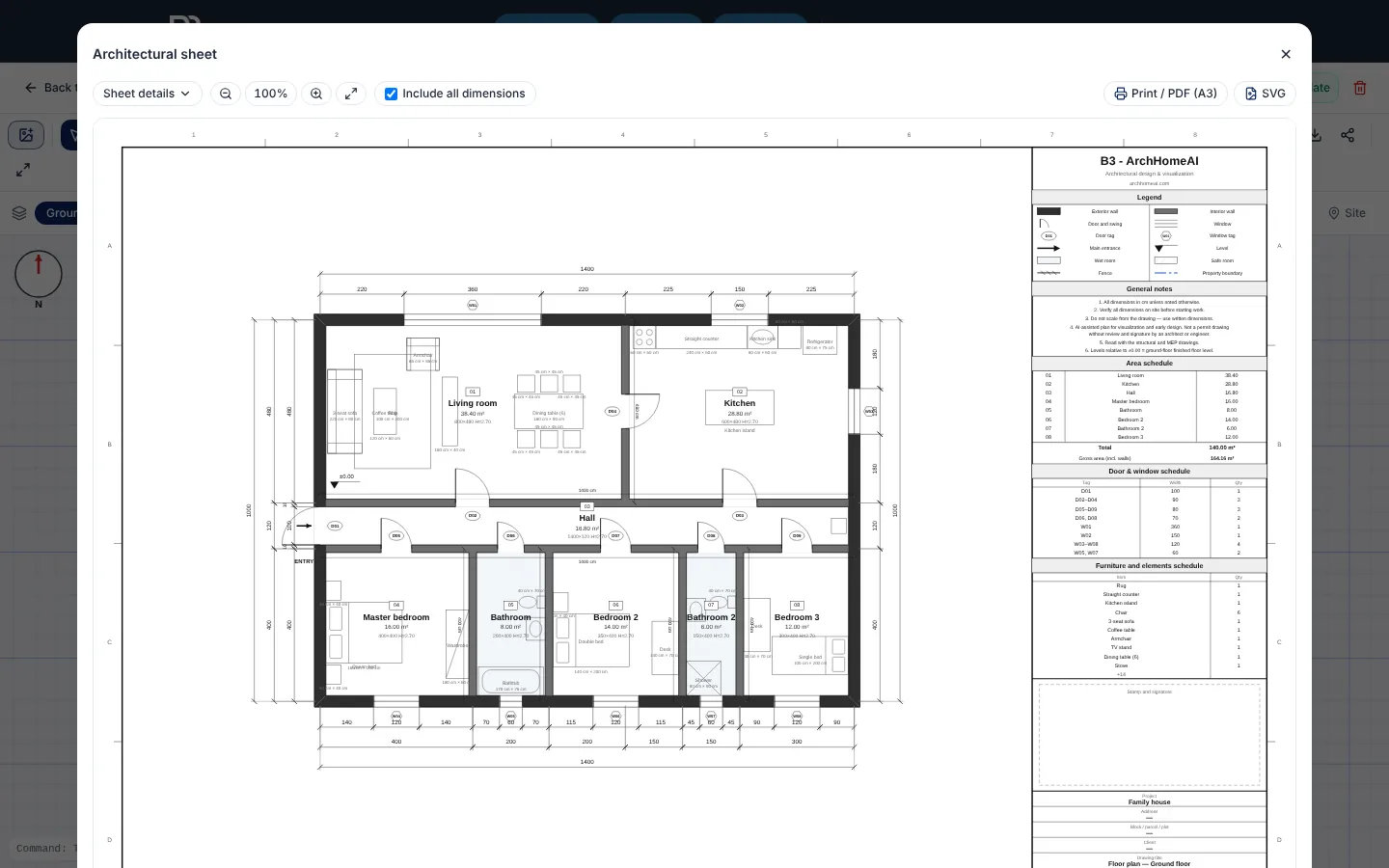
- Files — Architectural sheet, Import, Export, Share and Full screen.
- Levels — Each floor is a level; Add level creates an upper floor or a basement.
- Elevations and Site — Automatic elevations and sections; the plot, the address, north and the sun.
- The plan — Drawn at real size. Click to select, drag to move, scroll to zoom.
- Command line — Type a CAD command such as W (wall), DI (dimension) or MI (mirror).
Step by step: from an empty page to a finished plan
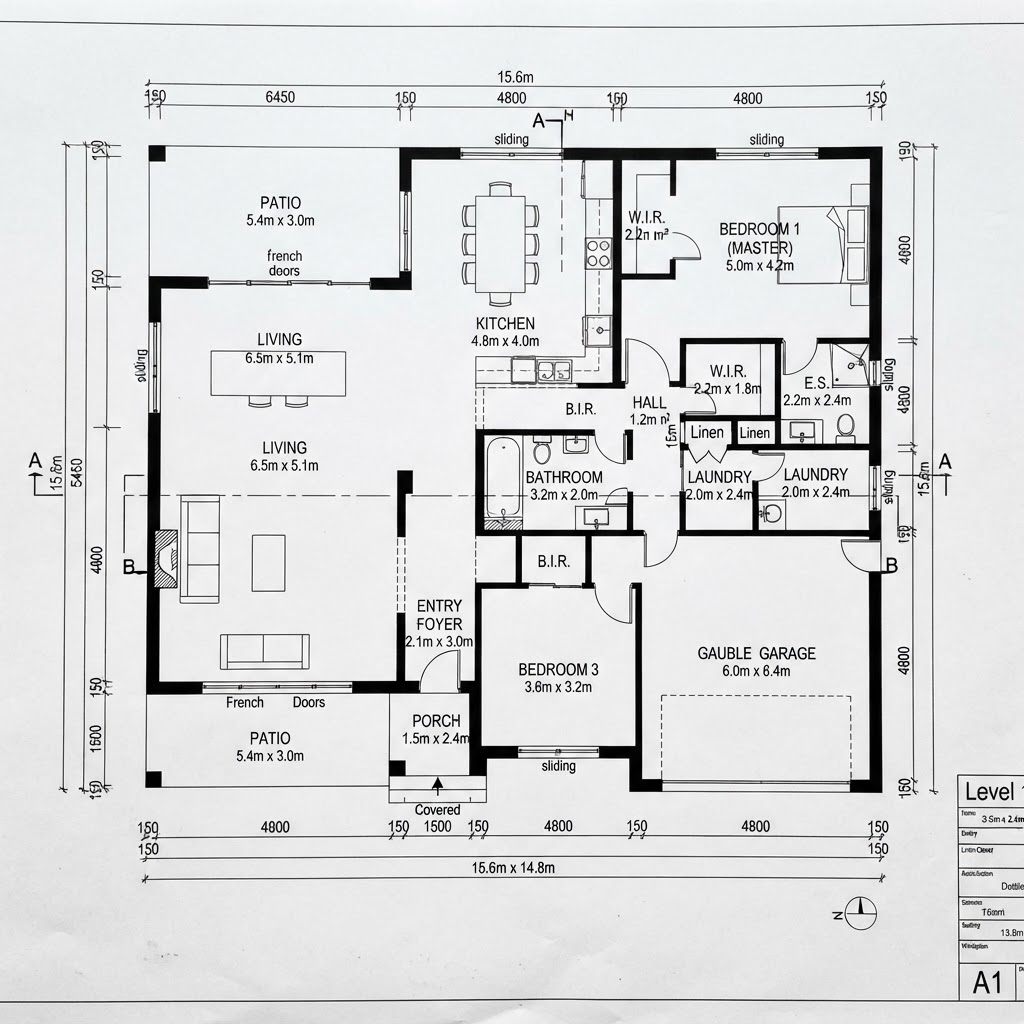
- Create the project Click New Project in the 2D dashboard. Start empty, from a template, or open the sample project — a furnished 140 m² house — to explore.
- Load your existing plan (optional) Click Underlay, the first highlighted button, upload a scan, photo or PDF and set the scale from one known distance. It is only a background and costs nothing.
- Draw the walls Press W or click Wall, then click once at every corner; the length follows the cursor. Double-click or press Esc to finish. Double-click a wall's end handle to continue from it.
- Round corners and curve walls With Round corner, click where two walls meet. Select any wall and drag the white diamond in its middle to bend it; type the exact Arc depth or Radius in Properties.
- Add doors and windows Choose Door (D) or Window (N) and click on a wall. Drag an end to change the width (5 cm steps); the opening side and sizes are in Properties.
- Make the rooms With Room (R), click two opposite corners: you get a room with its walls, name and area. Rename it and set its type in Properties; areas appear in Schedules.
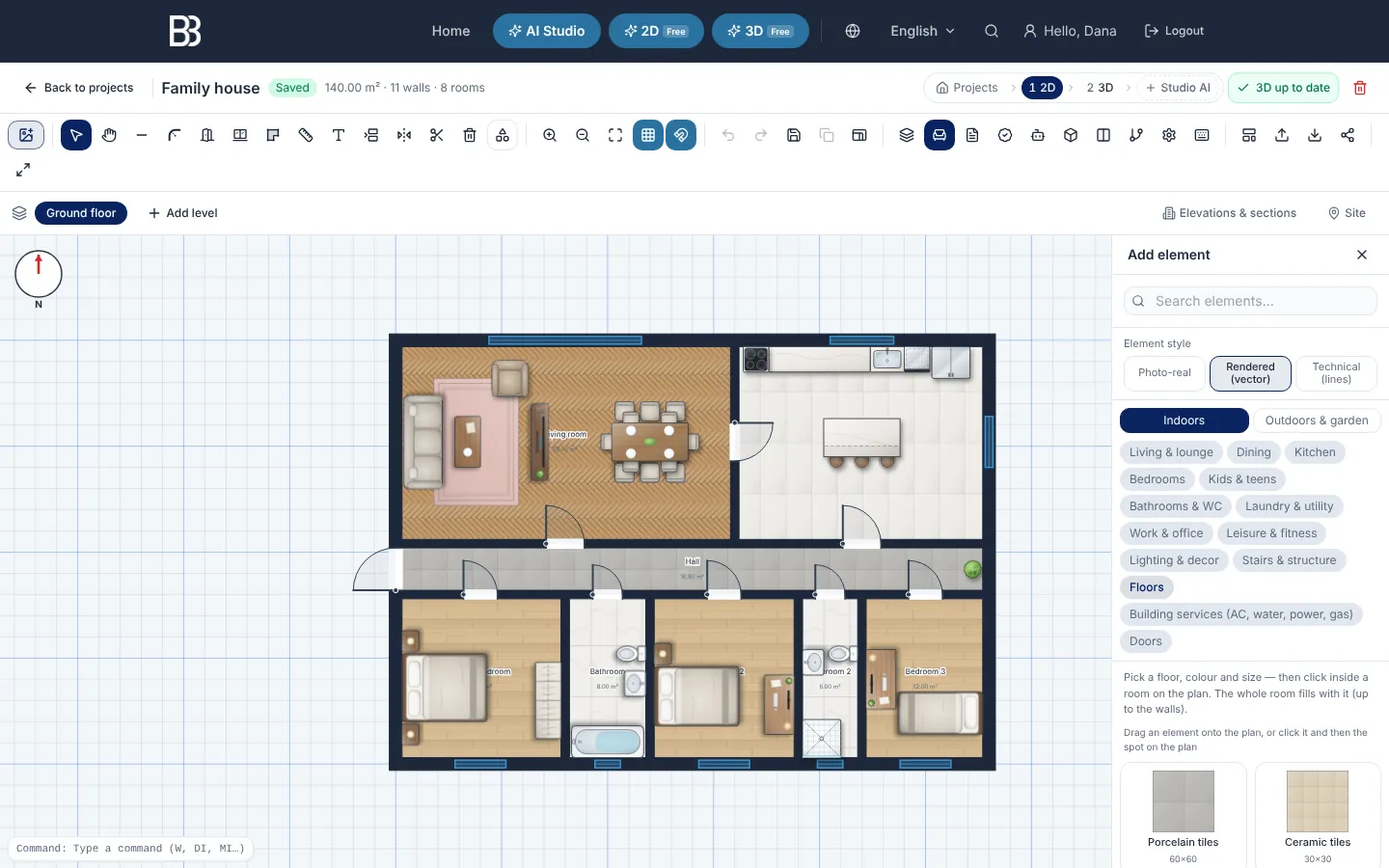
- Furnish and finish Open Add element for furniture, kitchens, bathrooms, stairs, lighting and garden items. In the Floors group pick tiles, parquet, marble or microcement and click inside rooms to lay it at real scale.
- Plan the outdoors Draw surface draws decks, lawn, paths, paving, driveways, parking, flower beds and gravel point by point. Site adds the plot boundary, the address and true north.
- Measure and annotate Dimension (DI) adds measured lines and Text (T) adds notes. The wall and plot dimensions button shows or hides every wall size at once.
- Check and publish QA lists issues against the rule profile chosen in Settings — a preliminary check, not a permit review. The Architectural sheet gives a print-ready A3 sheet, and Export saves PDF, DXF, IFC, SVG, PNG or CSV.
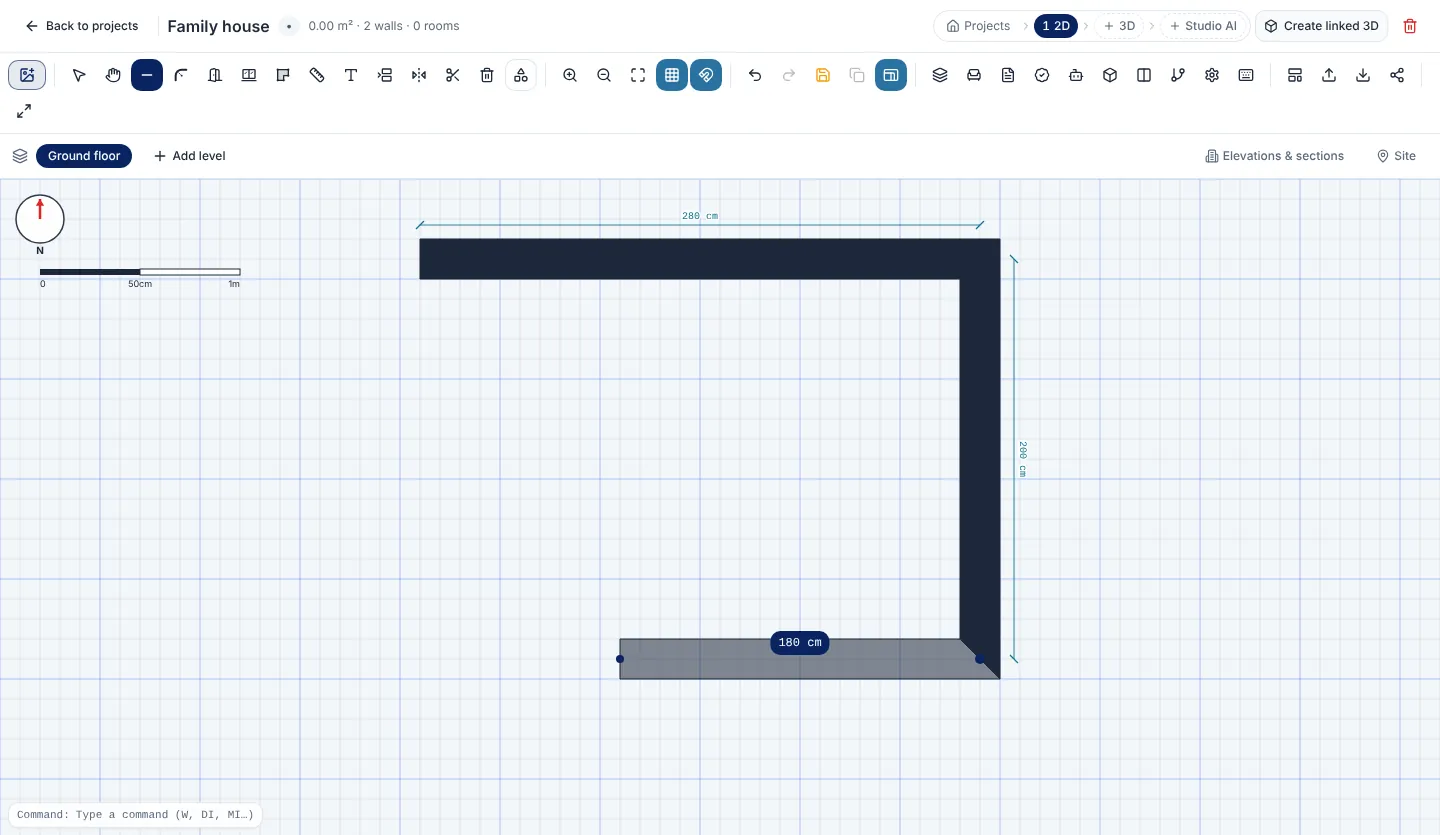
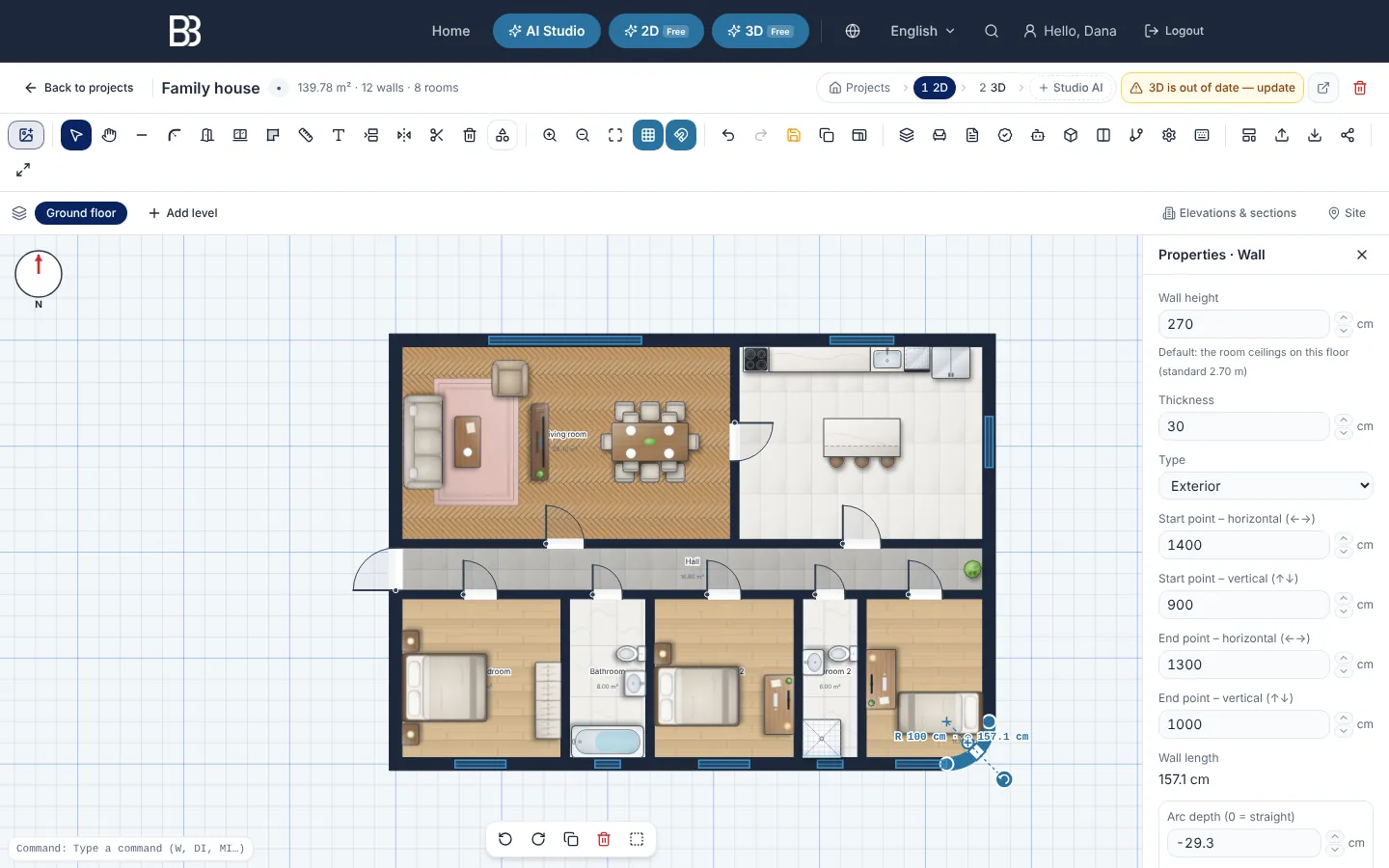
- Round corner — Click the tool, then click a corner where two walls meet.
- The arc — R is the radius, ⌒ the arc length. Drag the white diamond to change it.
- Properties — Arc depth, radius and Make straight, with ▲▼ steppers.
- Selection bar — Rotate, duplicate or delete what you selected.
Part 2 — The 3D dashboard: see and walk through the design
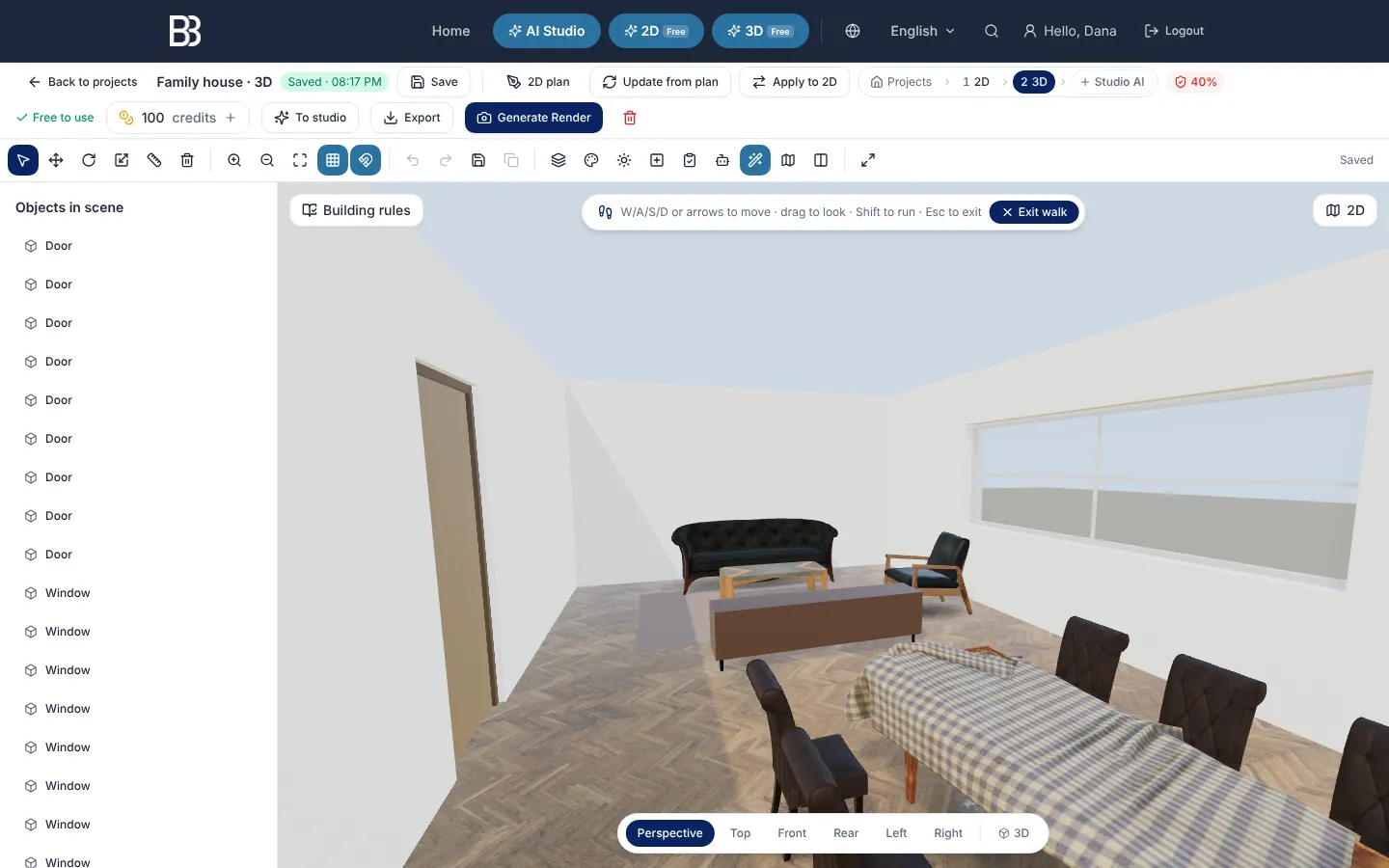
When the plan looks right, click 3D in the flow bar (or Create linked 3D). ArchHomeAI builds the model from your plan — walls with real openings, floors with their finishes, stairs and furniture — and keeps it linked: when the plan changes, Update from 2D to 3D brings the changes in without losing what you added in 3D.
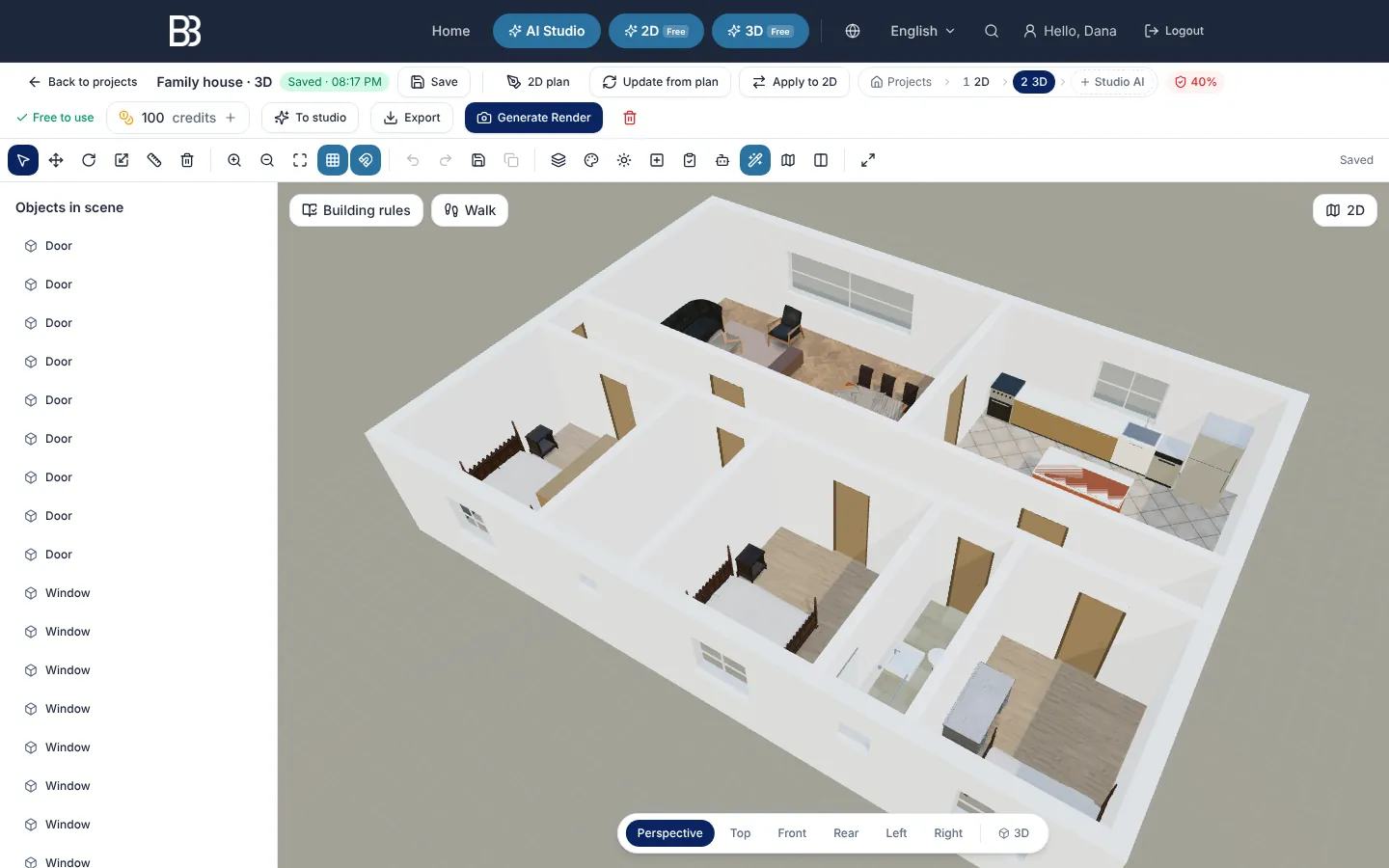
- Flow bar — Back to 2D, or on to the Studio.
- Plan links — 2D plan opens the plan, Update from 2D to 3D pulls plan changes, Update from 3D to 2D sends 3D moves back to the plan.
- To studio — Sends the current view to AI Studio as the source image. Sending is free.
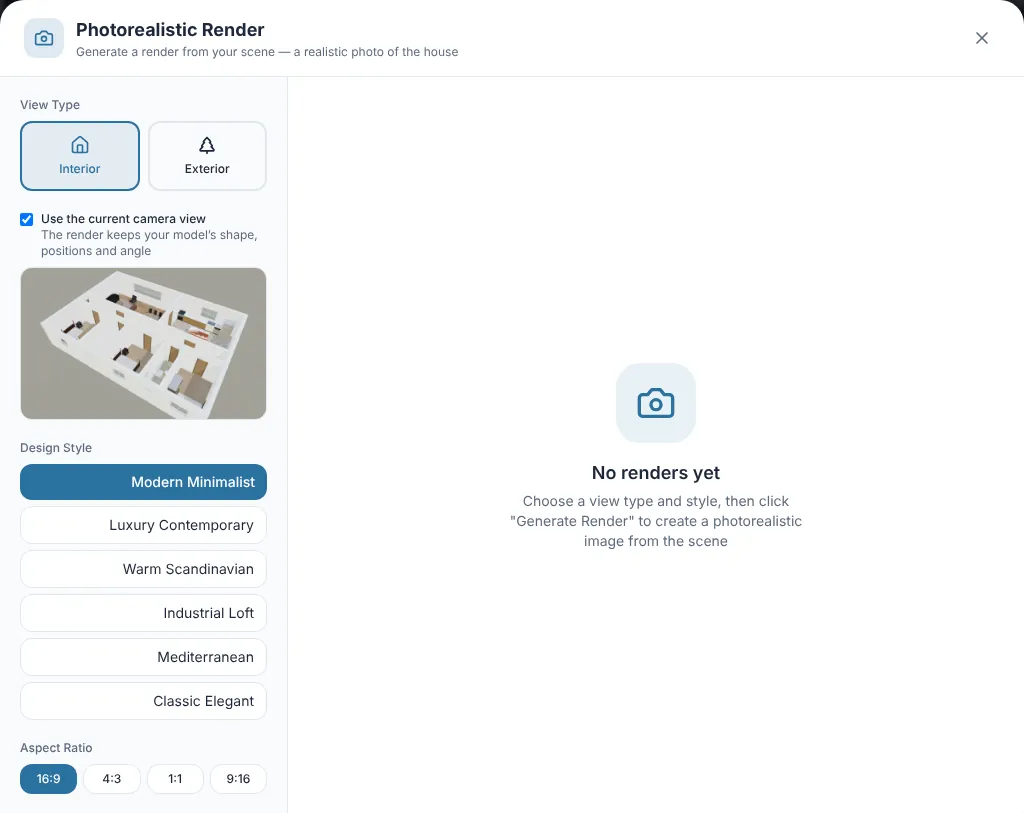
- Generate Render — A photorealistic render of this view in the style you choose. Uses credits.
- Tools — Select, Move, Rotate, Resize, Measure and Delete. Press on an object and drag to move it.
- Panels — Layers, Materials, Lighting, Add element, QA, AI, Realistic look, 2D plan, Side by side and Properties.
- Objects in scene — Every wall, door, window and piece of furniture. Click to select, hide what is in the way.
- Building rules and Walk — The rules that apply to the plot, and a walk-through at eye height.
- Camera views — Perspective, Top, Front, Rear, Left, Right and a 2D / 3D switch.
- The model — Drag to orbit, scroll to zoom, right-drag to pan.
- 2D — Back to the professional 2D plan; 3D changes not yet in the plan are offered first.
- Open the 3D In the 2D editor click 3D in the flow bar or Create linked 3D. It is free and takes a few seconds.
- Look around Drag to orbit and scroll to zoom, or pick Top, Front or Perspective under the model.
- Make it realistic Realistic look swaps simple shapes for real furniture models. Materials puts plaster, brick, stone, wood or tiles on the wall or floor you select; Lighting adjusts the lights.
- Add and move things Add element has realistic sofas, beds, tables, plants and outdoor items. Press on any object and drag to move it; Rotate and Resize work the same way.
- Walk through Click Walk: move with W, A, S, D or the arrow keys, drag to look around, hold Shift to run and press Esc to leave.
- Keep 2D and 3D in step Moved a sofa or a door in 3D? Update from 3D to 2D writes it into the plan after you approve. Changed the plan? Click Update from 2D to 3D.
- Export or share Export downloads a GLB or OBJ model (for Blender, SketchUp and other programs) or a 360° image you can share with a link — free.
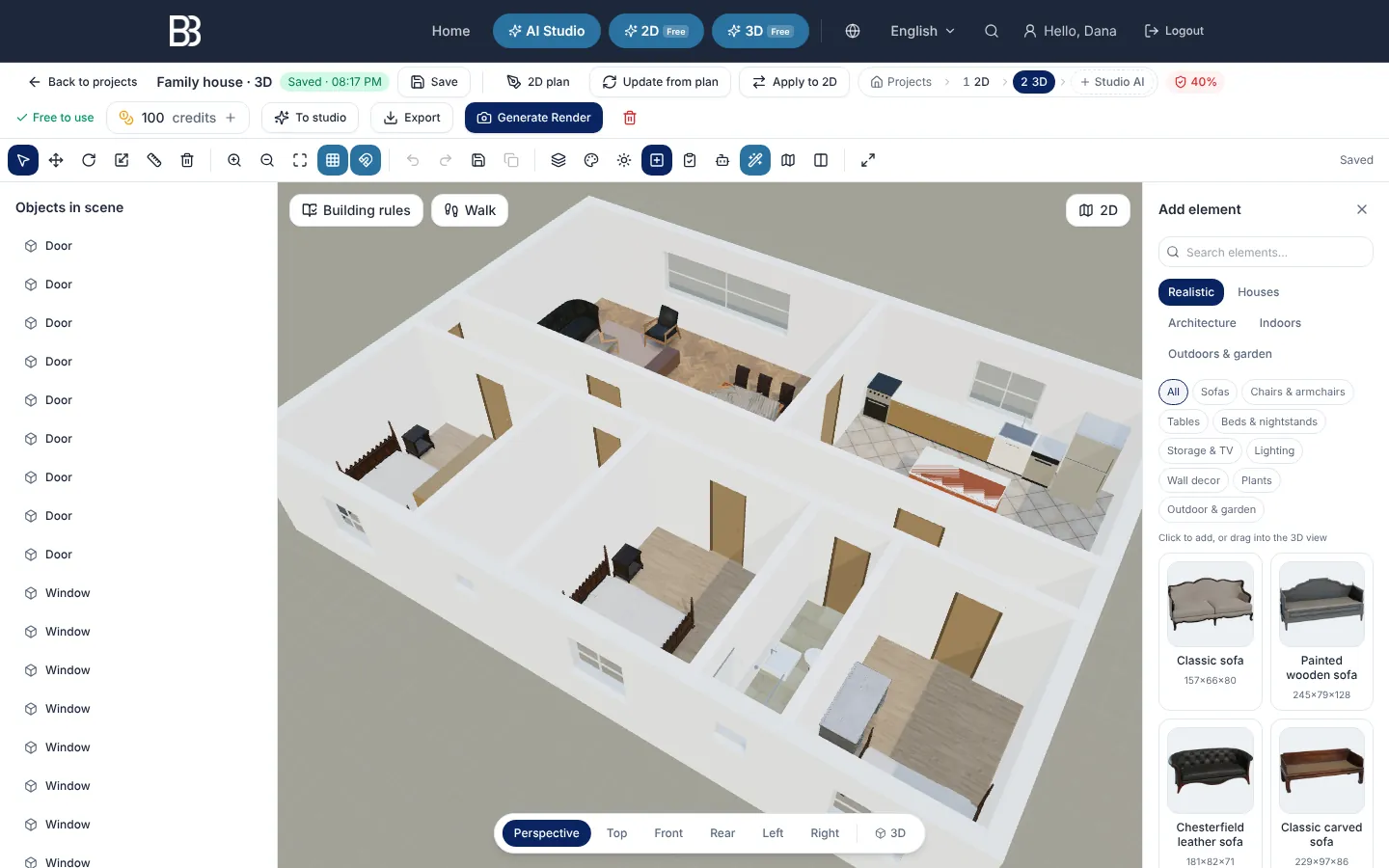
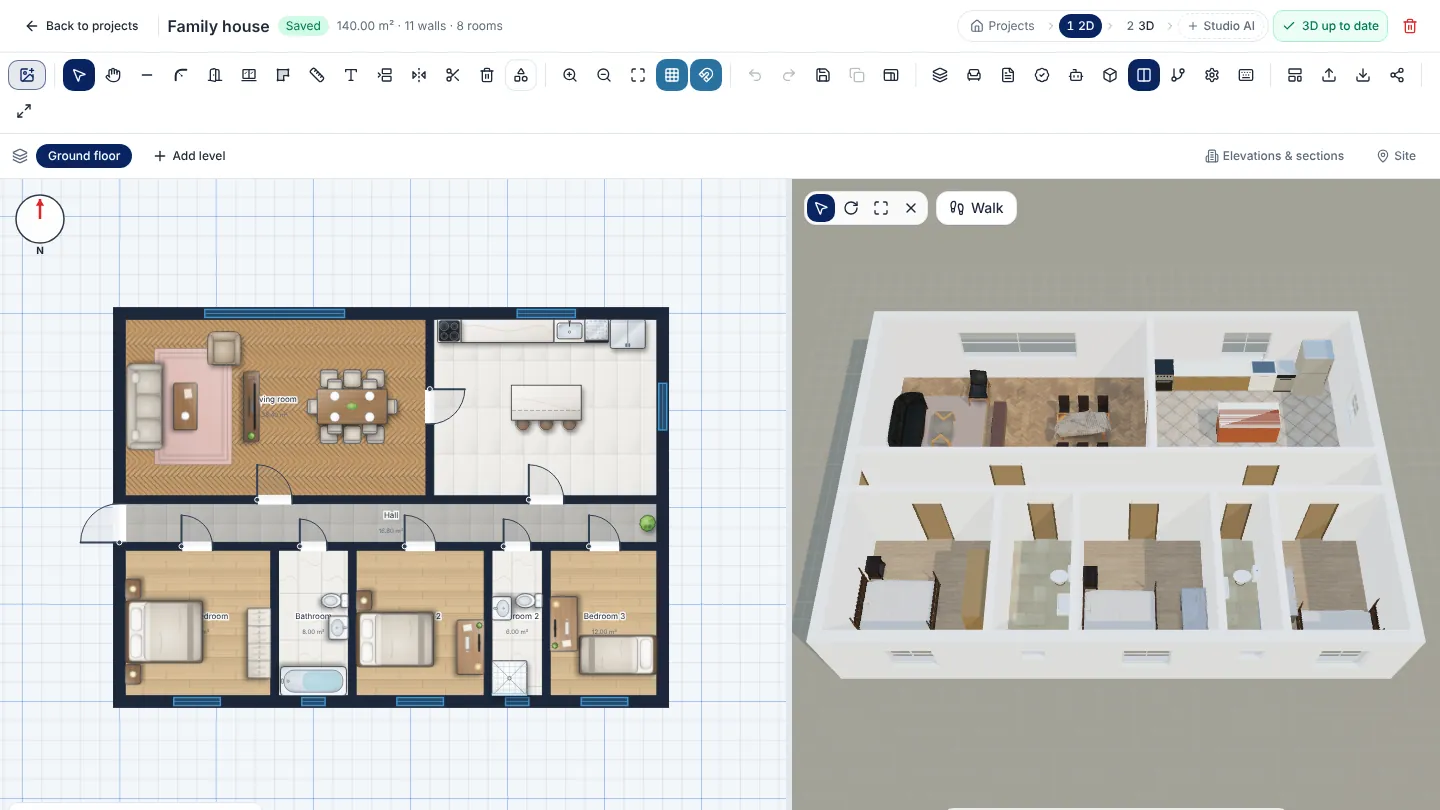
Side by side: edit in 2D, watch it in 3D
In the 2D editor, Side by side: 2D + 3D splits the screen: draw on the left and watch the 3D update on the right. You can also click and drag furniture in the 3D pane — the plan follows, and one drag is one undo step. The split view needs a larger screen; it is not available on phones.
Part 3 — AI Studio: from the model to a stunning photorealistic image
AI Studio turns a 3D view, a photo or a sketch into a photorealistic rendering. In the 3D editor click To studio: the current view becomes the source image and the project stays linked in the flow bar. You can also open AI Studio from the top menu and start with your own photos.
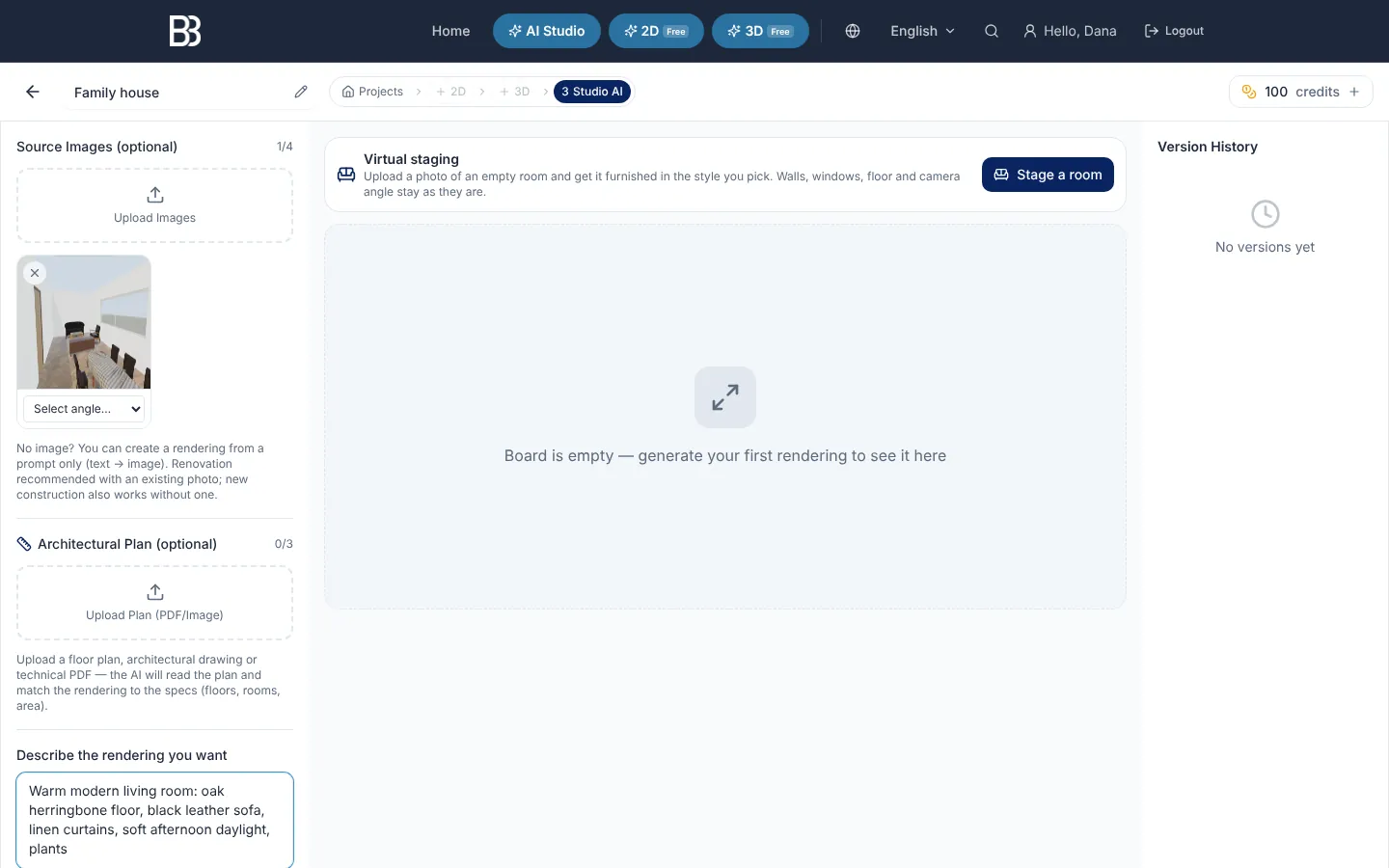
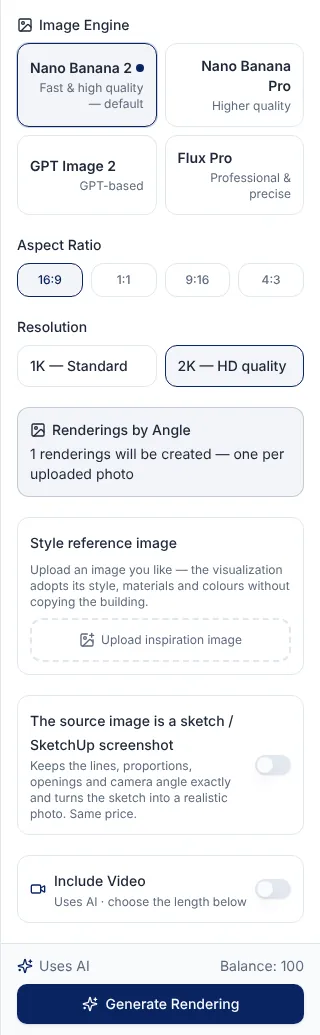
- Source images — Up to four photos or 3D views; one rendering is made per image.
- Angle — Tell the AI what each image shows: front, rear, interior and so on.
- Architectural plan — An optional PDF or image of the plan, so the rendering matches the rooms, floors and areas.
- Description — Describe the result: style, materials, light, season. Enhance prompt improves it for free.
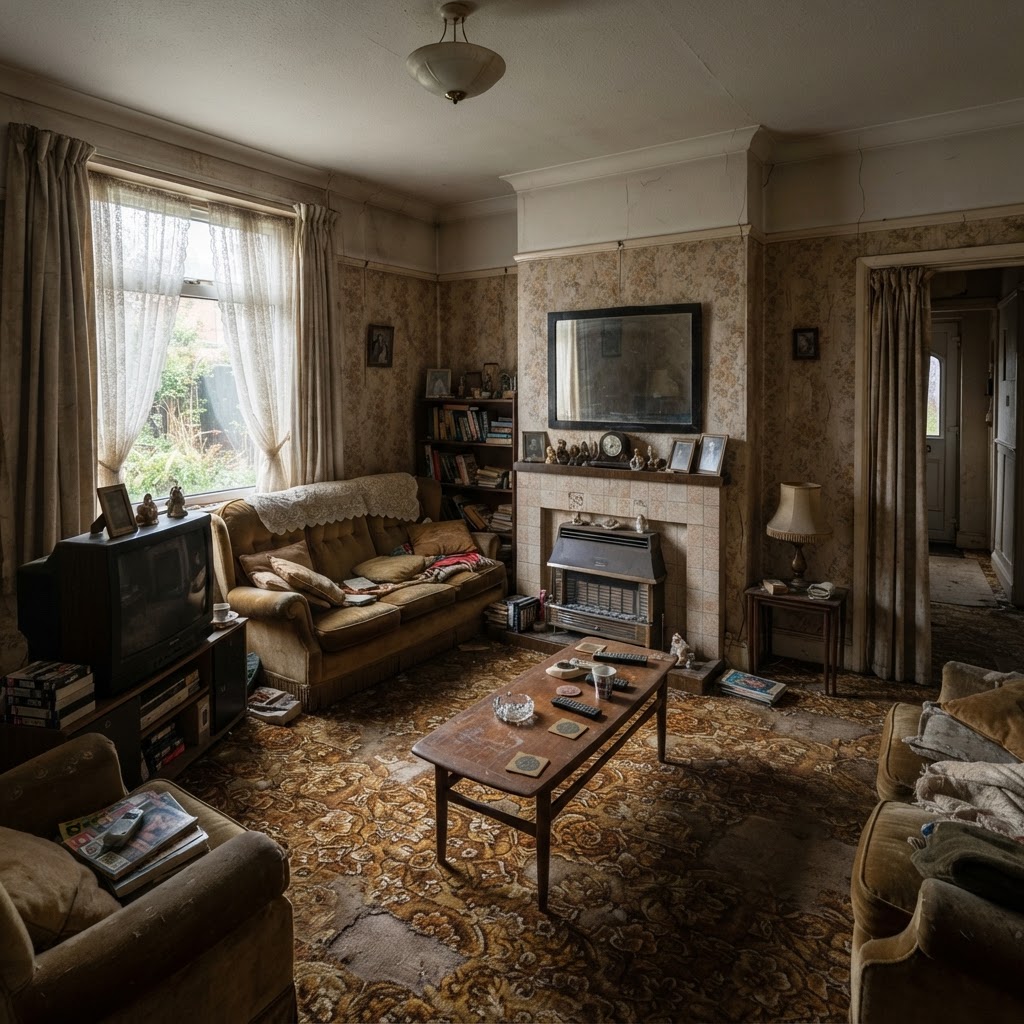
- Virtual staging — Furnish a photo of an empty room in the style you pick; walls, windows and the camera angle stay.
- Board — Your renderings appear here, with a before and after slider.
- Version history — Every generation is saved as a version: mark it as a favourite or as final, or delete it.
- Flow bar — The Studio is step 3 of the same project — jump back to 2D or 3D.
- Credits — Your balance, shown at all times. Every action that used credits is listed in the usage history in your personal area.
- Send a view or upload photos Use To studio in the 3D editor, or Upload Images / Take a photo. Exteriors and interiors both work.
- Describe what you want Write a few concrete lines: style, materials, colours, light and surroundings. Add a Style reference image if you have a look you love.
- Choose the settings Under the description: image engine, aspect ratio (16:9, 1:1, 9:16 or 4:3) and resolution. Turn on the sketch / SketchUp switch for line drawings, or Include Video for a short clip.
- Generate Click Generate Rendering. It uses credits, and the result appears on the Board.
- Compare and refine Drag the before and after slider. Edit repaints only the area you brush, Quick edits changes the time of day, season or sky in one click, and Upscale to 4K sharpens the final image. Each change is saved as a new version.
- Deliver Download or Share an image, mark the version as final, or turn your best images into a Project film.
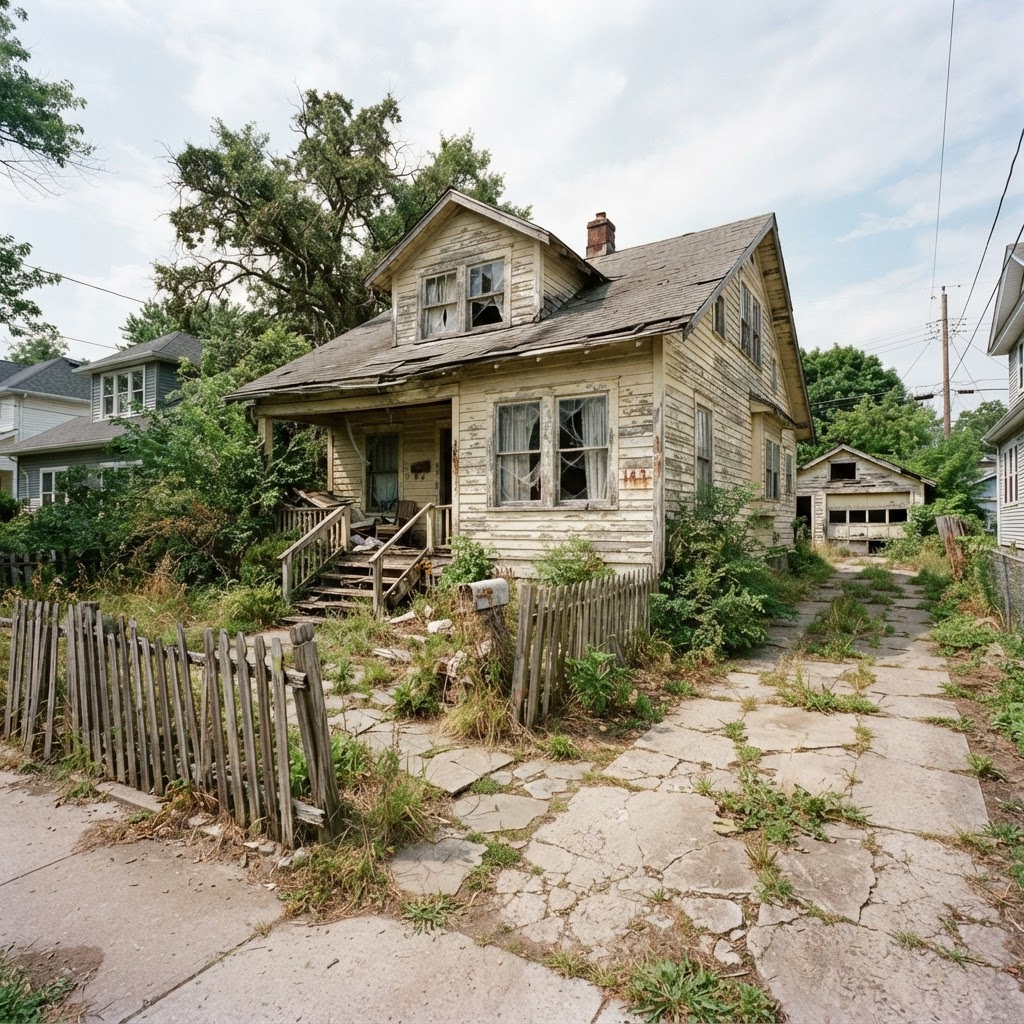
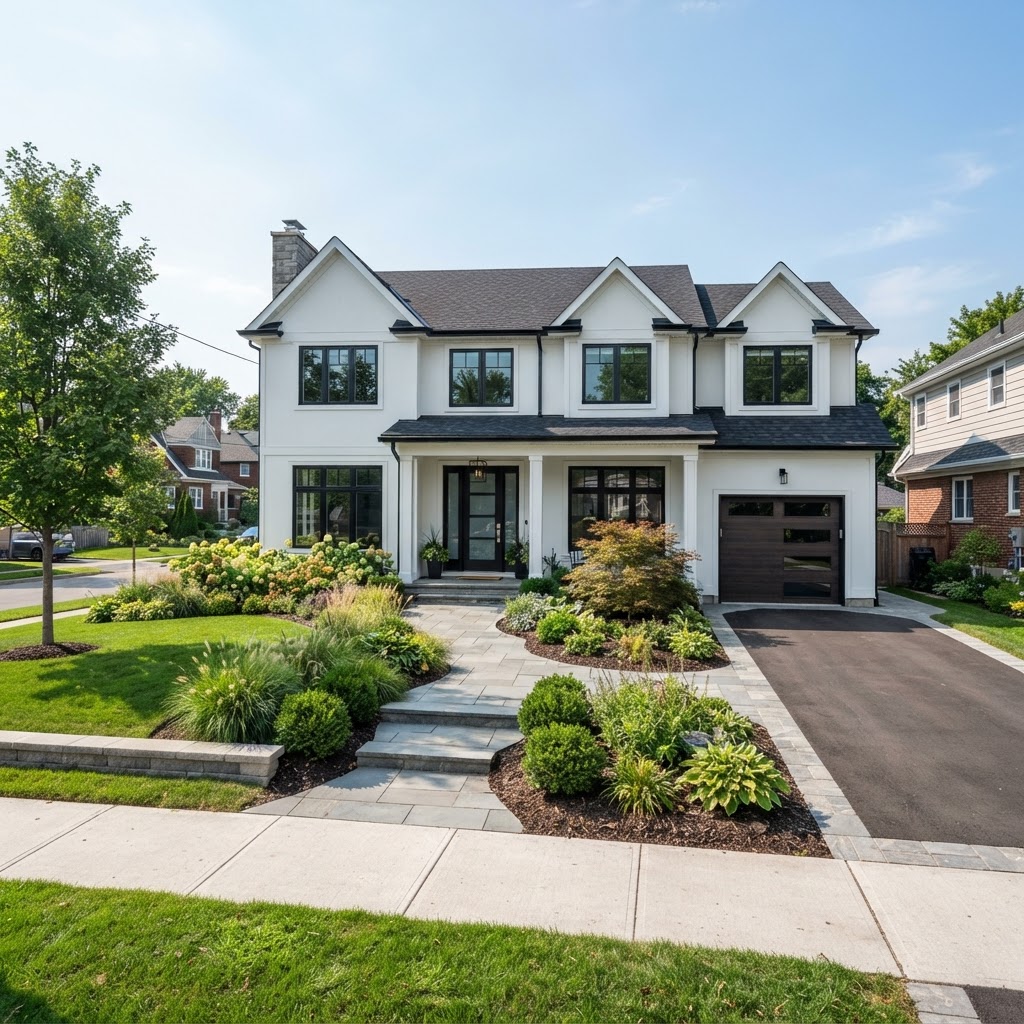
Real results made with ArchHomeAI
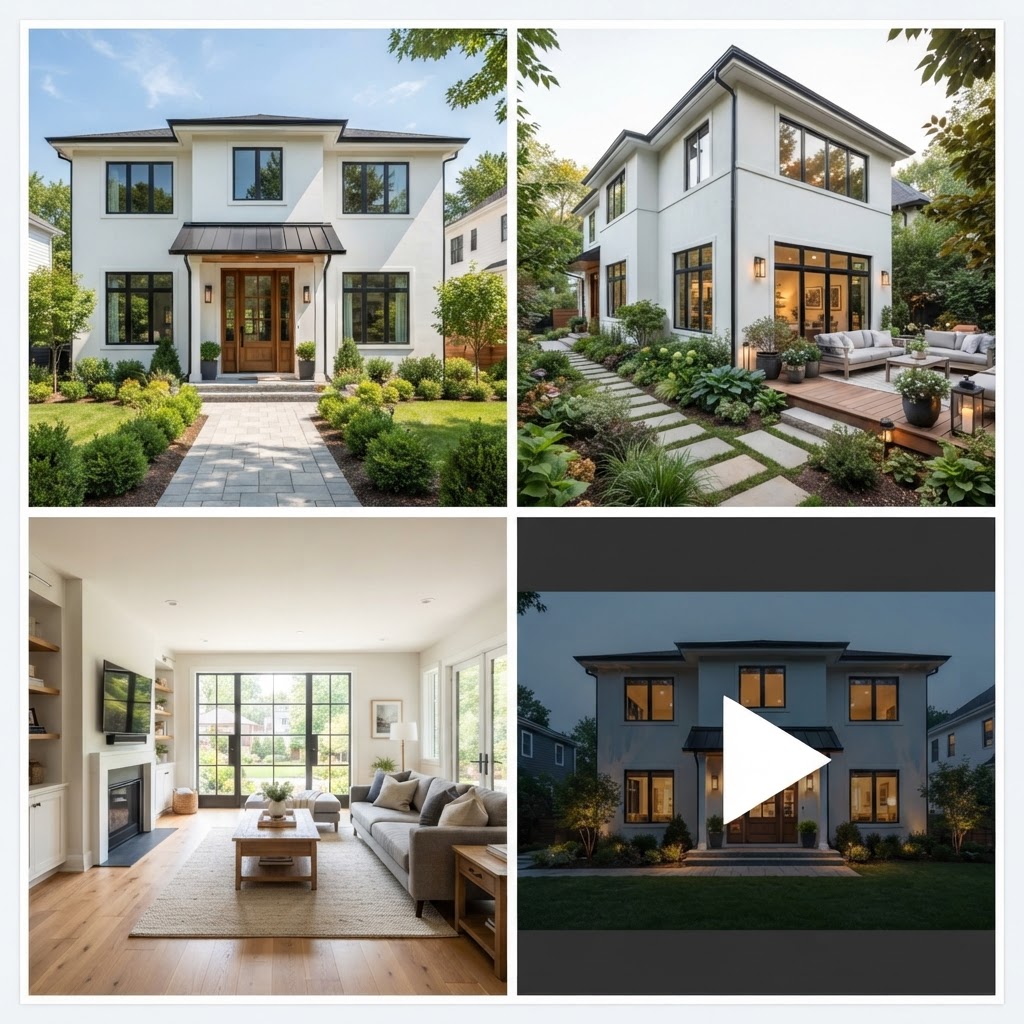
Tips for a professional result
- Draw the walls first, then doors and windows, then rooms and furniture — each snaps to what is already there.
- Set the units and the area standard in Settings before you start measuring.
- Pick the camera angle in 3D before you render: eye height for interiors, slightly above the garden for exteriors.
- Describe materials and light concretely ("white plaster, oak floor, late-afternoon sun") rather than "beautiful".
- Use the before and after slider to check that the AI kept your windows, doors and proportions.
Cheat sheet: architects and first-time users
| Step | Architect or designer | Private user, no experience |
|---|---|---|
| Start | Underlay or Import (DXF, DWG, IFC, PDF) | Sample project or a template |
| Plan | CAD commands, dimensions, levels, QA | Drag walls, Add element, Floors |
| 3D | Linked model, materials, Update from 3D to 2D | Realistic look, Walk |
| Studio | Renderings per angle with the plan uploaded | One view, a clear description, Quick edits |
| Deliver | Architectural sheet, drawing set, DXF / IFC / PDF | Download and share images, Project film |
Ready? Start with the 2D plan It's free, and you don't need any CAD experience. Open the 2D dashboard
Frequently asked questions
Is ArchHomeAI free to use?
Drawing in 2D, the 3D model, the walk-through and the exports are free. AI actions — renderings, reading a plan from an image, AI edits, upscaling and video — use credits. Your balance is shown at all times in the credit counter at the top of the site, and every action that used credits is listed in the usage history in your personal area.
Do I need CAD or design experience?
No. Start from the sample project or a template, change sizes by dragging and use Add element for furniture. Architects can work faster with CAD commands, Underlay tracing and DXF or IFC export.
Can I import my existing plan?
Yes. Underlay places a scan, photo or PDF under the drawing so you can trace it, free. Import reads DXF, DWG, IFC, PDF, SVG and images; turning an image into editable walls uses AI and credits.
How accurate are the 3D model and the AI renderings?
The 2D plan and the 3D model use the dimensions you draw. AI renderings are visualisations: they follow your view, plan and description closely but can change small details, so check every image before you share it — and build from the plan and the sheet, never from a rendering.
Can I use ArchHomeAI on a phone or tablet?
Yes. The editors and the Studio work on touch screens, and the toolbars scroll sideways. For long drawing sessions a computer with a mouse is more comfortable, and the side-by-side 2D + 3D view needs a larger screen.
Where can I see what a single button does?
In the button glossary: every button of the 2D, 3D and AI Studio screens with its icon, what it does and an example. In the app, hover over a button to see its name.