
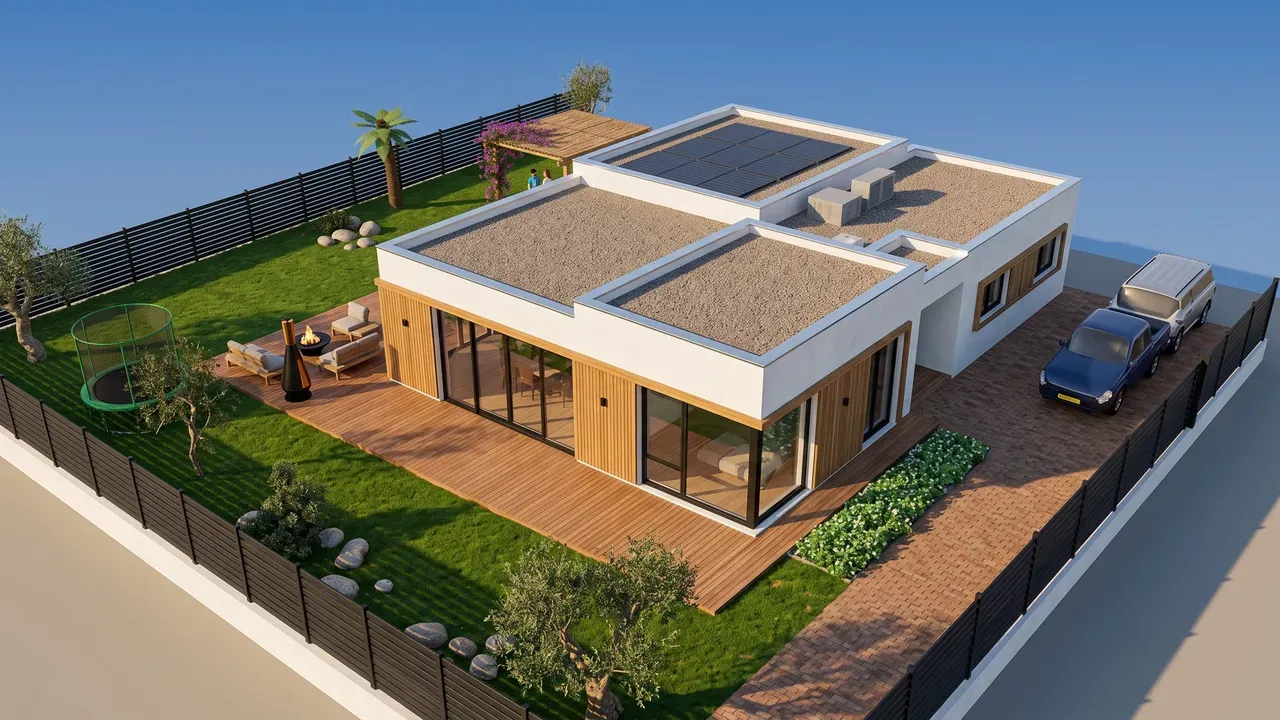
To make an AI walkthrough video of a house in ArchHomeAI, open the AI Studio, create or upload a still of the design, tick Video under What to create, choose the engine and a 5 or 10 second length, and press Create video. For a longer film, join several renders and clips with the free Project film tool, or play the free Auto tour of your 3D model. The AI clips use credits; your balance is always shown in the credit counter at the top of the page.
Key takeaways
- An AI clip animates one still (a render, a photo or a 3D view) into a 5 or 10 second video with a slow camera move; it uses credits.
- The Full Package makes an exterior video and an interior video together with 4 exterior images, an interior image and an architectural plan.
- The Auto tour in the 3D editor walks through your model at eye level, from the street to every room and the garden — free, no AI.
- Project film joins renders and clips into one video with titles, captions, crossfades and your own music, made in your browser — free.
- A good walkthrough is short (about one to two minutes), follows the path of a visitor and uses one slow camera move per shot. It is a visualisation, not a construction drawing.
A still render shows how a house looks. A video shows how it feels to arrive, walk in and look around. ArchHomeAI gives you four ways to get a moving picture of a design: an AI clip from any render, the exterior and interior videos of the Full Package, a free auto tour of your 3D model, and a free project film that joins everything into one video for a client, a buyer or your family.
- Draw the plan — Walls, rooms, doors and windows in the 2D editor. Free.
- Walk through it in 3D — Open the plan as a 3D model and play the auto tour. Free.
- Animate it in the AI Studio — Turn a render into a moving video. Uses credits.
What an AI house walkthrough video is (and what it isn't)
In architecture, a walkthrough is an animation at eye level, as if someone walks through the building; a flythrough moves freely, often from above. Studios traditionally make both from a full 3D model, frame by frame. AI image-to-video works differently: you give the engine one finished still and it invents a short camera move through it — a slow orbit around the house or a slow push into a room.
That makes AI clips fast and cinematic, but short: each clip lasts seconds, not minutes, and it shows only what the still shows. For a longer walkthrough you combine several clips and stills, or you use a real 3D model, where the camera can go anywhere. The table shows which tool in ArchHomeAI does what.
| Tool | What you get | Length | Credits |
|---|---|---|---|
| AI video (AI Studio) | One still animated with a slow camera move; people in the image move too | 5 or 10 s per clip | Uses credits |
| Full Package (AI Studio) | Exterior video + interior video, with 4 exterior images, an interior image and a plan | 5 or 10 s per video | Uses credits |
| Auto tour (3D editor) | A guided walk at eye level through the whole 3D model | Grows with the route: about 1.5 minutes for one room, several minutes for a house | Free |
| Project film (AI Studio) | Your renders and clips joined with titles, captions, crossfades and music | Up to 3 minutes | Free |
Way 1: animate a render into an AI video, step by step
Start from the best still you have. It can be a render made in the Studio, a photo you upload, or a view of your 3D model sent to the Studio. The sharper and better lit the still, the better the video: the engine keeps what it sees and only adds motion. If you don't have a render yet, our guide on turning a floor plan into a render covers that part.
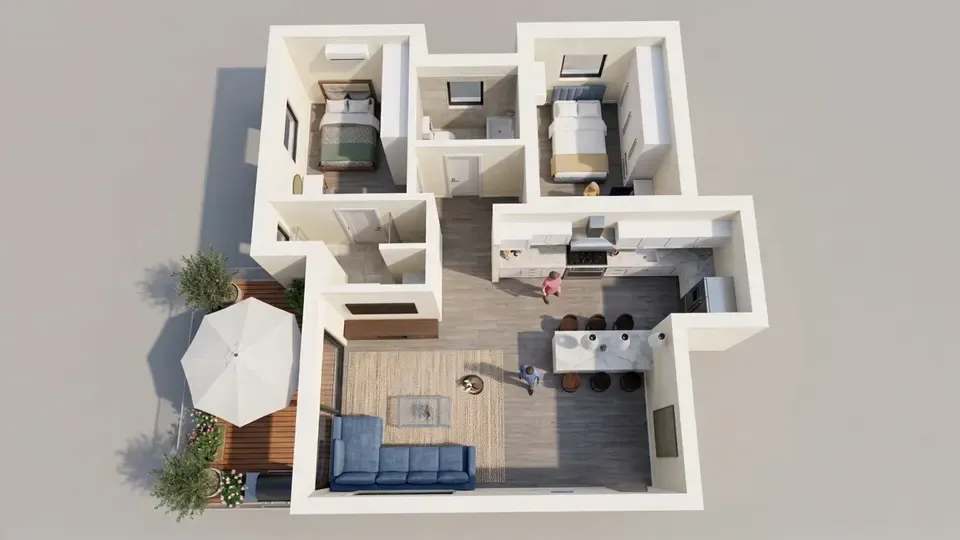
- Open a project in the AI Studio Go to the AI Studio, click New Project and pick the type under Choose Project Type — New Construction on Empty Lot, Renovate Existing Home or Interior Design. Or open an existing project that already has renders.
- Put the still on screen Generate a render, or upload a photo or a 3D view. The video is made from the version shown on the board (or from your uploaded photo if there is no version yet).
- Choose Video under What to create Under What to create, tick Video. Keep AI images ticked to make new renders and a video in one run, or untick it for a video only from the image on screen.
- Describe the motion (video only) In a video-only run your text is the request for the video, in any language: for example "slow orbit to the left around the house, late afternoon light" or "slow walk from the sofa towards the kitchen". Name one camera move, not three.
- Pick the engine and the length Under Video Engine, Kling is the default with good quality; Seedance gives smoother motion. Under Video Duration, choose 5 or 10 seconds.
- Create, check and download Press Create video (or the generate button when you also make images). This step uses credits; your balance is in the counter at the top of the page. The video takes up to about five minutes and appears on the board with Download and Share. If it fails, the credits are returned and you can press Try again.
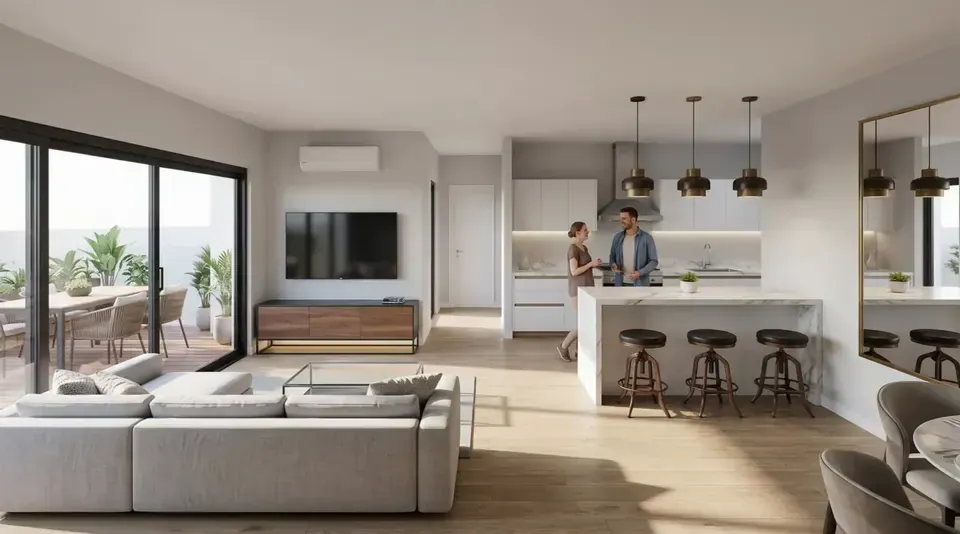
Way 2: the Full Package — exterior and interior video in one run
If you start a new design and want the complete set, choose Full Package under Choose Project Type. Before anything is made, the panel What you get in the Full Package lists every result: 4 exterior images (front, rear, right and left), an exterior video, an interior image with an interior video, and an architectural plan. You set the video engine and length once; both videos use them.
Press Create full package (AI); the package uses credits. The images are ready in one to three minutes; the two videos and the plan follow, up to about five more minutes. The checklist Your package shows each step live. If you leave early, the remaining steps start when you come back to the project, and a step that fails is refunded and gets a Try again button. The exterior video starts from the package's exterior image and the interior video from the interior image, so they show the same design as the stills.
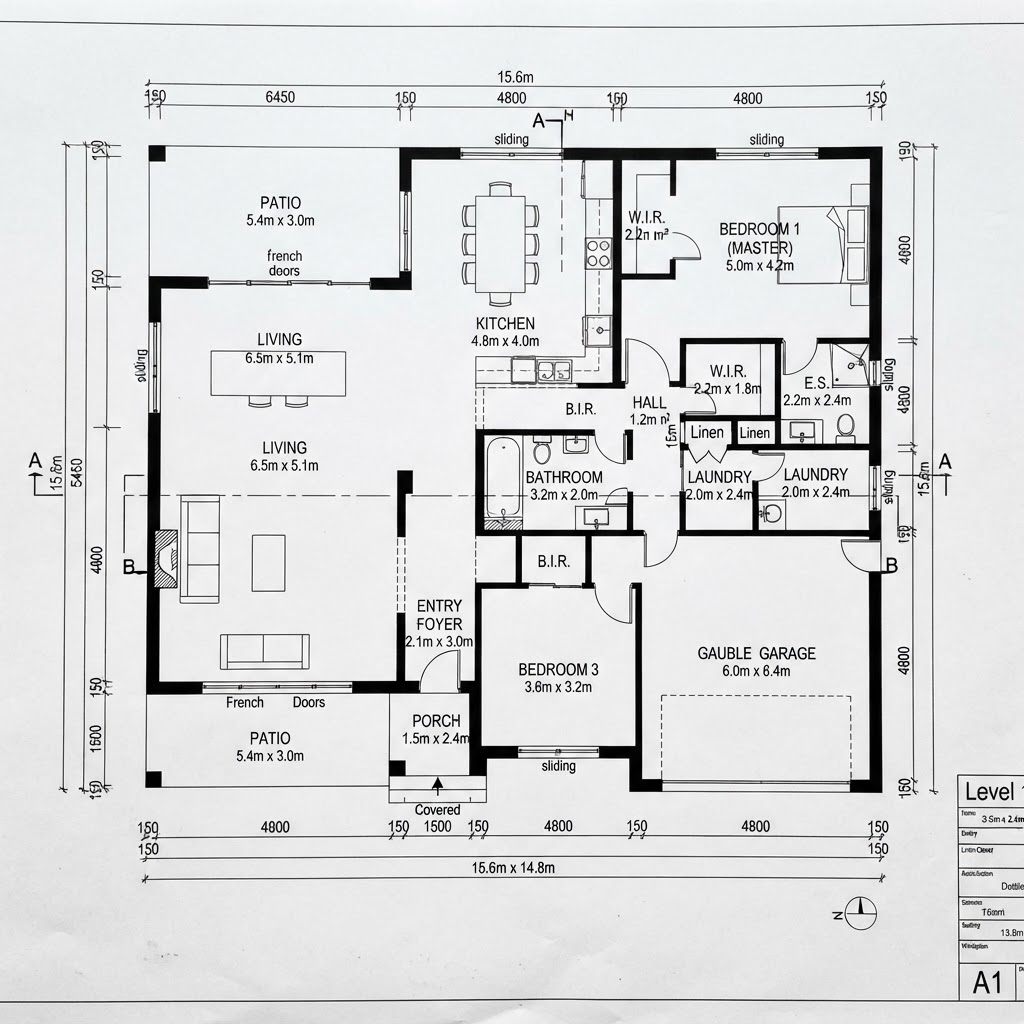
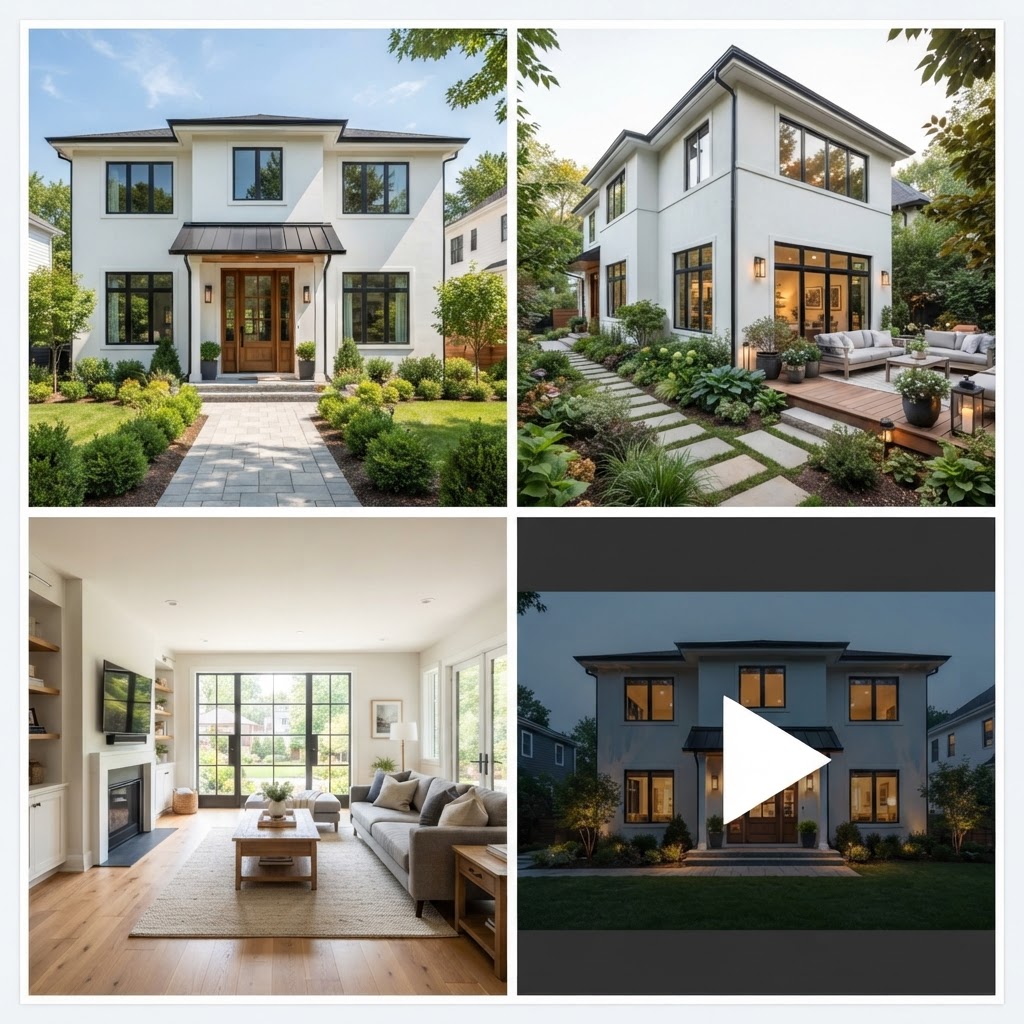
Turn your best render into a video Open the AI Studio, put your render on screen, tick Video and choose 5 or 10 seconds. This step uses credits. Open the AI Studio
Way 3: the free auto tour of your 3D model
AI clips are short. To see the whole house in motion, use the 3D model. In the 3D editor, the Auto tour button next to Walk starts a guided walk at the eye height of an average person: from the street through the gate and the front yard, in through the entrance, through every room and floor, out to the garden, and up to a slow overview at the end. It never walks through walls, scans each room slowly, and you can pause, jump between stops or play it at 0.5× to 2× speed. It is deterministic and free — no AI and no credits.
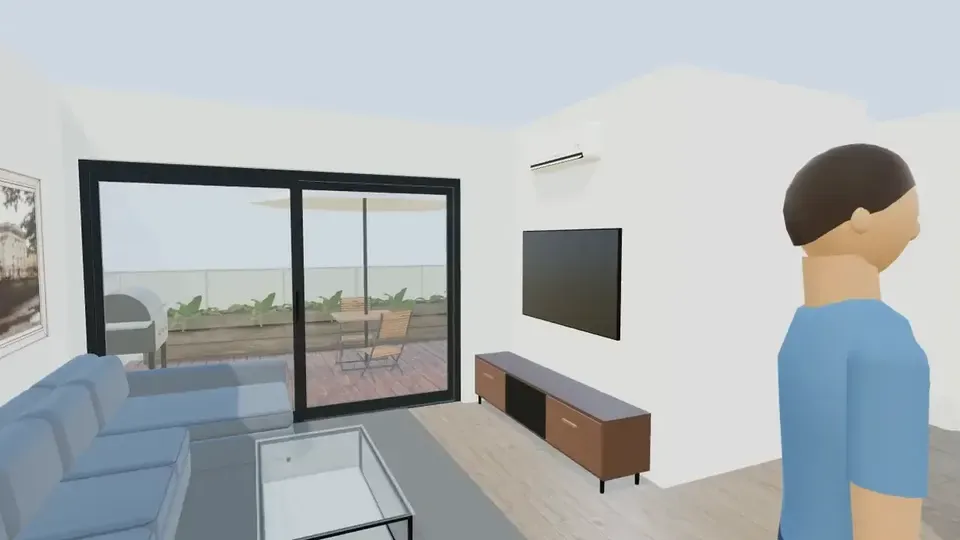
The tour plays inside the editor; there is no export button for it yet. To keep it as a video file, use the built-in screen recorder of your computer or phone while it plays, then trim it — the tour video on our home page was recorded from the auto tour and cut to its highlights. The model must be drawn first: see how to turn a 2D plan into 3D and the guide to virtual house tours.
Way 4: a project film that joins renders and clips (free)
A client rarely wants five separate files. The Project film button in the Studio project header joins the project's renders and videos into one film, right in your browser and without credits. It appears once the project has at least one render or video.
- Clips: final and favourite versions are picked for you; drag to reorder (or use the arrows on a phone), remove or add from the rest — up to 30 clips.
- Moves and captions: each still gets a slow zoom or pan (automatic, zoom in or out, pan in four directions, or none) and 2 to 12 seconds; AI video clips play their own frames. Each clip can have a short caption.
- Titles: an opening title card and an end card with your closing line; with office branding set, your logo, office name and contact details appear (never the office address).
- Music: your own audio file (MP3, M4A, WAV or OGG, up to 30 MB) with volume, looping and a fade-out. Use only music you have the rights to.
- Output: 1280×720 or 1920×1080 at 30 frames per second, with crossfades of none, 0.5, 0.8 or 1.2 s; maximum film length 3 minutes. Preview plays it first; Make the film records it, then Download or Save to project.
What makes a good house walkthrough video
Length matters more than effects. HomeJab's guide to real estate walkthrough videos puts the usual length at one to two minutes, and Picsart's walkthrough guide works with about a minute for a listing. People watch on phones, often without sound, so every second has to show something new.
- Follow the visitor's path: street and facade, entrance, living room, kitchen, bedrooms, garden — the same order the auto tour uses.
- One slow move per shot: an orbit or a push-in, not both. Keep the direction consistent from clip to clip so the viewer feels they are walking, not spinning.
- Same light everywhere: don't cut from a midday exterior to a night-time living room unless that is the story.
- Open strong, end clear: start with the best exterior shot, end with a title card that says who designed it and how to get in touch.
- Short captions: a room name or one fact ("Living room, 32 m² / 345 ft²") is enough; the film's caption field takes up to 80 characters.
| Shot | Source | Seconds |
|---|---|---|
| Opening title with the project name | Project film title card | 4 |
| Exterior orbit | Full Package exterior video | 10 |
| Front, side and rear of the house | 3 exterior images with slow zoom or pan | 12 |
| Interior walk-in | Full Package interior video | 10 |
| The interior in detail | Interior image with a slow pan | 6 |
| Layout | Architectural plan image | 6 |
| End card with contact details | Project film end card | 5 |
Where to use a house walkthrough video
- Client presentations: play the project film at the meeting, then send the file so the family can watch it again at home.
- Property listings and pre-sales: in NAR's 2025 Generational Trends report, 51% of buyers found the home they bought on the internet (NAR) — a moving picture helps a listing stand out online.
- Social posts and messages: a 5 or 10 second AI clip fits a story, a post or a WhatsApp message.
- Design decisions: compare two versions of a facade or a kitchen in motion before you choose; for interactive viewing, see AR and VR viewing.
Limits to know
- Each AI clip is 5 or 10 seconds and moves through one still; it cannot show rooms the still doesn't show.
- AI can bend straight lines, glass and thin details or change small objects. Check every clip, and try the other engine before rewriting the text.
- The auto tour shows the 3D model as you drew it; plan-made scenes have no ceilings, so the sky can be visible above the top floor.
- The project film and the auto tour run in your browser: a slow phone or a background tab can make the result jerky.
- ArchHomeAI is in an early (alpha) release. Videos are visualisations, not construction drawings or a promise of the final result.
Make your first house video Draw the plan for free, walk through it in 3D, then animate your best render in the AI Studio and join everything into one film. Start in the AI Studio
Frequently asked questions
Can AI make a walkthrough video of a house from a picture?
Yes, from one still at a time. In the ArchHomeAI Studio you tick Video under What to create and the engine animates the render, photo or 3D view on screen into a 5 or 10 second clip with a slow camera move. For a full walkthrough, join several clips and stills with Project film, or use the auto tour of a 3D model.
How long should a house walkthrough video be?
For most homes, about one to two minutes. Shorter works for social posts — a single 5 or 10 second AI clip is enough there. A project film in ArchHomeAI can run up to 3 minutes, but a tight one-minute film is usually watched to the end more often than a long one.
Is the 3D house tour free, and can I download it?
The auto tour in the 3D editor is free and uses no AI. It plays inside the editor; there is no download button for it yet, so record your screen while it plays if you need a file. AI clips and project films can be downloaded directly.
Can I add music and my logo to the video?
Yes, in Project film. You choose your own audio file (MP3, M4A, WAV or OGG, up to 30 MB) and set the volume; it fades out at the end. With office branding set in your dashboard, the title and end cards show your logo, office name and contact details. Use only music you have the rights to.
How long does it take to make an AI house video?
An AI clip takes up to about five minutes. In a Full Package the images arrive in one to three minutes and the two videos and the plan follow within about five more. A project film records in real time, so a one-minute film takes about a minute after the files are loaded.
Does the AI video match the real house?
It follows the still it starts from and is told to keep the architecture, furniture and materials as they are, but AI can still change small details. Treat it as a visualisation for discussion and marketing, not as an exact record or a construction document.
Sources
How we wrote this guide: every figure comes from the sources listed at the end and was checked in September 2026. Prices vary by city, specification and year.
- How Long Should a Real Estate Walkthrough Video Be? — HomeJab
- Real estate walkthrough video with AI — Picsart
- Baby Boomers Regain Top Spot as Largest Share of Home Buyers (2025 Home Buyers and Sellers Generational Trends) — National Association of REALTORS®
- California AB 723 (2025): Real estate: digitally altered images: disclosure, chaptered text — California Legislature (via LegiScan)