
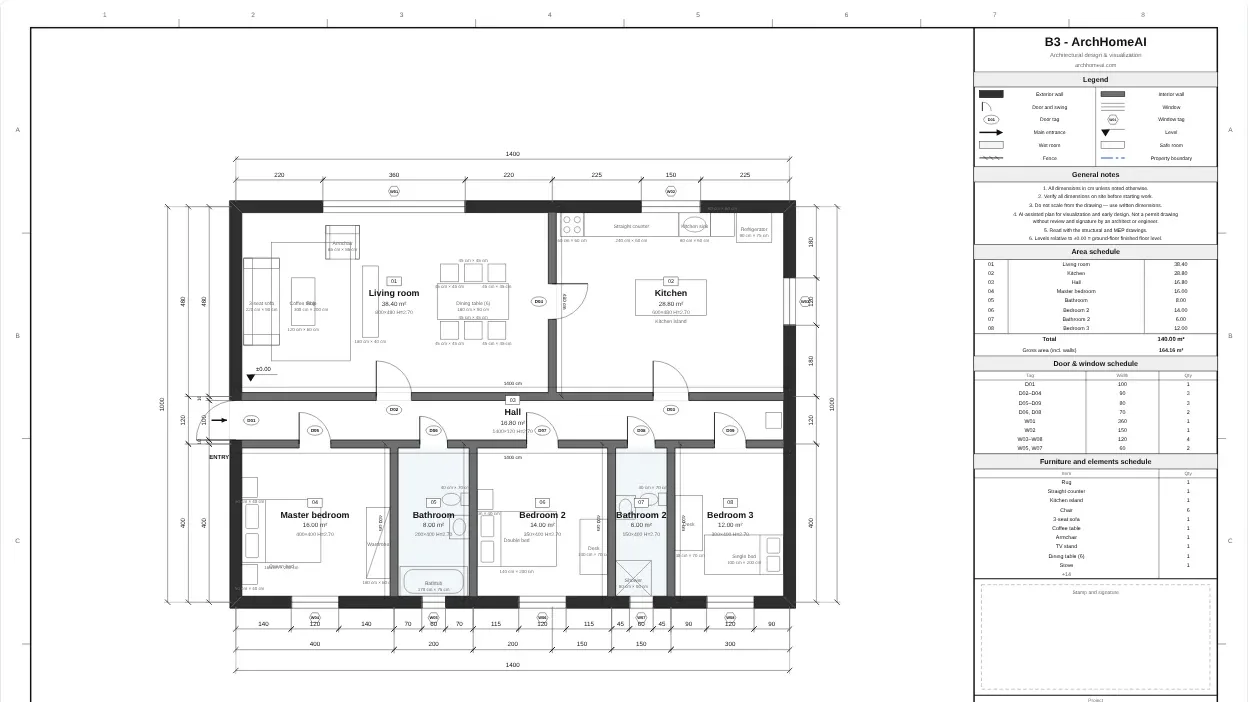
A floor plan with dimensions shows every wall, opening and room at real size, with dimension strings that add up to the overall length. In ArchHomeAI you draw it free in the 2D editor: walls show their length as you draw, Dimension adds your own measurements and the Architectural sheet prints the plan with dimension chains, room sizes and a title block — or export a true-scale PDF drawing set or a DXF in millimetres.
Key takeaways
- Dimension a plan from the outside in: overall size first, then wall positions, then openings — the inner strings must add up to the overall one.
- Pick one unit and stay with it: Project settings → Length display offers mm, cm, m and ft; areas in m², cm² or ft².
- Walls show their length while you draw; exact values go into Properties (thickness, end points, height).
- Architectural sheet prints the plan with dimension chains, room W × D and areas; Drawing set (PDF) gives true-scale PDFs at 1:50, 1:100 or 1:200.
- Drawing, dimensions and all these exports are free — no AI and no credits involved.
This guide is about one thing: getting the measurements right on a floor plan and keeping them right on paper. If you have never drawn a plan, start with how to draw a floor plan for measuring a room and the basic symbols; for the whole 2D workflow see the 2D house plan guide. Here we go deeper into dimension strings, units, wall thickness and scale, and then do it hands-on in ArchHomeAI — from the first wall to a printed sheet, a drawing set and a DXF file.
What does a floor plan with dimensions show?
Architectural plans are dimensioned from the outside in and from the general to the particular. Around the building you usually see several parallel dimension strings: the outermost gives the overall length, the next one locates the walls (often their centre lines or axes), and the one closest to the building locates openings and wall breaks. Because the inner strings must add up to the outer one, the overall dimension is also a check on everything else. Inside the plan, each room is labelled with its name, area and often its width × depth. International drawing rules for presenting dimensions are set out in ISO 129-1; offices and countries add their own conventions, so follow your local standard when it differs.
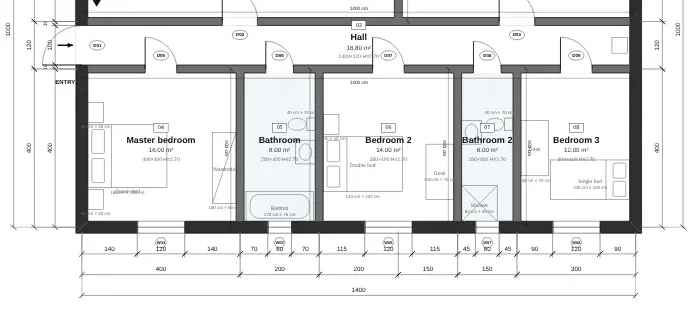
| Dimension | Where it goes | Why you need it |
|---|---|---|
| Overall length and width | Outermost string, all sides | Footprint, plot fit, quick check of all other strings |
| Wall axes / wall positions | Middle string | Setting out the walls on site, structure |
| Openings and wall breaks | String nearest the wall | Door and window positions and widths |
| Room width × depth and area | Room tag inside the room | Furniture, flooring quantities, sales and rental listings |
| Wall thickness | Properties, legend or a detail | Net room size, insulation, the 3D model |
| Wall and ceiling height | Properties, sections | Doors, stairs, the 3D model and elevations |
Units, wall thickness and scale in brief
- Units. Metric plans are drawn in millimetres or centimetres (a sheet note usually says "all dimensions in cm unless noted otherwise"); US plans use feet and inches. ArchHomeAI stores the model in millimetres and shows it in mm, cm, m or ft.
- Wall thickness changes the room size. Interior partitions are often around 10–20 cm and exterior walls 25–40 cm or more depending on structure and insulation. A 400 cm axis-to-axis room between two 20 cm walls is only 380 cm clear.
- Three kinds of area. In ArchHomeAI's drawing set, rooms area is measured to the wall centre lines, net area is the clear floor between the walls, and gross area runs to the outer face of the exterior walls — always say which one you quote.
- Scale. 1:50 suits a single apartment or detailed room plans, 1:100 a house, 1:200 large floors and site plans. At 1:100, 1 m in reality is 10 mm on paper.
How to draw a floor plan with exact dimensions in ArchHomeAI
Open 2D in the top menu, create a project (empty, from a template or from the sample project) and keep this layout in mind — the numbers match the screenshot:
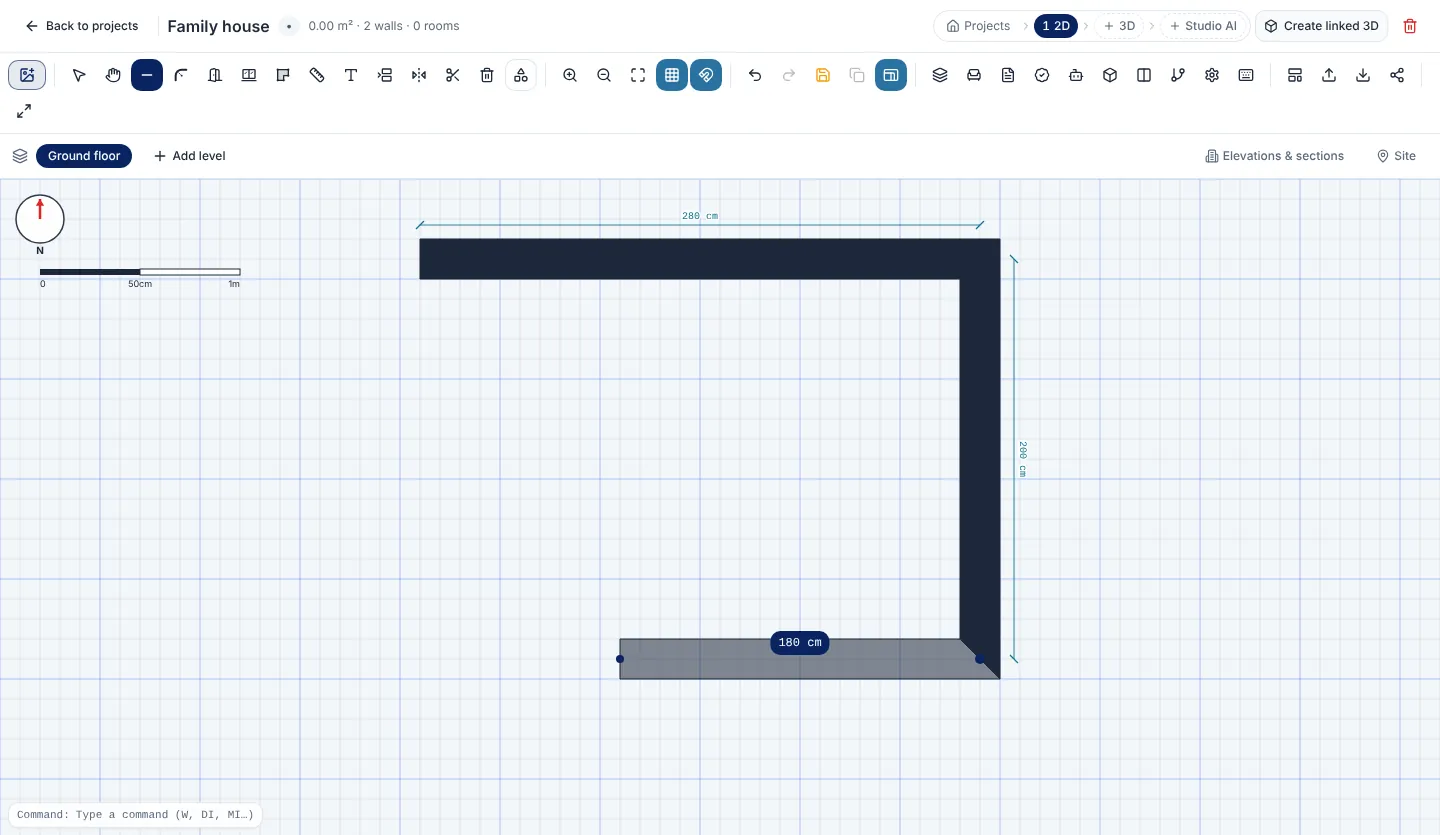
- Wall — Press W or click it, then click each corner. The wall follows the cursor.
- Dimension — Press DI: click two points to add your own measurement line.
- Snap — The magnet. With snap on, points land on walls, ends and a 10 cm grid.
- Show / hide wall and plot dimensions — Turns the automatic dimensions on and off (command DA).
- Settings — Project settings: length and area units, rule profile, north.
- Architectural sheet — Opens the printable sheet with dimension chains and a title block.
- Export — Drawing set PDF, DXF, SVG, PNG, IFC and tables.
- Live length — The wall being drawn shows its length in the project unit.
- Wall dimension — Finished walls get a dimension line outside the plan.
- Scale bar — Shows the real size of the zoom: 50 cm and 1 m here.
- Choose your units first Open Settings and set Length display (mm, cm, m or ft) and Area display (m², cm² or ft²). All labels, inputs, sheets and exports follow this choice.
- Draw the outer walls Press W, click the first corner and move: the length follows the cursor. Keep Snap on so corners meet cleanly and points land on a 10 cm grid. Double-check with your site measurements as you go.
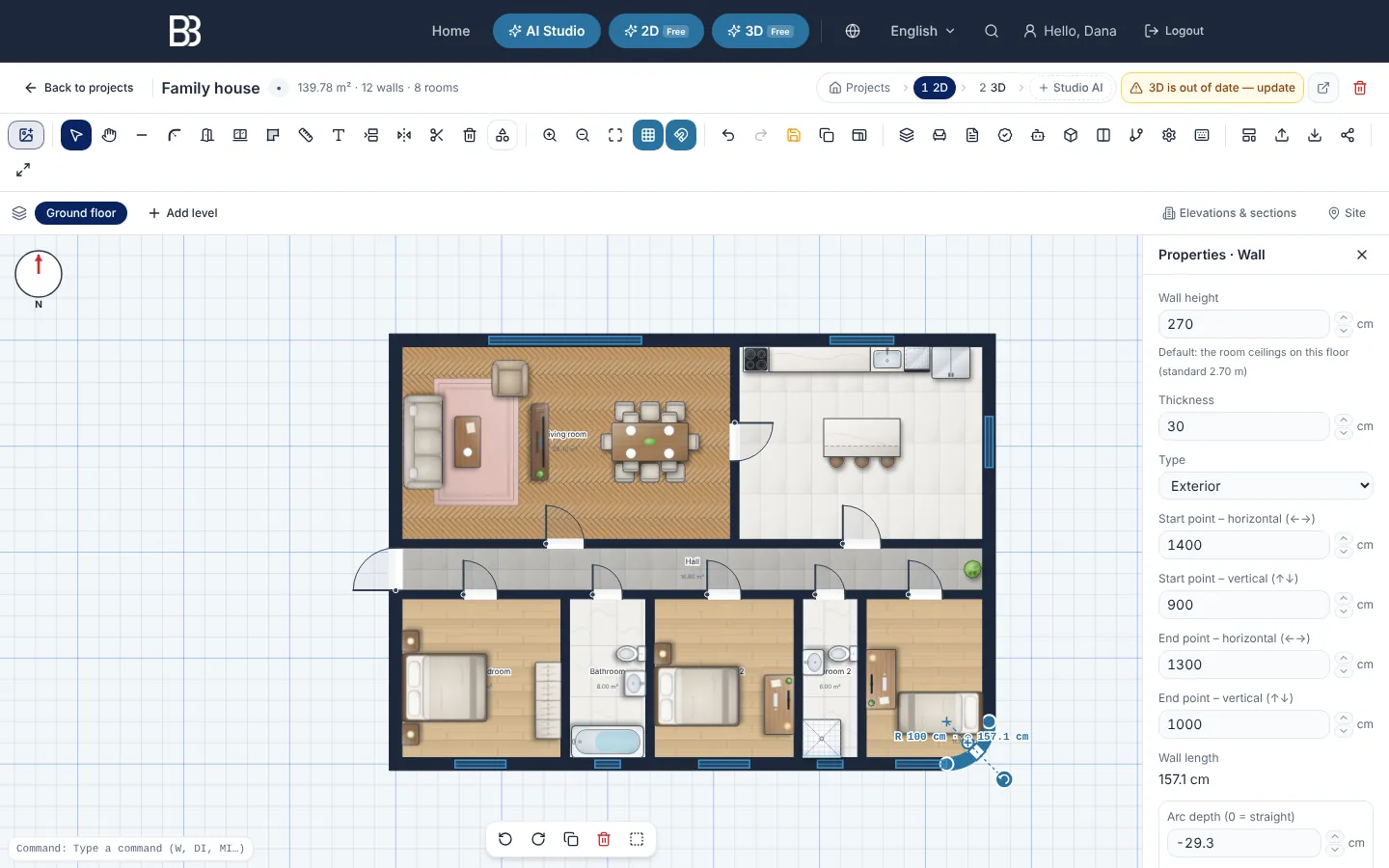
- Set the exact values Click a wall: Properties shows Wall height, Thickness, type, the start and end points and Wall length. Type exact end points to get an exact length, and set the real thickness (new walls start at 20 cm).
- Fine-tune by dragging Drag a wall or its end: it moves in 10 cm steps, or 1 cm with Shift. Joined walls stay connected, and a dashed guide with "= Same length" appears when a wall matches a parallel one.
- Add rooms Press R (Room) and click the corners: width and depth are shown while you draw, and each room gets its area. Stretching a room later shows the new size live.
- Place doors and windows Click a wall with the door or window tool; set the opening width in Properties. Openings move with their wall.
- Add your own dimensions Press DI (Dimension) and click two points. When both ends sit on the same wall, the dimension is linked and follows the wall if you change it.
- Check the plan Leave Show / hide wall and plot dimensions on to see every wall length and room W × D at once, then run Plan & building-rules check — a preliminary check of the drawing, not a permit review.
Print and export the plan with its dimensions
Everything you drew can leave the editor with its measurements. The Architectural sheet button (next to Export) opens a ready sheet:
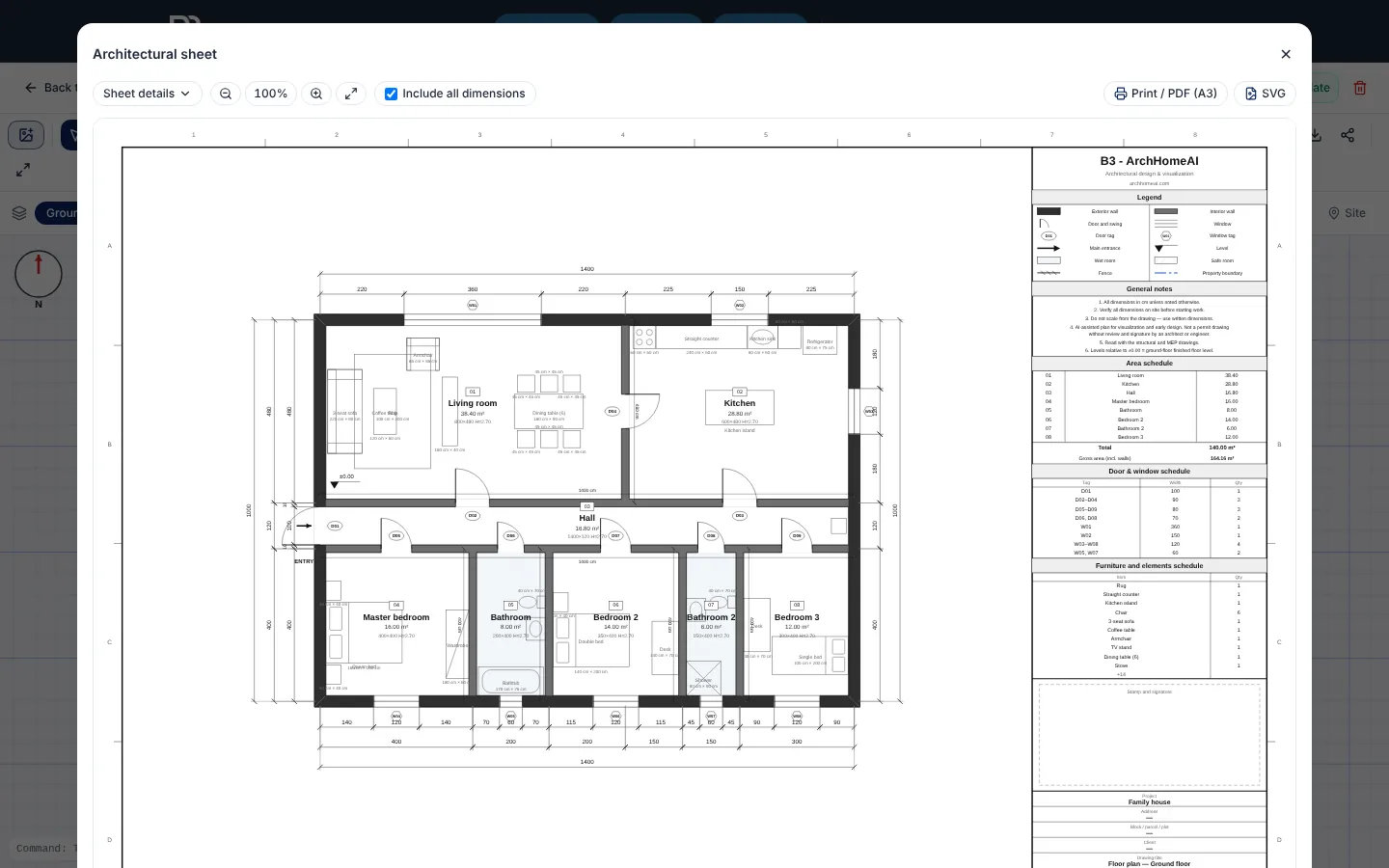
- Sheet details — Project, address, client, drawing title and notes for the title block.
- Include all dimensions — Adds interior wall lengths, furniture sizes and irregular room sizes to the sheet.
- Print / PDF (A3) — Prints the sheet or saves it as a PDF via the browser's print dialog.
- Dimension chains — Openings, wall axes and the overall size, built automatically around the building.
- Room tag — Number, name, area and width × depth of each room.
- Title block and schedules — Legend, general notes, area schedule and door and window schedule.
- Open the sheet Click Architectural sheet in the toolbar, or Export → PDF (print). Fill in Sheet details once — it is saved with the project.
- Choose how many dimensions Keep Include all dimensions ticked for a fully dimensioned plan, or untick it for a cleaner presentation sheet with the outer chains and room tags only.
- Print the A3 sheet Click Print / PDF (A3) and choose your printer or "Save as PDF".
- Need a full set at true scale? Export → Drawing set (PDF): pick the Paper (A1–A4, landscape or portrait) and Scale (1:50, 1:100, 1:200 or Fit to sheet). If a floor doesn't fit, the dialog warns and offers a fitting scale or paper. You get a cover with sheet index, one plan per floor, elevations and sections, and schedules in one PDF.
- Send it to CAD Export → DXF (CAD) writes the current floor in millimetres with AIA-style layers (A-WALL, A-DOOR, A-GLAZ, A-ANNO-DIMS…); with Include all dimensions on, the automatic dimensions go on their own layer A-ANNO-DIMS-ALL that you can switch off.
| Export | Dimensions in it | Best for |
|---|---|---|
| Architectural sheet → Print / PDF (A3) | Dimension chains, room W × D, optional all dimensions, scale bar | Printing one floor on A3, quick PDF for a client |
| Drawing set (PDF) | Same dimensions on every plan sheet, at 1:50 / 1:100 / 1:200 | Complete, true-scale set with title blocks and schedules |
| DXF (CAD) | Your dimension lines (A-ANNO-DIMS) + all dimensions (A-ANNO-DIMS-ALL), in mm | Continuing in AutoCAD, BricsCAD or other CAD software |
| SVG vector / PNG image (3x) | The plan as it looks in the editor | Presentations, web pages, messaging |
| IFC (Revit / Archicad) | The model itself (walls, openings, floors) — no drawn dimension lines | Revit, Archicad and other BIM tools |
| Export tables (CSV) | Room areas, door and window sizes as tables | Quantities, cost estimates, spreadsheets |
Tips for accurate dimensions
- Measure twice, draw once. Measure each room along both walls and both diagonals; old buildings are rarely square.
- Draw what you measured. If you measured clear room sizes, add the wall thickness when you place the axes — or draw room by room from the inside faces.
- Let the overall string check you. If the sum of the inner chain differs from the overall size on the sheet, a wall is off.
- Use round numbers where you can. Snap keeps new points on a 10 cm grid, which also makes the plan easier to build.
- Keep units consistent between the plan, the sheet note and any DXF you send — the DXF is always written in millimetres.
- Show the sizes in 3D or AR too. When you share the model as an AR / VR link, the viewer has a Show dimensions button with the overall size and each room's width, length and height.
Limits worth knowing
- You set an exact length through the wall's end points in Properties; there is no box for typing a length while drawing.
- Feet are shown as decimal feet (for example 12.50 ft), not as feet-and-inches.
- The PDF sheets are raster images; the DXF is the editable vector version. DXF, SVG and PNG export the floor shown on screen; IFC and CSV contain all floors.
- The sheet and drawing set are drawings for planning and communication. They are not a stamped permit set — have an architect or engineer review them before construction.
Draw your dimensioned plan now Free in the browser, no CAD experience needed — from the first wall to a printed sheet. Open the 2D editor
Frequently asked questions
How do I add dimensions to a floor plan online?
In ArchHomeAI's 2D editor walls show their length automatically, and Show / hide wall and plot dimensions (DA) displays every wall length and room size. For your own measurement press DI (Dimension) and click two points; a dimension on a wall follows that wall when it changes.
Can I print a floor plan to scale?
Yes. The Drawing set (PDF) export draws plans at true scale on A1–A4 paper at 1:50, 1:100 or 1:200. Print at actual size without "fit to page" and check the scale bar: at 1:100, 1 m equals 10 mm.
Which units can I use?
Lengths in mm, cm, m or ft and areas in m², cm² or ft², set in Settings → Project settings. The model itself is stored in millimetres, and the DXF export is always in millimetres.
Are interior dimensions included in the PDF?
Yes, when Include all dimensions is ticked on the architectural sheet or in the drawing set dialog: interior wall lengths, furniture sizes and irregular room sizes are added to the outer dimension chains and room tags.
Can I open the plan with its dimensions in AutoCAD?
Export DXF (CAD). Your dimension lines are on layer A-ANNO-DIMS and the automatic dimensions on A-ANNO-DIMS-ALL, with walls, doors, windows and rooms on their own layers, in millimetres.
Is a dimensioned plan from ArchHomeAI enough for a building permit?
No. It is an accurate planning drawing and a good basis for discussion, but permits need drawings checked and signed by a licensed professional under your local rules. The built-in check is a preliminary check, not a permit review.
Sources
How we wrote this guide: every figure comes from the sources listed at the end and was checked in September 2026. Prices vary by city, specification and year.
- Understanding floor plan dimensions and scale in architectural drawings — Noble Desktop
- ISO 129-1:2018 Technical product documentation — Presentation of dimensions and tolerances — Swedish Institute for Standards (SIS)
- The AIA CAD layer format — Draftsperson.net