
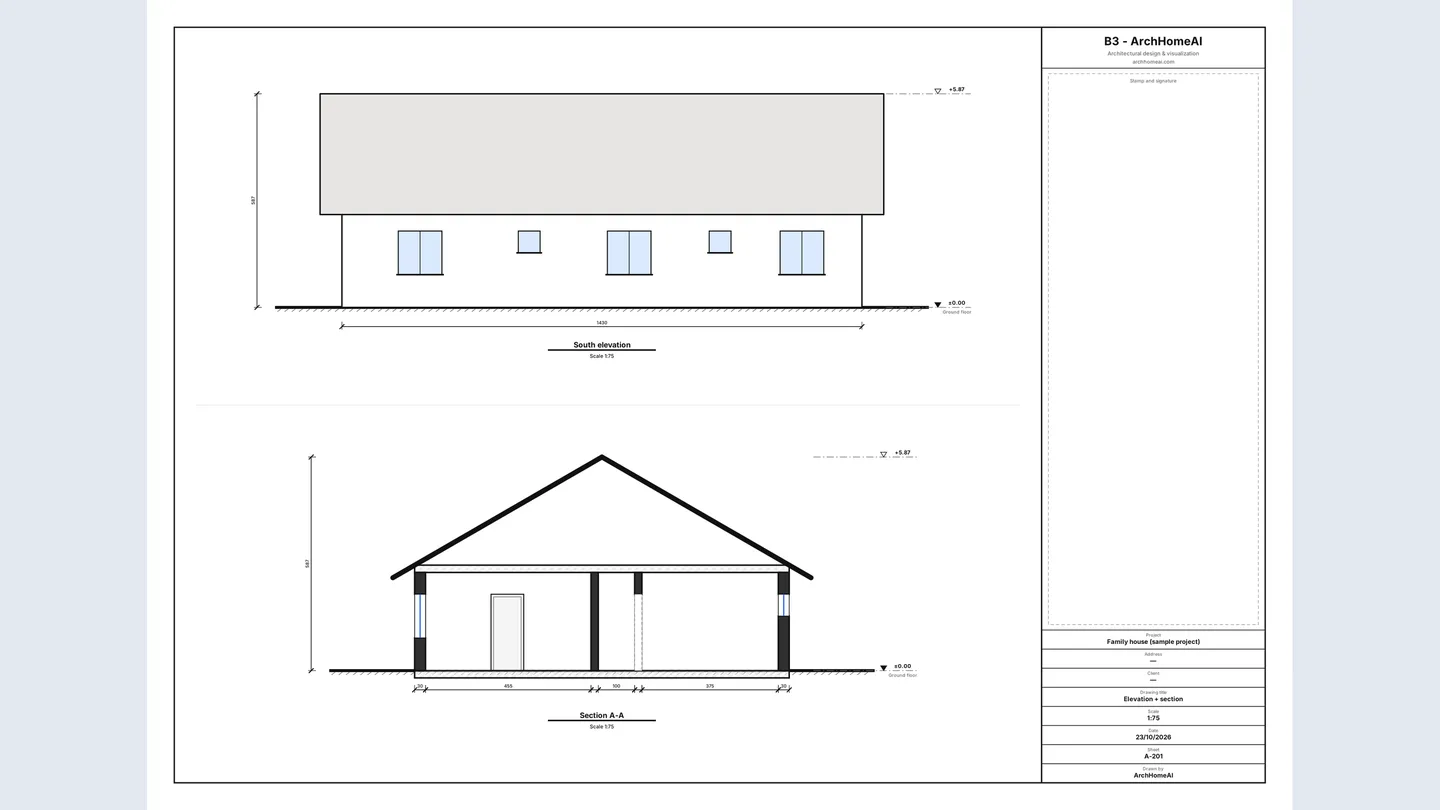
An elevation is a straight-on view of one face of the building (north, east, south or west); a section is a view of the building cut by a vertical plane, showing walls, floors, openings and the roof in height. In ArchHomeAI both are drawn automatically and for free from your 2D floor plan: open Elevations & sections in the 2D editor, set the roof, draw a section line, then print the A3 sheets or export a full Drawing set (PDF) or an IFC file.
Key takeaways
- Elevations show the outside faces of a building; sections show what you see when it is cut vertically — together with the plan they describe the building in three dimensions.
- 1:100 is the usual scale for elevations and sections of a house (1 m = 10 mm on paper); 1:50 for more detail.
- In ArchHomeAI the four elevations and every section are drawn from your 2D plan automatically — no AI, no credits.
- Export → Drawing set (PDF) builds a numbered set with a cover, plans, elevations, sections, schedules and a title block on every sheet.
- IFC (Revit / Archicad) exports every floor as a simple BIM model; the drawings are for design and visualisation, not permit drawings until an architect has reviewed and signed them.
A floor plan tells you where the rooms are. It doesn't tell you how tall the house is, where the windows sit in the wall, or what the roof looks like. That is the job of elevations and sections — the vertical drawings that every builder, client and permit office expects next to the plan. This guide explains what they show and how they are drawn, then walks through doing it in ArchHomeAI, where they are generated from your own 2D plan.
What elevations and sections show
Both are orthographic projections: no perspective, every line at true proportion, so you can measure them with a scale ruler. The difference is where you stand.
| Drawing | What it shows | Typical scale (house) |
|---|---|---|
| Floor plan | The building cut horizontally about 1–1.5 m above the floor, seen from above: walls, doors, windows, rooms | 1:100 or 1:50 |
| Elevation | One outside face seen straight on: wall outline, doors and windows at their real height, roof shape, ground line, level marks | 1:100 (1:50 for detail) |
| Section | The building cut by a vertical plane: cut walls and slabs in bold, floor-to-floor heights, openings, the roof build-up and what lies beyond the cut | 1:100 or 1:50 |
| Roof plan | The roof seen from above: edges, ridges, hips, slopes | 1:100 or 1:200 |
Standard views and how they are named
- A detached house normally gets four elevations, one per facade. They are named by the compass direction the facade faces (the *north elevation* shows the wall that faces north) or by front / rear / left / right.
- Sections are marked on the plan with a section line: a dash-dot line with a letter at each end (A–A, B–B) and arrows showing which way you look.
- Put a section where it explains the most: across the stairs, a double-height space, a change of floor level, or the longest span of the roof. Many permit sets ask for one longitudinal and one transverse section.
- Heights are given as level marks measured from a reference level, usually the finished ground floor at ±0.00: +3.00 for the next floor, +5.87 for the top of the roof and so on.
Scales in practice
At 1:100, one metre in reality is 10 mm on paper — the most common scale for house plans, elevations and sections in metric countries (in Germany, for example, the Bavarian building-submission regulation sets 1:100 as the normal scale for building drawings). 1:50 doubles the size for detailed work; 1:200 fits large buildings or site context. In the US, the familiar 1/4" = 1'-0" is about 1:48 and 1/8" = 1'-0" about 1:96. Whatever the scale, print it at actual size, and add a scale bar so a photocopy can still be measured.
How ArchHomeAI draws elevations from your plan
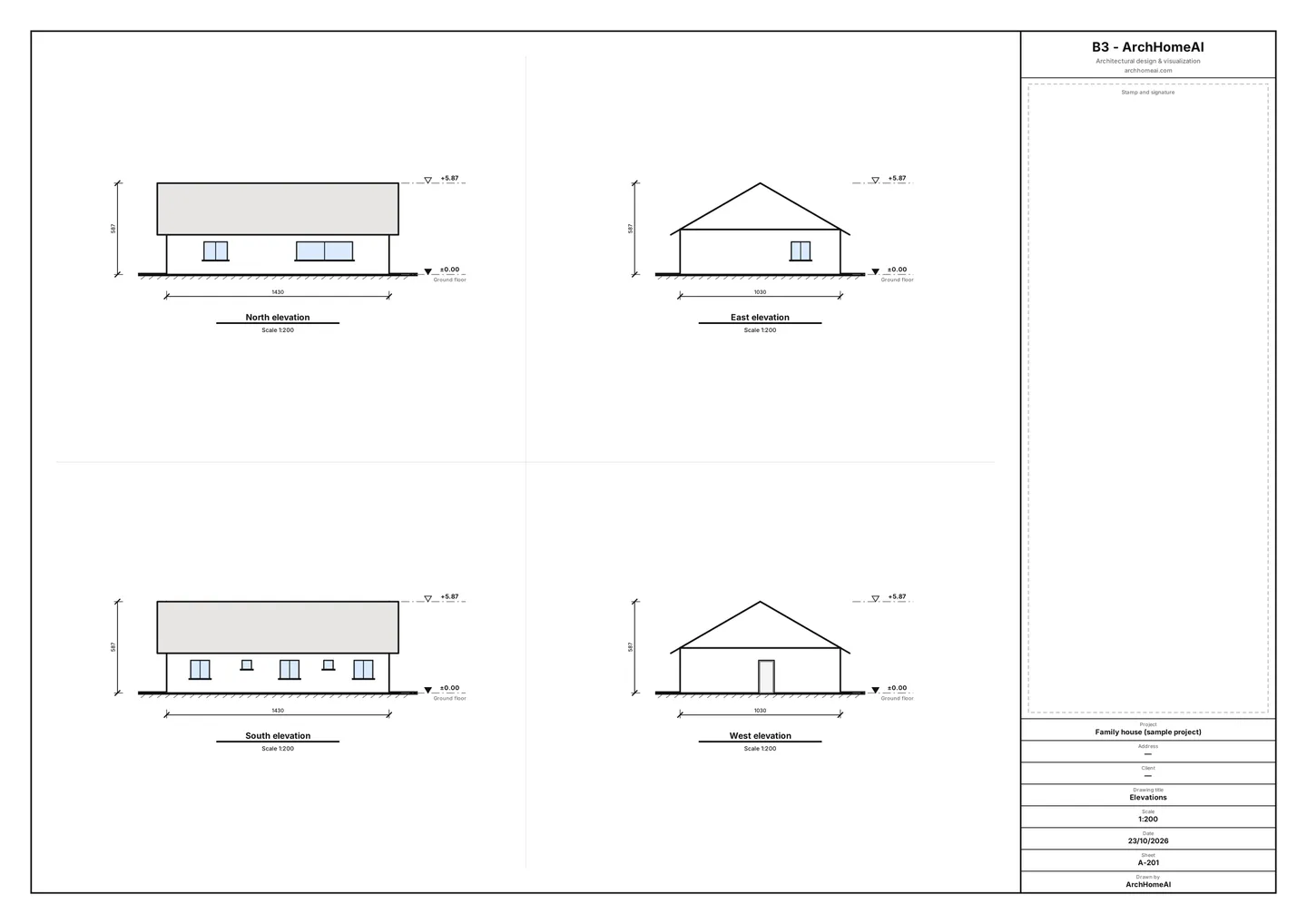
In the 2D editor, the walls, doors and windows you draw already carry their heights: the wall height comes from the room ceiling height (2.70 m by default), every door and window has a width, height and sill. From that, ArchHomeAI computes the four elevations — which walls are visible from each side, which are hidden behind others, where each opening sits, and the roof seen from that side. It runs in your browser, with no AI and no credits.
- Open your plan in the 2D editor Use a plan with walls, doors and windows — your own, or the free sample project. If you only have a drawing on paper, see how to turn a floor plan image into CAD.
- Open Elevations & sections Click Elevations & sections at the right end of the levels bar (above the drawing). A panel opens with live thumbnails of the four elevations.
- Set the floor levels The panel works on the floor selected in the levels bar. Floor level (from ±0.00) sets that floor's height in cm; on a single-storey house leave it at 0.
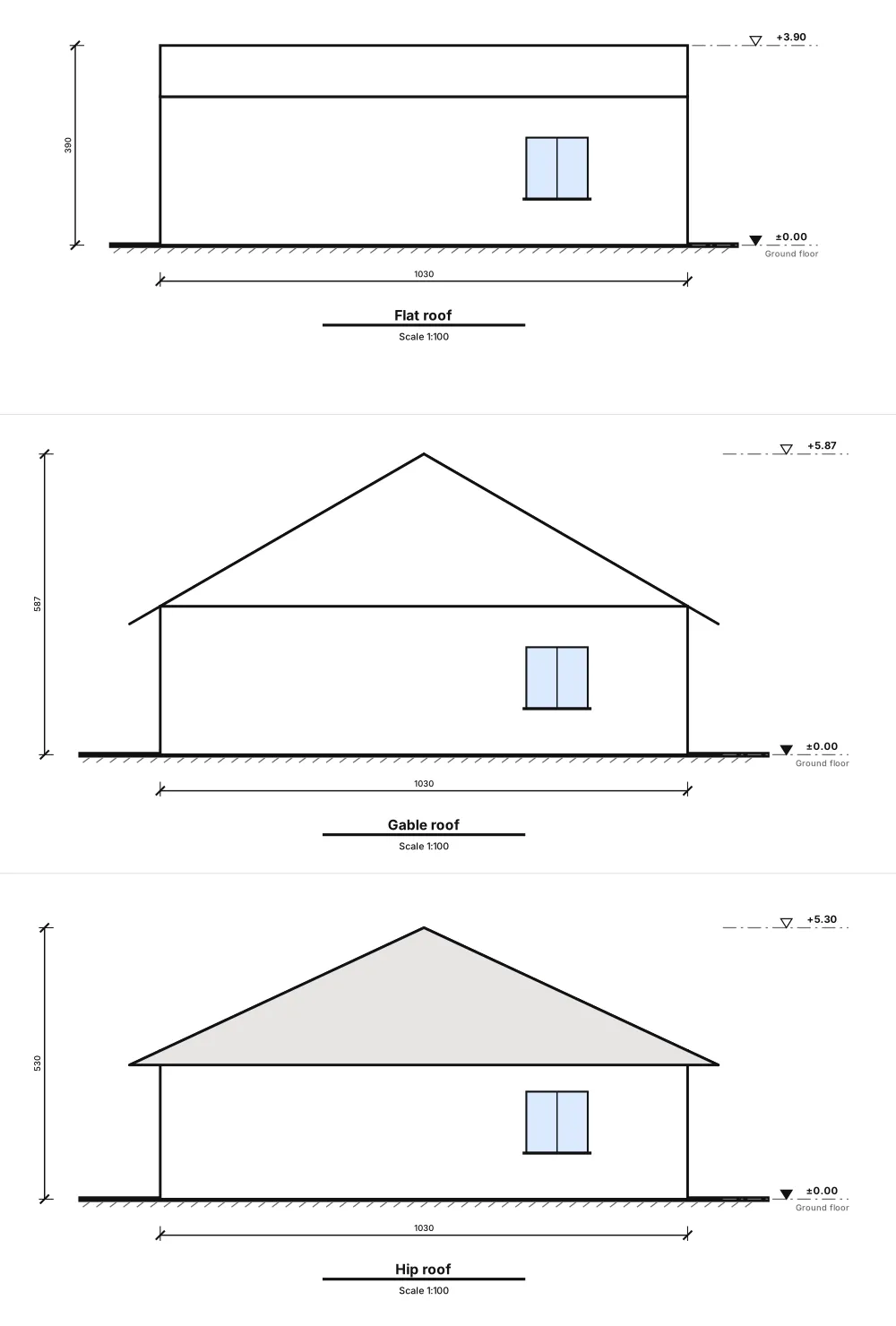
- Choose the roof Under Roof type pick No roof, Flat roof, Gable roof, Hip roof or Shed roof (single slope). For a flat roof set the parapet height; for pitched roofs set Pitch, Overhang and the ridge direction. The roof edge appears on the plan as a dashed outline and every thumbnail updates. Each change is one undo step.
- Check the north angle Elevations are named by the direction each facade faces. If north on your site is not the top of the drawing, set North angle (°) in Settings and the names rotate with it.
- Open the sheet and print Click View and print the sheet. Sheet A-201 shows the four elevations on an A3 sheet at one common standard scale, with level marks, overall widths, ground line and a title block. Use Print / PDF (A3) or download it as SVG.
Drawing sections: cut the house where it matters
- Start the section tool In the Elevations & sections panel click Draw a section line.
- Click twice across the plan Click on one side of the house and then on the other (the line must be at least 30 cm long). Cross the places you want to explain: a window, a doorway, the roof ridge. The line gets a letter — A, then B — with arrows for the viewing direction.
- Flip it if needed In the panel list, Flip viewing direction turns the arrows round; the bin icon deletes the section. Everything is undoable.
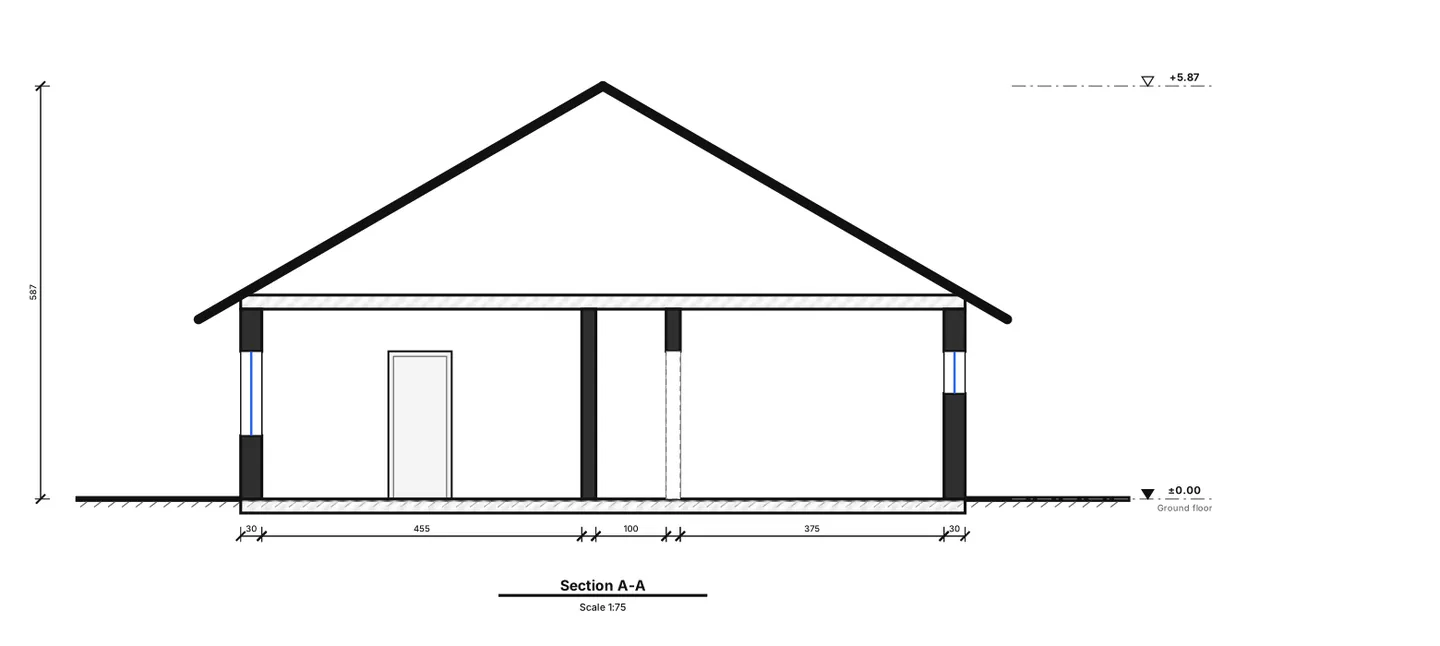
- Open the section sheet Open the section from the list. Each section gets its own sheet — A-301, A-302 and so on — with cut walls in solid black, gaps where the cut passes through a window or door, hatched floor and ceiling slabs, the roof profile, the walls and openings seen beyond, level marks and a dimension chain along the cut.
A full drawing set: sheets, title block and scale
For a client meeting, a contractor or a permit consultant you usually need more than single sheets. In the 2D editor click Export → Drawing set (PDF). It is free and is built in your browser.
- Choose paper and orientation Paper A1, A2, A3 or A4, landscape or portrait.
- Choose the scale Scale 1:50, 1:100, 1:200 or Fit to sheet (the largest standard scale that fits). If a floor does not fit at your scale, the dialog warns you and offers a one-click fix — a smaller scale or a larger paper. Plans are never cropped.
- Fill in the title block once Title block (saved with the project): project, address, plot numbers, client, drawn by, checked by, status, and a Revisions table. Empty fields fall back to the plan's sheet details.
- Pick what to include The floor plans are always in; tick elevations and sections, schedules, quantities and code notes as needed. A sheet index preview shows the numbers before you export.
- Export Click Export drawing set (PDF). You get one PDF whose pages are exactly the chosen paper size.
| Sheet number | Contents |
|---|---|
| A-001 | Cover with the sheet index |
| A-101, A-102… | One floor plan per level, with scale bar and north arrow |
| A-201 | The four elevations |
| A-301, A-302… | One sheet per section |
| A-601… | Door and window schedules (marks D1, W1…), room schedule, area summary per floor |
| A-701… | Quantities |
| A-801… | Code notes: the standards of the chosen country profile and this plan's findings (preliminary) |
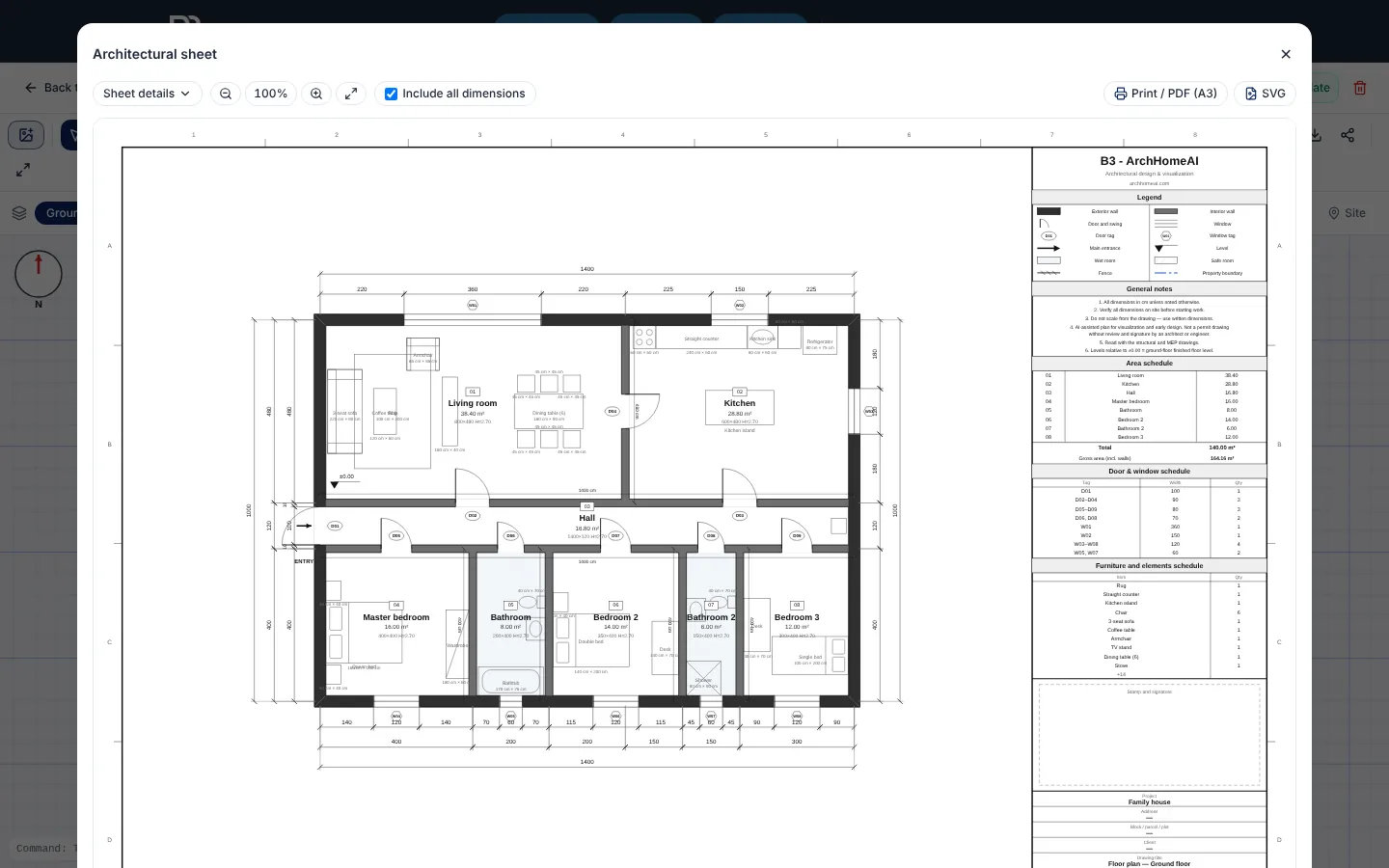
Need only the plan? The Architectural sheet button opens a single A3 plan sheet with dimension chains, room tags, legend, area and door schedules and a title block — with Print / PDF (A3) and SVG. How to dimension the plan itself is covered in floor plan with dimensions.
IFC export for Revit, Archicad and other BIM tools
IFC (Industry Foundation Classes) is the open, vendor-neutral BIM format maintained by buildingSMART International and published as ISO 16739. In the 2D editor choose Export → IFC (Revit / Archicad) to download `<project>.ifc` — free, every floor included.
- What is in it: an IFC4 file in millimetres with one storey per level at its height, walls extruded to the wall height, doors and windows sitting in real openings cut through their wall, and a floor slab plus a named space for every room.
- Stable IDs: exporting the same plan again gives the same GlobalIds, so a linked model can be updated.
- What is not in it: roofs, stairs, furniture, site elements, dimensions, materials and property sets. Doors and windows are simple boxes.
- Check it: open the file in your BIM tool or a free IFC viewer before you build on it. In Revit it arrives through *Link IFC* / *Open IFC* as imported objects, not native families.
Tips for clean elevations and sections
- Draw walls that meet cleanly (keep Snap on) and put doors and windows in their walls — the elevations read the plan as it is.
- Set the right window sill and height in the properties: a 0.90 m sill and a 2.10 m head look very different on a facade.
- Draw rooms with their ceiling height; that height sets the walls in the elevations, sections and the 3D model.
- Place at least one section through the main living space and one at right angles to it.
- Before you share the set, compare each elevation with the 2D plan and the 3D model — if a window looks wrong, fix it in the plan and every view follows.
Draw your elevations and sections Open your plan in the 2D editor and click Elevations & sections — it's free. Open the 2D dashboard
Frequently asked questions
What is the difference between an elevation and a section?
An elevation shows one outside face of the building as you would see it standing in front of it, with no perspective. A section shows the building cut through by a vertical plane, so you see wall and floor thicknesses, room heights and the roof structure along that cut.
What scale should elevations and sections be drawn at?
For a house, 1:100 is the usual scale (1 m = 10 mm on paper); 1:50 is used when more detail is needed and 1:200 for large buildings. Check what your local permit office asks for. In ArchHomeAI the drawing set offers 1:50, 1:100, 1:200 or Fit to sheet.
Do I have to draw the elevations myself in ArchHomeAI?
No. They are generated from your 2D plan: walls, doors, windows and the roof you choose. You only set the floor levels and the roof, draw section lines where you want them, and open the sheets. Changes in the plan update every view.
Does creating elevations, sections or the drawing set use credits?
No. Elevations, sections, the Architectural sheet, the drawing set PDF and the DXF and IFC exports are drawn by the site's own code in your browser, with no AI, so they are free.
Can I use these drawings for a building permit?
Treat them as design and early-planning drawings. Every sheet carries a note that it is not a permit drawing without an architect's review and signature, and the code notes are preliminary. An architect or engineer must check and complete the set for a submission.
Can I open the IFC file in Revit or Archicad?
Yes — Export → IFC (Revit / Archicad) writes a standard IFC4 file. In Revit use Link IFC or Open IFC; in Archicad open the .ifc file. The geometry is simple (walls, openings, doors, windows, slabs, spaces), so check it in your tool before you continue the design there.
Sources
How we wrote this guide: every figure comes from the sources listed at the end and was checked in September 2026. Prices vary by city, specification and year.
- Industry Foundation Classes (IFC) — buildingSMART International
- BayBauVorlV § 8 — Bauzeichnungen (scale of building drawings) — Bayern.Recht
- Chapter 4. Draw elevation and sections — LibreTexts (Tutorials of Visual Graphic Communication Programs for Interior Design)