
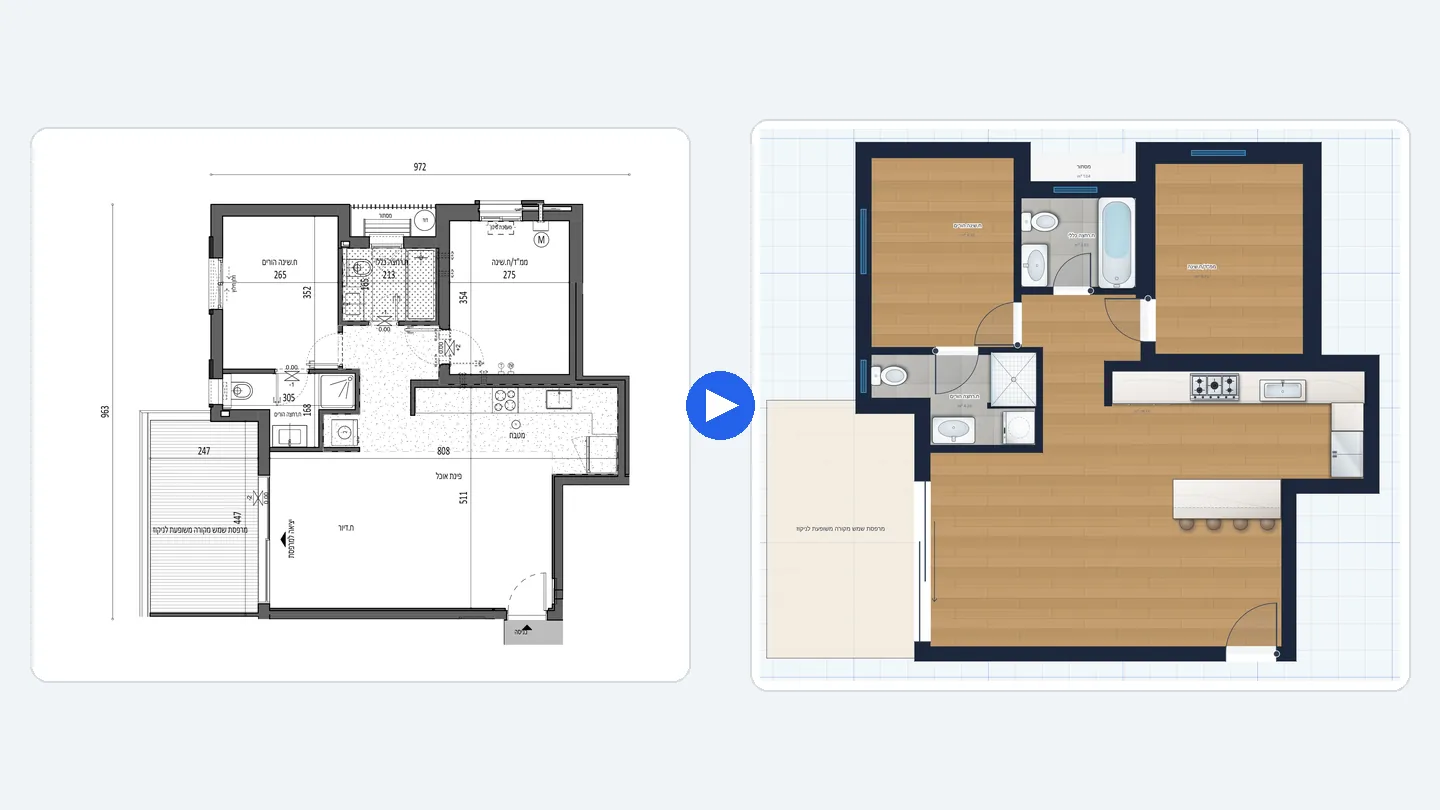
To convert a floor plan image to an editable plan, open the ArchHomeAI 2D editor, choose Import plan from image, upload the JPG, PNG, WebP or PDF and set the scale from one dimension written on the plan. The free system recognition finds walls, doors, windows, rooms and stairs, shows them on the image for you to check, and builds them as editable objects in one undoable step; a PDF exported from CAD software is read from its own lines, which is the most exact route.
Key takeaways
- Vector beats raster: a PDF exported from AutoCAD, ArchiCAD or Revit (or a DXF) contains real lines, so walls and the scale can be read exactly; a scan or photo contains only pixels and is always an estimate.
- The free reading comes first: walls, doors with their swing, windows, rooms with areas, stairs and the plot boundary are found by the site's own algorithm — no AI, no credits.
- Scale is the step that decides accuracy: measure one long written dimension on the image; without it the size of a scan is only estimated from door and wall widths.
- You stay in control: you see what was found before anything is built, can leave items out, and Ctrl+Z removes the whole import in one step.
- AI is optional: the AI reading adds room names, built-in fixtures and written dimensions from an image and uses credits; it is refunded if the reading fails.
Most renovation and redesign projects start with a plan that already exists — a PDF the architect sent years ago, a scanned permit drawing, or a photo of the sales brochure. To change anything on it you need it as a CAD plan: walls, doors and windows as objects with real sizes, not as pixels. This guide explains what is possible, which file gives the best result, and exactly how to do it in ArchHomeAI.
Raster or vector: what kind of plan do you have?
Every plan file is one of two kinds. A vector file (a CAD drawing, a DXF, or a PDF exported straight from drawing software) stores lines with exact coordinates. A raster file (a JPG or PNG photo, a scan, or a scanned PDF) stores only coloured pixels: software has to *recognise* walls in them, and the size of the drawing in metres is unknown until someone sets the scale. This difference decides how exact the result can be.
| Your file | What it contains | What ArchHomeAI reads | Accuracy to expect |
|---|---|---|---|
| PDF exported from AutoCAD, ArchiCAD, Revit | Real lines (vector), often a text layer | Walls, doors and swings, windows, rooms, kitchen and bathroom fixtures from the lines; scale from the written 1:N or the dimension lines — free | The best you can get from a PDF; still check one dimension |
| Scanned PDF, JPG, PNG, WebP, phone photo | Pixels only (raster) | Walls, doors, windows, rooms, stairs and the plot boundary by image recognition — free; room names and fixtures only with the optional AI reading | Good on sharp, straight scans; size depends on the scale you set |
| DXF (ASCII, R12–2018) | Lines, layers, blocks, texts | Walls from parallel lines on the wall layers you choose, doors and windows from blocks, rooms from closed outlines — free, read on your device | Exact geometry when walls are drawn as two parallel lines |
| DWG | AutoCAD's native format | Save it as DXF first and import the DXF | As DXF |
What is detected automatically — and what is not
ArchHomeAI reads a plan with its own algorithm first. On an image it finds the ink of the drawing, straightens a slightly rotated scan, measures wall thickness from pairs of lines and then looks for:
- Walls — outer and inner, with their thickness. Corners are joined and duplicates merged.
- Doors — from the drawn swing arc (including which way the door opens) or from a door-wide gap in a wall.
- Windows — drawn as thin lines across an outer wall.
- Rooms — closed spaces split at the doors, with their area in m².
- Stairs — as stair elements at real size, and the plot boundary when it is drawn around the house.
- From a CAD PDF also kitchen and bathroom fixtures as drawn, and — when the PDF has a text layer — room names and the written scale, all free.
What the free reading of an image does not do: read text. Room names, dimension numbers and fixtures in a photo or scan need the optional AI reading. Curved walls are not read, and on a blurry or very small image thin inner walls can be missed.
Step by step: convert a plan image or PDF to an editable plan
- Open the import In the 2D dashboard choose New Project → New from a plan (PDF or image). In a project that is already open, click Import in the toolbar and choose Import plan from image.
- Upload the plan Drop a JPG, PNG, WebP or PDF (up to 50 MB). A PDF with several pages shows small previews — pick the page with the floor plan. Large images are reduced automatically.
- Choose how it is read Under How should the plan be read? keep System recognition · free, or choose AI reading if you also want room names, fixtures and written dimensions from an image.
- Set the scale Under Scale choose Automatic from the drawing, Measure a dimension (click both ends of a written dimension and type its length) or Overall width (the outside width of the house). For a scan, measuring is strongly recommended.
- Choose where it goes Replace the current floor or As a new floor. Tick Mark the imported plan as "existing" if this is a renovation and you want to draw the new design on top.
- Read the drawing Click Read the drawing (free, no AI). After a few seconds you see What was found, drawn on your image: walls, doors, windows, rooms, stairs and the plot.
- Choose basic or full fill — and check Pick Basic fill (walls, doors, windows only) or Full fill (rooms, stairs and plot too). Tap a layer to switch it off, or tap a single item on the drawing to leave it out. The size and where the scale came from are shown below the image.
- Build the plan Click Build the plan. Everything is added as one step — Ctrl+Z removes the whole import. The image stays underneath, so you can compare and fix walls with the normal editing tools.
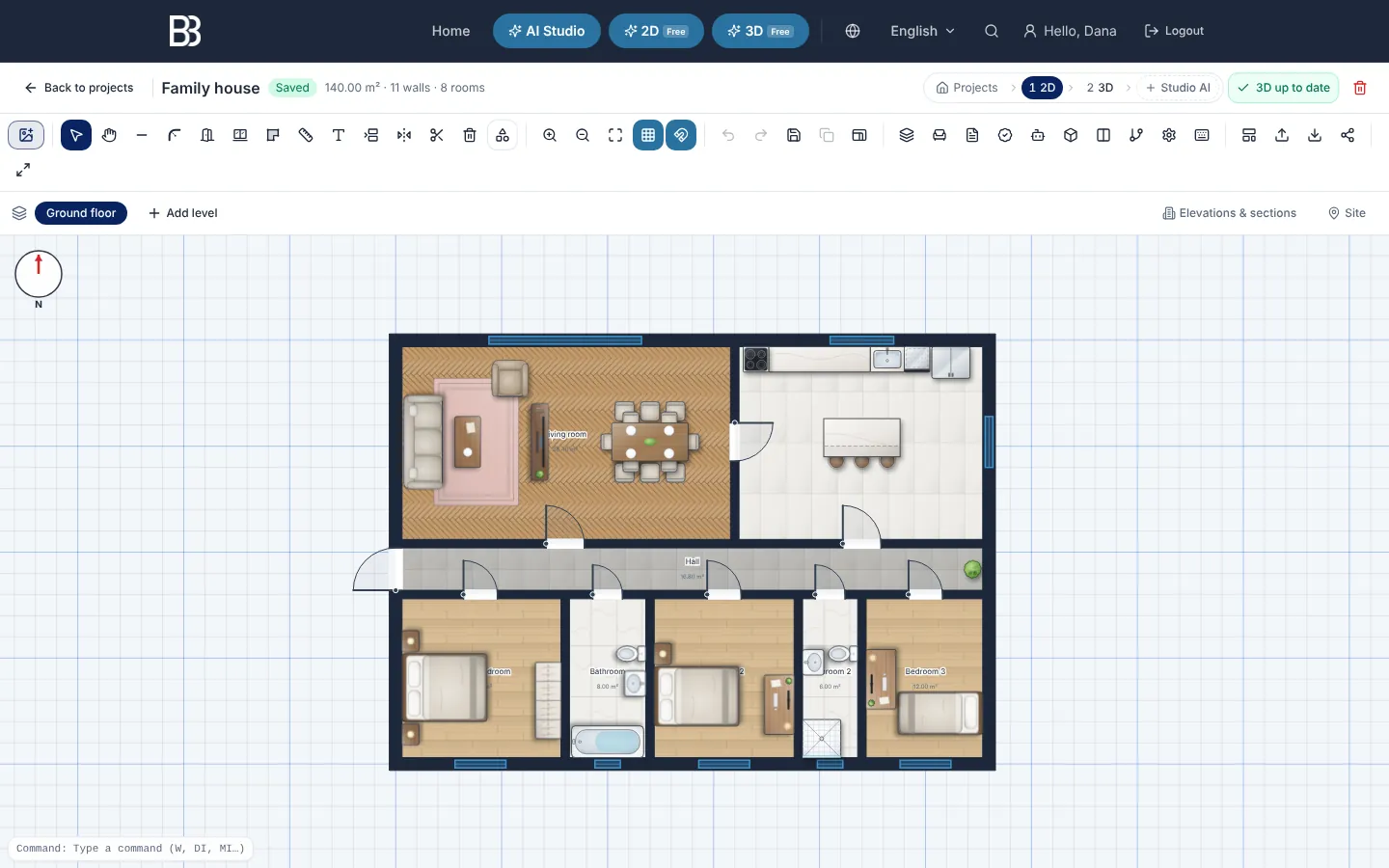
- Underlay — Put a scan, photo or PDF under the drawing, calibrate its scale, then let the system detect walls and openings on it — or trace it yourself.
- Import — Opens the import: Import plan from image (image or PDF) and DXF files.
Scale calibration: the step that decides accuracy
A picture has no size. A plan drawn at 1:50 and photographed with a phone is just so many pixels wide, and the software must learn how many millimetres one pixel is. ArchHomeAI decides the scale in this order:
- Your measurement — a dimension you measured on the image, or the overall width you typed. This always wins.
- The drawing itself — in a PDF, the written scale (for example 1:50) checked against the dimension lines; in a CAD PDF without text, the dimension lines and door swings.
- An estimate — on an image without anything else, from typical wall thickness and door widths. The dialog then shows the size in amber and asks you to measure a line.
A real example: from a sales sheet to an editable plan
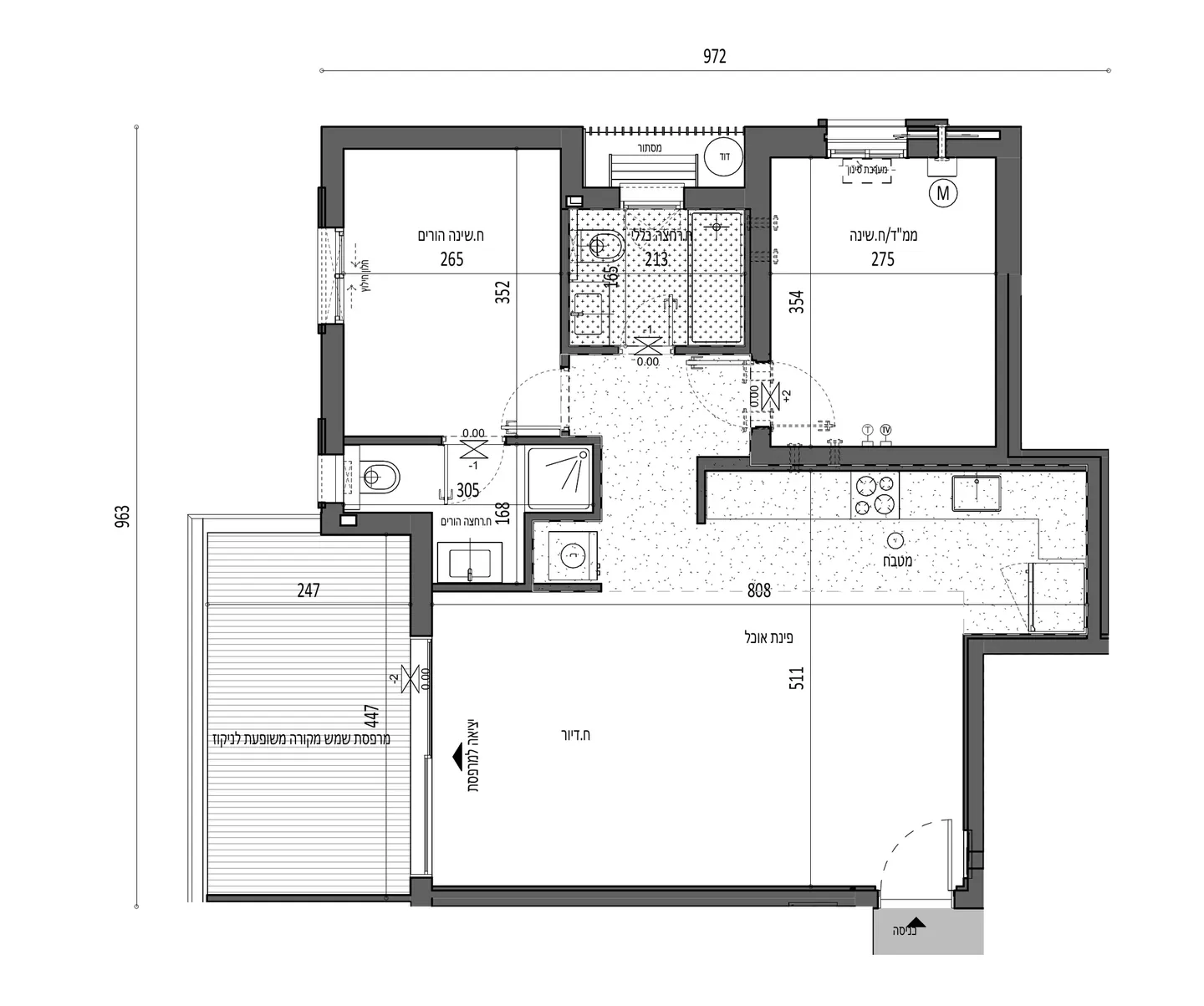
This developer's sheet of a two-bedroom apartment is a typical starting point: a PDF with a drawing at 1:50, written dimensions (972 and 963 cm overall) and Hebrew room names. In our own test the free reading took the 1:50 scale from the PDF, confirmed it against the two overall dimension lines, read the room names from the PDF's text layer and built walls, doors, windows and rooms. The outer width came out at 9.84 m against 9.72 m written — about 1 % — which is exactly the kind of difference you check and correct by hand.
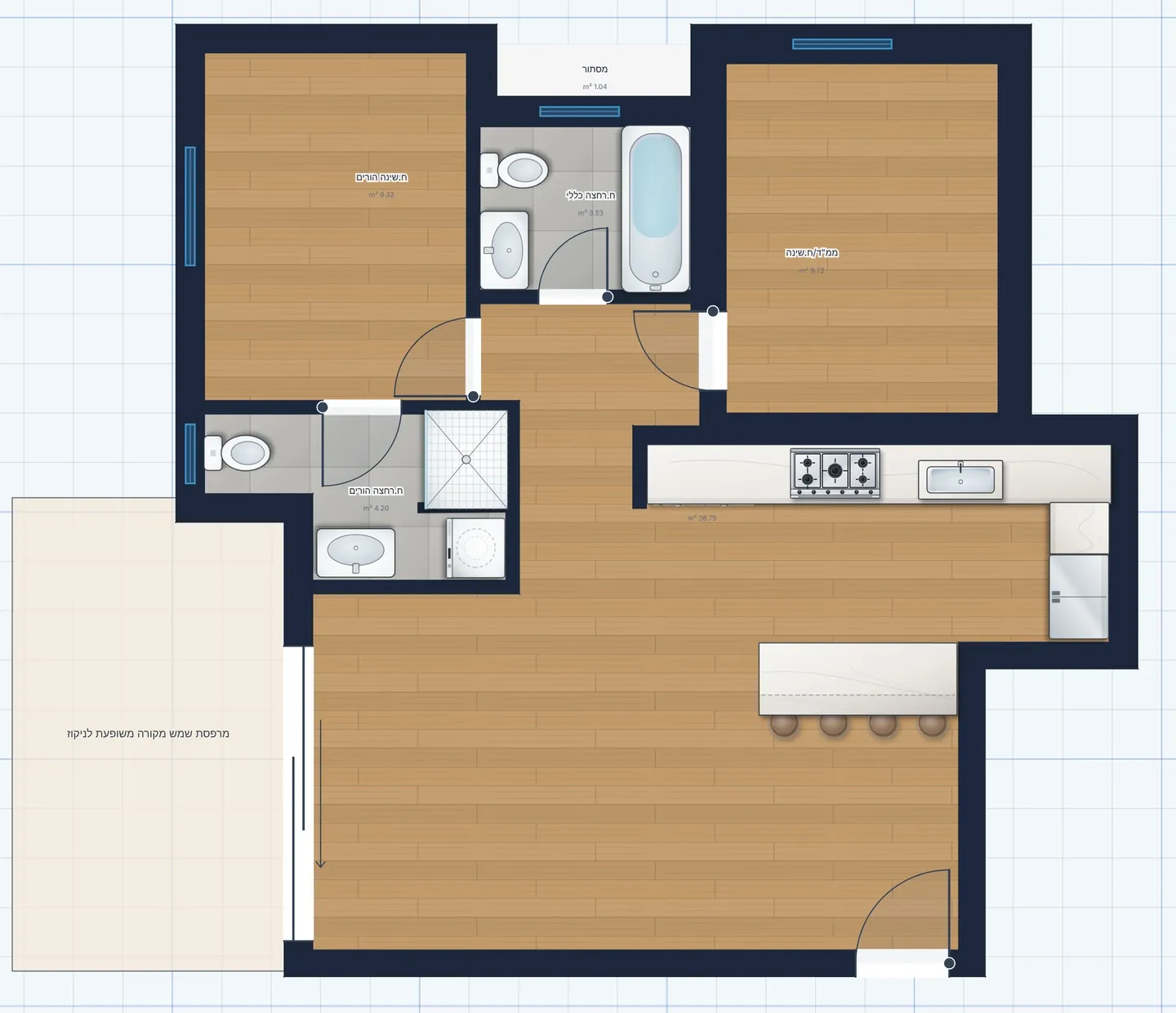
The same test also shows what a person still has to look at: the balcony railing was read as an outer wall, and a few bathroom fixture outlines were taken for door gaps. Both take a minute to delete — the point is to look, not to trust blindly.
Other routes: trace on an underlay, DXF and DWG
Detect on an underlay you already placed
If you prefer to start from a background image, click Underlay → Upload image, then Calibrate scale: click the two ends of a known distance and type its length. Right after that the editor offers to detect the walls, doors, windows and rooms on the sheet — answer Yes, detect, or later use Detect walls & openings from the sheet in the Underlay panel. The result is drawn exactly on the sheet. A PDF that states its scale (1:N) is sized from the paper automatically. If you only want a background to trace by hand, Place as underlay only (free, no AI) does just that.
DXF files
A DXF from AutoCAD, BricsCAD or a scanning app (magicplan, Polycam, CubiCasa) goes through New from DXF or Import. The file is read in your browser, free. You choose the Wall layers and check the Drawing units; walls are built from parallel line pairs, doors and windows from blocks whose names or layers say door or window, and rooms from closed outlines named by the text inside. You can keep the drawing as a background under the walls.
DWG files
Direct DWG upload is not open to all users yet. Open the DWG in your CAD program, use Save as → DXF, and import the DXF — the walls, layers and texts come through the DXF route above.
What to check by hand after the import
- One long dimension with the measure tool — if it is off, the scale was off; undo, measure a line and import again.
- Wall thickness of the outer walls and of thin partitions.
- Doors: are they all there, and do they open the right way? Gaps without a door may be doorways — or something else.
- Windows on every facade, and their widths.
- Rooms: names (on a scan they come only from the AI reading), types and areas; split or merge rooms that were joined through a wide opening.
- Balconies, railings, pergolas and fixtures that may have been read as walls or doors.
Next: from the editable plan to 3D and renders
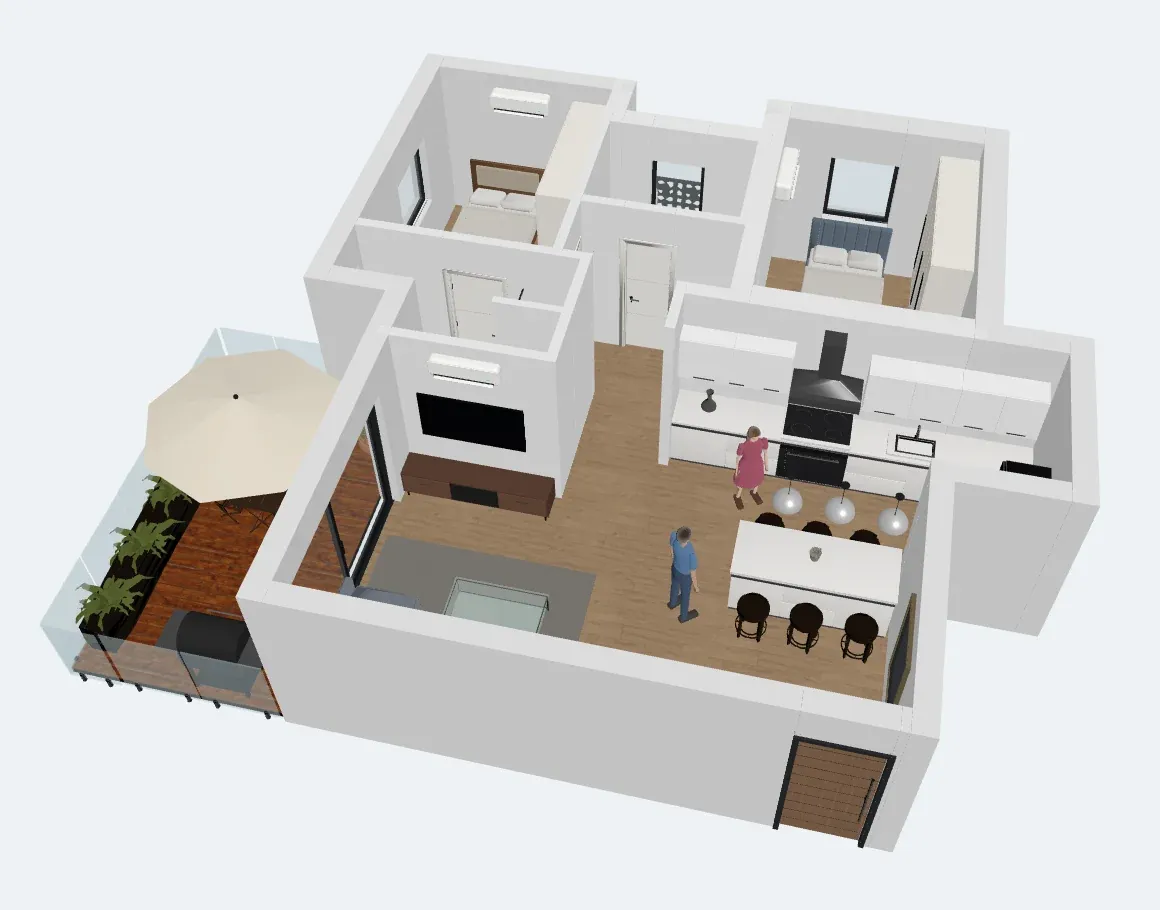
Once the walls are editable, the whole project opens up: add dimensions and export a sheet (floor plan with dimensions), open the free 3D model (2D to 3D floor plan), or draw the renovation on top of the existing state (existing and proposed plans). If you would rather start from scratch, see how to draw a floor plan.
Have a plan on paper or in a PDF? Upload it in the 2D editor and see what the free reading finds — before you redraw a single wall. Open the 2D dashboard
Frequently asked questions
Can I convert a JPG floor plan to an editable CAD plan for free?
Yes. In ArchHomeAI the system recognition of an image — walls, doors, windows, rooms, stairs and the plot boundary — is free and uses no AI. Only the optional AI reading, which adds room names, fixtures and written dimensions, uses credits.
How accurate is converting a scanned floor plan?
It depends mostly on the scan and the scale. A sharp, straight scan with a measured dimension gives walls close to the drawing; without a measurement the size is only estimated from wall and door widths and can be several percent off. Always check one long dimension after the import.
Is a PDF better than an image?
A PDF exported directly from CAD software is much better: its lines are real vectors, so walls, doors and the scale are read from the drawing itself. A scanned PDF is just an image inside a PDF and is read like a photo.
Can I import a DWG file?
Not directly for all users yet. Save the DWG as DXF in your CAD program (Save as → DXF) and import the DXF in the 2D editor — that import is free and runs in your browser.
Does the import read room names and dimensions?
From a PDF with a text layer, room names and the written scale are read for free. From a photo or scan, text is read only by the optional AI reading. Dimension numbers you can always use yourself to set the scale with Measure a dimension.
Can I export the result to AutoCAD?
Yes. The editable plan can be exported from the 2D editor with Export, including DXF, which AutoCAD and other CAD programs open.
Sources
How we wrote this guide: every figure comes from the sources listed at the end and was checked in September 2026. Prices vary by city, specification and year.
- About Importing and Exporting DXF Files — Autodesk AutoCAD LT Help
- DXF (Drawing Interchange Format) — format description — Library of Congress
- PDF to DWG Converter (vector vs raster PDF) — AutoDWG
- Take floor plan lines automatically from image or PDF — Autodesk Community, AutoCAD Forum
- Convertir PDF a CAD editable: programas gratis y online — ZWSOFT