
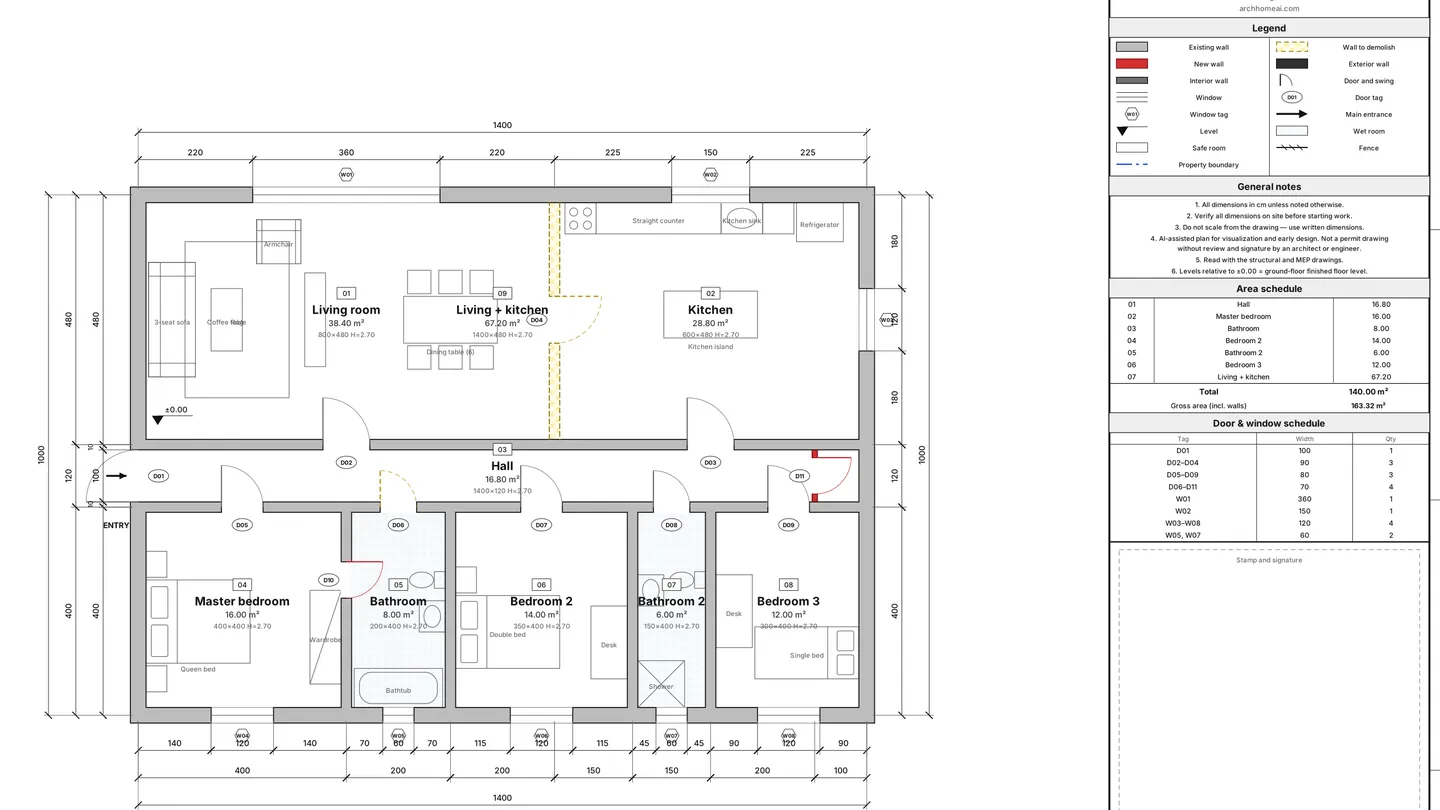
A renovation floor plan shows three states of the same home: the existing building, what will be demolished, and the proposed result. In the ArchHomeAI 2D editor every wall, door and window gets a phase — Existing (grey), Demolish (yellow, dashed) or New (red) — and one switch shows the Combined, Existing state or Proposed view, with quantities split by phase. Drawing and phases are free.
Key takeaways
- Contractors and permit offices expect the existing plan, a demolition plan and the proposed plan — usually grey for existing, yellow for demolition and red for new work, but check your local legend.
- In ArchHomeAI, select an element and set Properties → Phase (renovation), or type PH. Anything you draw is New by default, so a normal plan stays normal.
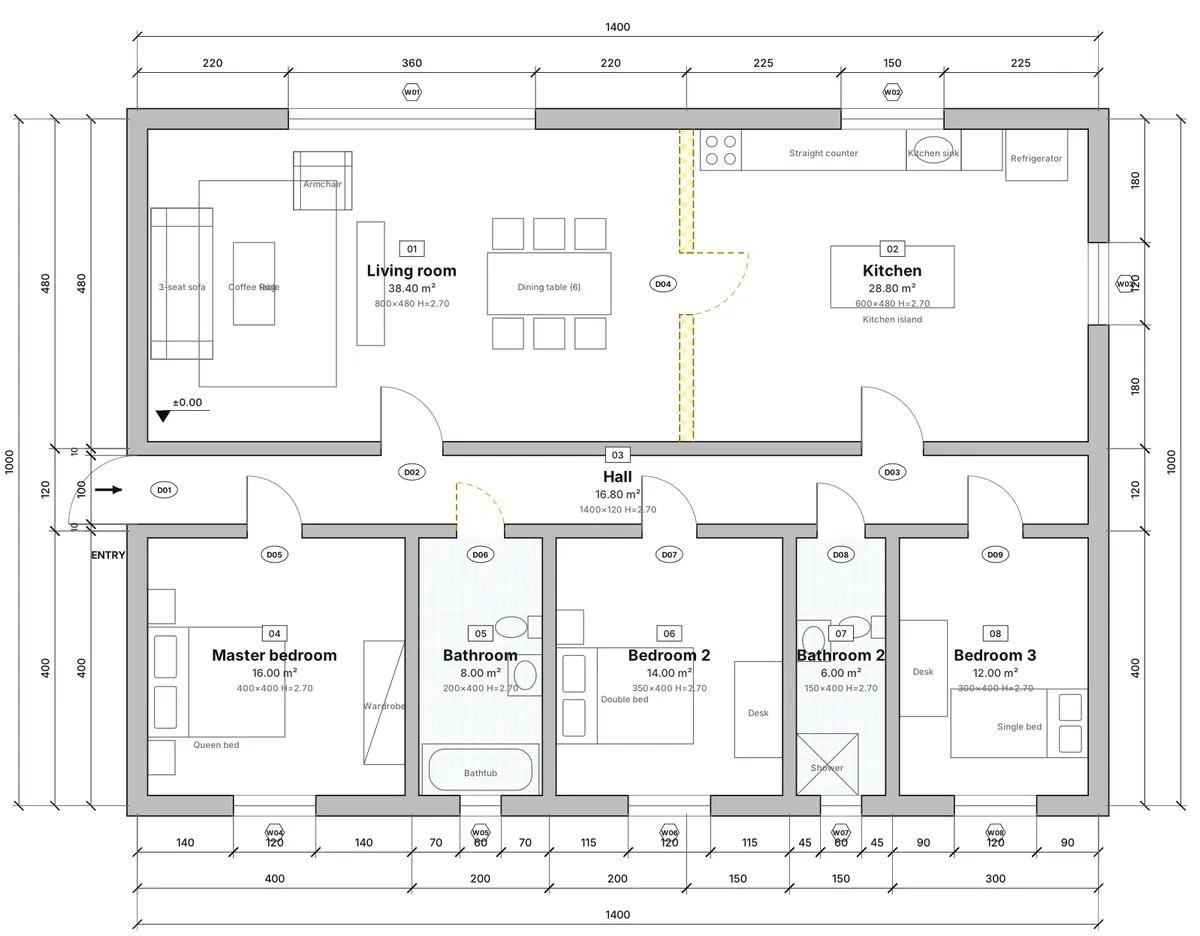
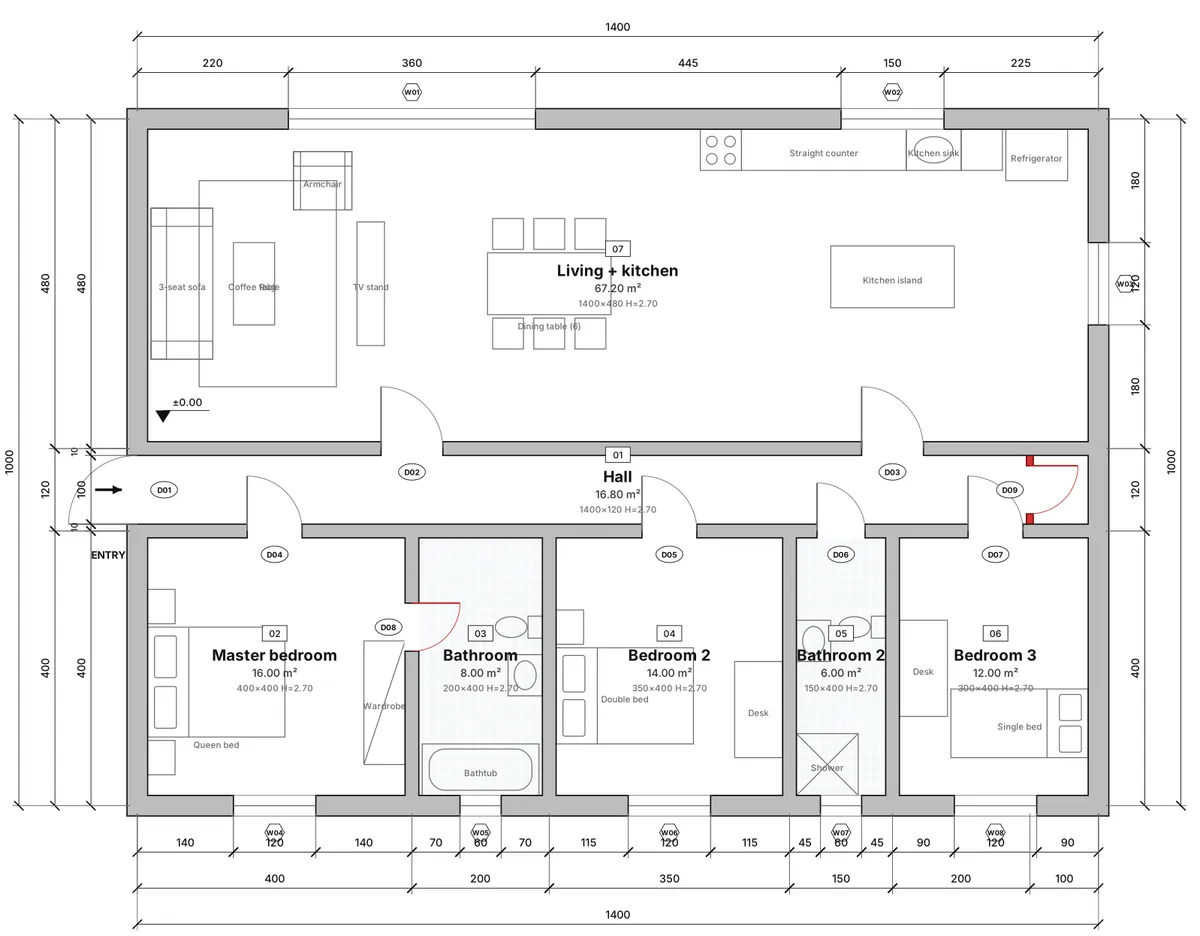
- The Existing state view hides new work (and new drawings there are stored as existing); Proposed hides what is demolished; Combined shows everything colour-coded.
- Import an old plan with Mark the imported plan as "existing" and you only have to draw the changes.
- Schedules → Quantities & cost measures the proposed state and adds a table of wall lengths and areas per phase; the cost estimate uses only rates you type in.
Most home projects are not new houses but changes to an existing one: open the kitchen, move a door, add a closet, redo a bathroom. For that work the builder needs more than one nice plan — they need to see what is there, what comes out and what goes in. This guide explains the drawings a renovation needs and shows, step by step, how to draw them in the free ArchHomeAI 2D editor with real output from the site.
What a renovation floor plan is — and what contractors need
A renovation (remodel) is documented as a set of plans of the same floor at the same scale. Planning offices typically expect the drawing title to say whether a plan is existing or proposed and the demolished walls to be marked — see the Northumberland County Council example. Most sets have three or four sheets per floor:
| Drawing | What it shows | Who uses it |
|---|---|---|
| Existing (as-built) plan | The home as it is today, measured on site: walls, doors, windows, rooms, fixtures | Designer, permit office, contractor for pricing |
| Demolition plan | The existing plan with every wall, door, window or fixture to remove marked | Demolition crew, structural engineer, waste removal |
| Proposed plan | The result after the works: kept and new elements, new room names and areas | Client, permit office, every trade |
| Combined ("yellow and red") plan | Existing, demolition and new work on one sheet, colour-coded | Site meetings, quick checks, many permit submissions |
The colour code is a convention, not a world standard. A common scheme is existing in grey or black, demolition in yellow, new work in red — for example the building-permit document list of the Swiss commune of Evolène asks for exactly that. In CAD files, the US layer standard adds a status code to layer names — N new, E existing, D demolish (AIA layer format) — so the phases survive when an engineer opens the file.
How renovation phases work in ArchHomeAI
In the 2D editor every wall, door and window — and also every room and element (furniture, fixtures, electrical symbols) — has a renovation phase. You set it in Properties → Phase (renovation): Existing, Demolish or New. Walls, doors and windows are colour-coded; rooms and elements are shown or hidden by the view.
| Phase | In the editor | On the sheet / PDF | In the DXF export |
|---|---|---|---|
| Existing | Grey | Light-grey fill, black outline | Layers A-WALL-EXST, A-DOOR-EXST, A-GLAZ-EXST |
| Demolish | Yellow hatch, dashed outline | Yellow hatch, dashed outline and openings | …-DEMO layers, dashed linetype |
| New | Red | Red fill | …-NEWW layers |
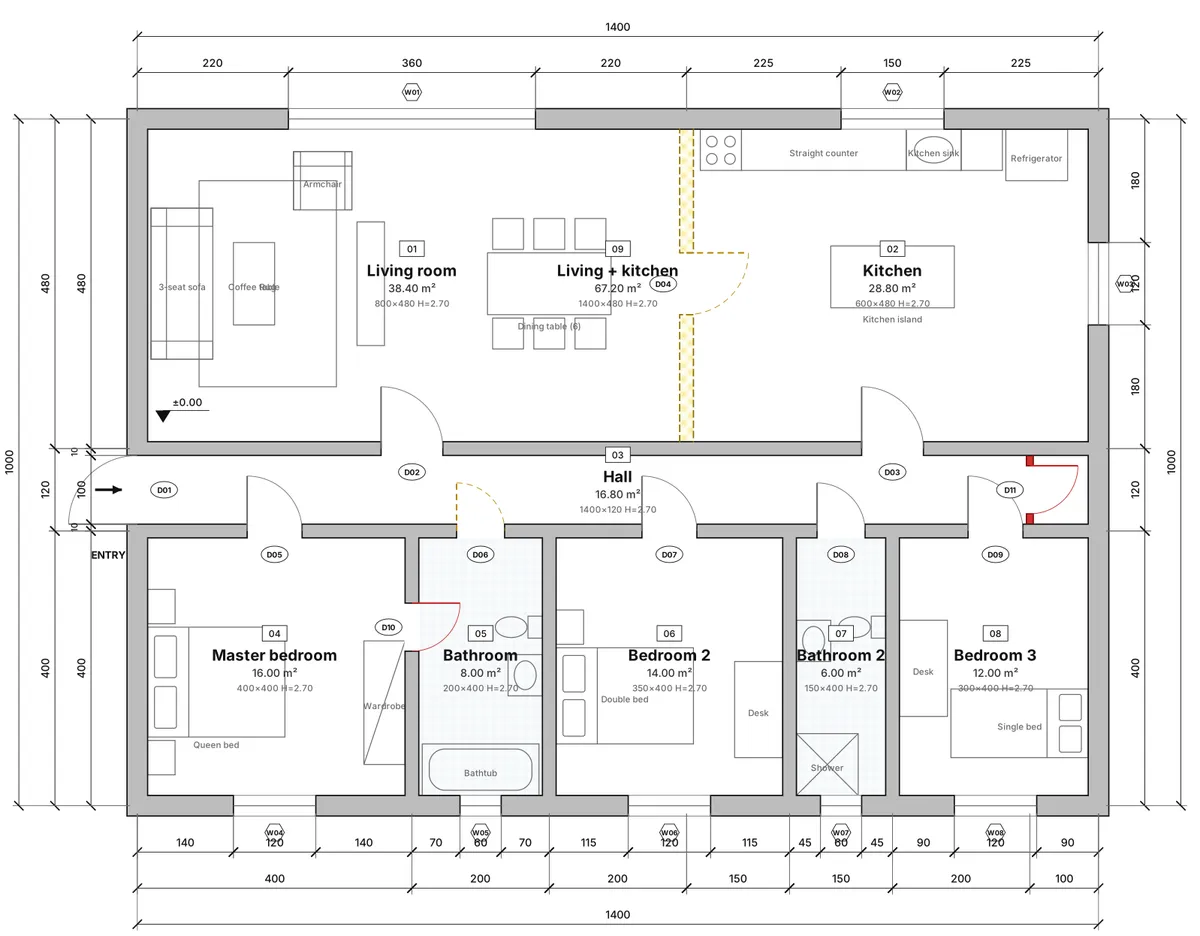
A missing phase means New, so every plan drawn before — and every new house — looks, prints and exports exactly as before. As soon as one element is Existing or Demolish (or the project type is Renovation), a phase switch appears in the level bar with three views: Combined (everything, colour-coded), Existing state (existing + demolish) and Proposed (existing + new). Hidden elements cannot be picked or deleted by mistake.
Step by step: draw a renovation plan
- Create the project In the 2D dashboard click New Project and choose Renovation as the Project type. The phase switch is then always visible.
- Bring in the existing plan Fastest: Import plan from image (JPG, PNG or PDF) and tick Mark the imported plan as "existing" (renovation project). System recognition · free reads walls, doors, windows and rooms without AI; the AI reading adds room names and fixtures and uses credits (your balance is in the credit counter at the top of the site). A DXF from Import has the same checkbox.
- Or draw it yourself Put a scan or photo under the drawing with Underlay, switch the view to Existing state and trace it: everything you draw in that view is stored as Existing.
- Check the existing plan Compare the walls with the underlay and fix lengths before planning anything. An as-built plan should come from site measurements — the reading of an old drawing is only a starting point.
- Mark what comes out Select a wall, door or window and set Properties → Phase (renovation) → Demolish. With the command line you can type PH: it cycles New → Existing → Demolish for the selection (with nothing selected it cycles the view).
- Draw the new work Switch to Proposed or Combined and draw new walls, doors and windows as usual — they are New (red). Add new rooms and elements from Add element.
- Review the three views Click Existing state, Proposed and Combined in turn. The 3D preview has the same switch: demolished walls appear as transparent yellow ghosts.
- Publish the drawings Architectural sheet prints the current view with the phase legend. Export → Drawing set (PDF) has the option What the plans show (renovation): make one set as Existing state and one as Proposed. DXF export puts the phases on separate layers.
Typical renovation changes and how to draw them
The example above shows three common changes on the 140 m² (1,507 ft²) sample house: the wall between living room and kitchen is removed, the bathroom gets a door from the master bedroom instead of the hall, and a small storage closet is added at the end of the hall.
| Change | How to draw it in ArchHomeAI | Check with a professional |
|---|---|---|
| Remove a wall (open-plan kitchen) | Set the wall to Demolish; its doors and windows to Demolish too. Draw the merged room as New, mark the old rooms Demolish | Is the wall load-bearing? Beams, lintels, services inside it |
| Move a door | Old door → Demolish, new door on the other wall → New | New opening in a load-bearing wall, fire and escape rules |
| Add a partition or closet | Draw the new wall and its door in the Proposed view | Daylight and ventilation of the rooms you split |
| Move sockets, switches or lights | In the Electrical plan: the old symbol → Demolish, the new one → New (elements are shown or hidden by the view, not colour-coded) | A licensed electrician for circuits and the panel |
| Kitchen or bathroom remodel | Old fixtures → Demolish, new cabinets and sanitary ware from Add element → New | Drain falls, waterproofing, gas |
Bill of quantities and cost estimate for the renovation
Open Schedules → Quantities & cost. Areas, schedules and quantities are measured on the proposed state (existing + new), so demolished walls do not inflate your areas. On renovation plans a table Renovation — quantities by phase follows the summary. For the sample house it gives:
| Phase | Walls — length | Walls — net area | Doors |
|---|---|---|---|
| Existing | 92.0 m (302 ft) | 223.41 m² (2,405 ft²) | 7 |
| Demolish | 4.8 m (15.7 ft) | 11.07 m² (119 ft²) | 2 |
| New | 1.2 m (3.9 ft) | 1.77 m² (19 ft²) | 2 |
The Cost estimate below it multiplies these quantities by your own rates: every rate starts at 0 and ArchHomeAI never suggests a price. Choose the currency (₪, $ or €) and enter rates per m² of built area, exterior and interior wall, per door and window and per m² of each floor finish found in the plan.
- Lump sums — there is no separate demolition rate yet, so add "Demolition and debris removal" as a lump sum with the price from your contractor.
- Percentage extras — design and supervision, contingency, or your own.
- Quick estimate — optional price per m² built for a first order of magnitude.
- Export CSV for Excel and Print / PDF for the client; the rates are saved with the plan.
- My rate templates keep your rates for the next project.
Show the client the result: 3D and AI visualisation
The 3D preview in the 2D editor has the same Combined / Existing state / Proposed switch. The linked 3D model always gets the proposed state, so demolished walls never end up in the 3D scene; elevations and sections follow the proposed state by default too.
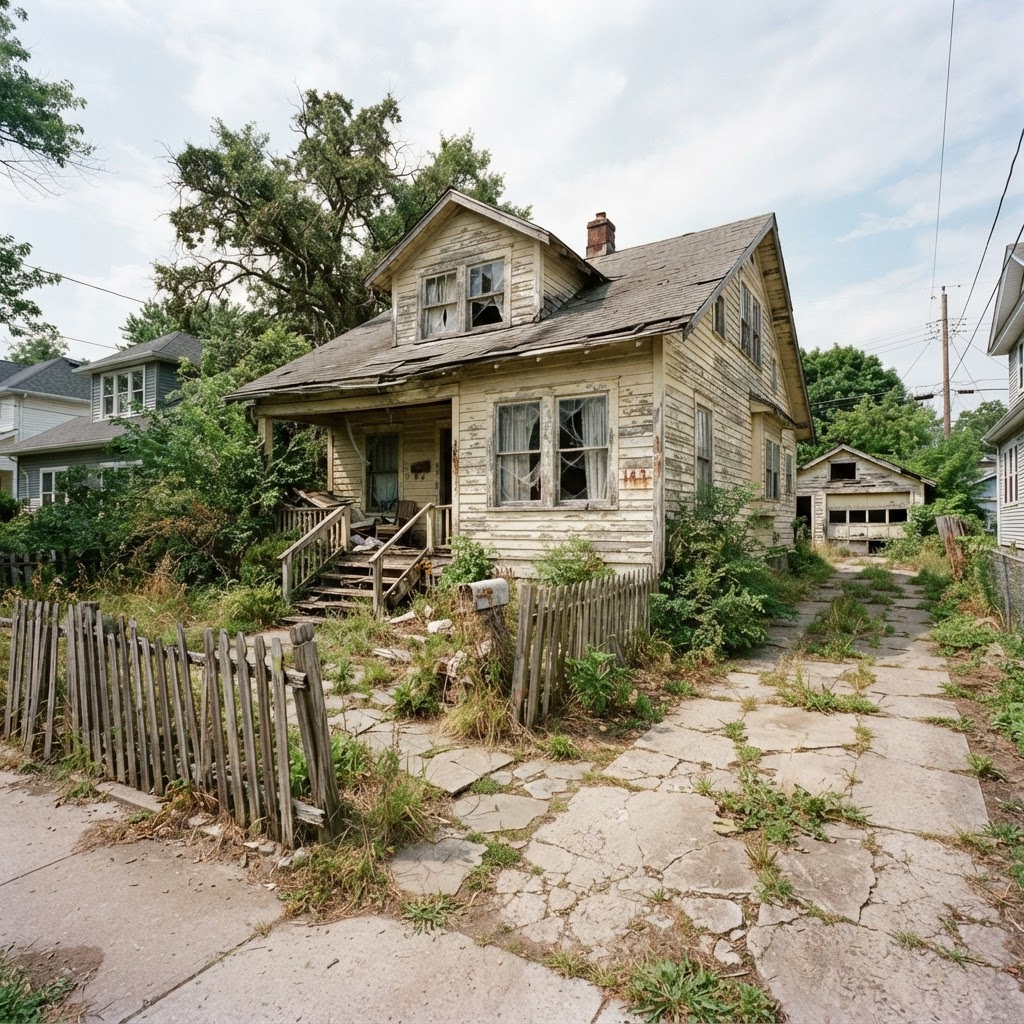
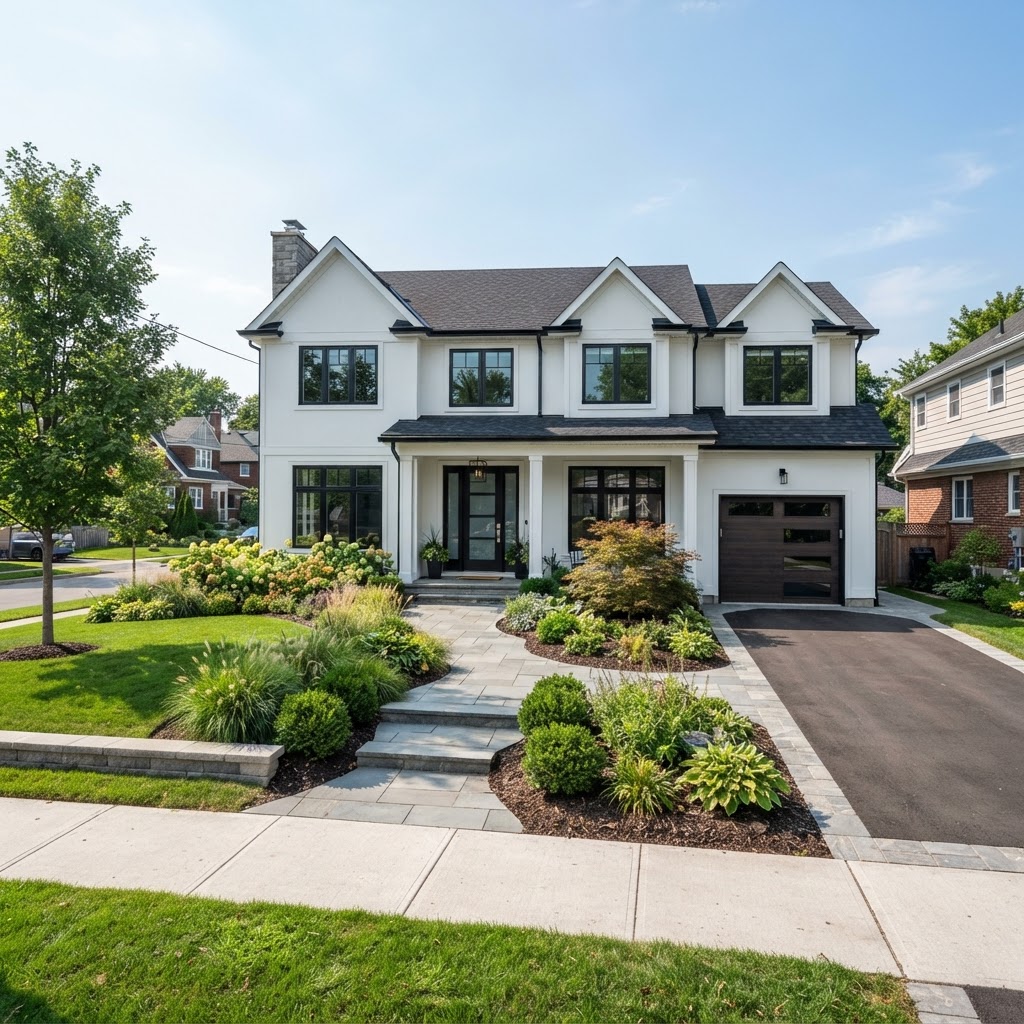
To show what the finished space could look like, upload a photo of the room or facade to AI Studio with the renovation option. That is an AI step and uses credits, and the image is a visualisation, not a construction drawing — see how to create a house rendering.
Limits of this early version
- A drawing set shows one phase view; for an existing + proposed pair, export the set twice.
- There is no demolition line in the cost estimate yet — use a lump sum.
- Compact A4 sheets have no legend strip, so no phase legend.
- The 3D editor itself shows only the proposed state; demolition ghosts appear only in the 2D editor's 3D preview.
- Rule checks (QA) are a preliminary check, not a permit review; a permit set must be checked and signed by a licensed professional.
Draw your renovation plan Import your existing plan, mark what changes and see the proposed result — free, no CAD experience needed. Open the 2D editor
Frequently asked questions
What is the difference between an existing and a proposed floor plan?
The existing (as-built) plan shows the home as it is today; the proposed plan shows it after the works. A demolition plan sits between them and marks what will be removed. In ArchHomeAI all three come from one drawing through the phase views.
What colours are used for demolition and new walls?
A widespread convention is grey or black for existing, yellow for demolition and red for new work, but it varies by country and municipality. ArchHomeAI uses grey, dashed yellow hatch and red, and puts a legend on the sheet.
Can I import my old floor plan as the existing state?
Yes. Import plan from image (JPG, PNG or PDF) and DXF import both have the checkbox "Mark the imported plan as existing". The free system recognition needs no credits; the AI reading uses credits.
Does ArchHomeAI calculate renovation costs?
It calculates quantities from the drawing and multiplies them by rates you enter. It never invents prices, and the result is a preliminary estimate, not a quote.
Can I submit these drawings for a building permit?
They are a good working basis, but a permit set must follow your local rules and usually needs a licensed architect or engineer to check and sign it. The rule check is preliminary.
Sources
How we wrote this guide: every figure comes from the sources listed at the end and was checked in September 2026. Prices vary by city, specification and year.
- Example of existing floor plans — Northumberland County Council
- Liste des documents à fournir (demande d'autorisation de construire) — Commune d'Evolène
- The AIA CAD Layer Format — Draftsperson.net