
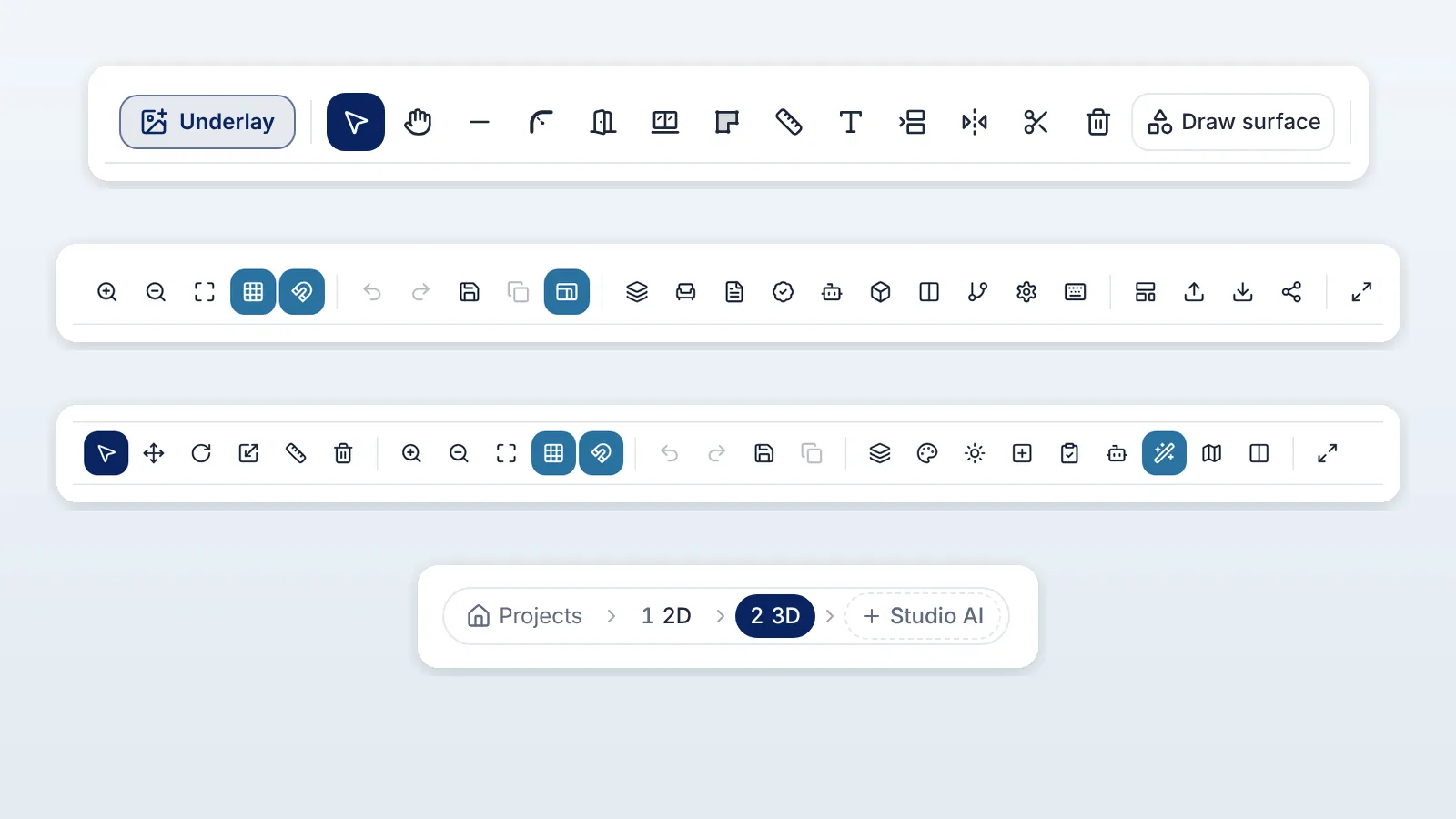
This glossary lists every button of ArchHomeAI's three workspaces — the 2D editor, the 3D editor and AI Studio — with its real icon, its name as it appears in the app, what it does and a short example. Search by name or by what you want to do, or link straight to any button.
Key takeaways
- Hover over a button in the app to see its name — the same name used here.
- Most 2D tools have a keyboard shortcut, shown in grey, such as W for Wall or DI for Dimension.
- Buttons that use AI say so; your credit balance is always shown in the credit counter at the top of the site.
- New to the app? Read How to use ArchHomeAI first for the complete workflow.
2D editor buttons
The 2D editor is where the plan is drawn: walls, openings, rooms, furniture, floors and the garden, at real size.





Start here
- Underlay
- Places a scan, photo or PDF of an existing plan under your drawing, so you can trace it. Set the scale from one known distance.
Upload the old apartment plan, calibrate one wall to 4.20 m, then draw the new walls over it.
Drawing tools
- Select V
- Selects walls, doors, rooms and furniture. Drag to move, use the handles to resize or turn; drag a box to select several.
Click the sofa, then drag it closer to the window. - Pan P
- Moves the view around without changing anything.
Zoomed into the kitchen? Pan to the bedrooms. - Wall W
- Draws walls corner by corner. The length follows the cursor; double-click or Esc ends the chain.
Click four corners and back to the first to close a 6 × 4 m room. - Round corner
- Rounds the corner where two walls meet into an arc. Change the radius later with the white diamond or in Properties.
Round the corner of the living room into a soft 1 m curve. - Door D
- Places a door on a wall. Drag its ends to change the width; the opening side is in Properties.
Click the hall wall to add a 90 cm door into the bedroom. - Window N
- Places a window on a wall, with its width, height and sill in Properties.
Add a 2.4 m sliding window to the living room facing the garden. - Room R
- Creates a room from two opposite corners, with its walls, name and area.
Drag out a 3 × 3.5 m bedroom, then rename it “Kids' room”. - Dimension DI
- Adds a measured line between two points; it updates when walls move.
Show the exact width of the kitchen for the cabinet maker. - Text T
- Places a note or label on the plan.
Write “new opening” next to a widened door. - Offset wall O
- Copies a wall parallel to itself at a distance you choose.
Add an inner lining wall 10 cm in from the facade. - Mirror MI
- Mirrors the selection around a line — ideal for symmetrical rooms or semi-detached houses.
Mirror a finished bathroom to create the second one. - Trim / extend TR
- Trims a wall to another wall, or extends it until it meets one.
Clean up a wall that sticks out past a corner. - Delete E
- Deletes what you click or what is selected. Undo brings it back.
Remove an old partition before opening up the kitchen. - Draw surface
- Draws an outdoor or floor surface point by point: deck, lawn, path, paving, driveway, parking, flower bed, tiles, marble, parquet, concrete or gravel.
Outline an L-shaped wooden deck around the back of the house.
View
- Zoom In
- Zooms into the plan (the mouse wheel does the same).
Zoom in to place a socket precisely. - Zoom Out
- Zooms out to see more of the plan.
Zoom out to see the house and the garden together. - Reset Zoom
- Fits the whole plan to the screen.
Lost somewhere off the drawing? One click brings the plan back. - Grid
- Shows or hides the background grid.
Hide the grid for a clean screenshot. - Snap
- The magnet: walls, doors and furniture snap to corners, wall faces and the grid. Hold Shift to move freely.
Keep it on so new walls meet exactly at the corners.
Edit
- Undo Ctrl+Z
- Undoes the last change.
Deleted the wrong wall? Ctrl+Z. - Redo Ctrl+Y
- Redoes what you just undid.
Changed your mind again? Ctrl+Y. - Save Ctrl+S
- Saves now. The plan also saves automatically; an amber icon means unsaved changes.
Save before you close the laptop. - Duplicate Ctrl+D
- Copies the selected items next to the originals.
Duplicate a bed to furnish the second bedroom. - Show / hide wall and plot dimensions DA
- Shows or hides every wall, room and plot dimension at once, on screen only.
Turn them on to check sizes, off for a clean view.
Panels
- Layers
- Shows, hides or locks walls, doors, windows, rooms, elements, dimensions and the grid.
Lock the walls while you arrange furniture. - Add element
- The catalogue: furniture, kitchens, bathrooms, stairs, lighting, building services, floors and garden items, in photo-real, vector or technical style.
Search “island”, then drag a kitchen island into the plan. - Schedules
- Tables of rooms, doors, windows and walls with areas, plus quantities and costs.
Copy the room-area table into your offer. - Plan & building-rules check
- A quality check of the plan against the rule profile in Settings. It is preliminary and does not replace a permit review.
See which bedroom is below the minimum size before you send the plan. - AI
- The AI copilot: generate a plan from your brief, get variations, clean up the plan or ask for a change in your own words. AI requests use credits.
Ask: “add a 3 × 3.5 m bedroom next to the living room”. - 3D
- A small 3D preview of the plan with front, rear and side views, sun and shadows, AR / VR and Render this view.
Check the shadow of the pergola at 4 pm. - Side by side: 2D + 3D
- Splits the screen: the 2D plan on one side and the live 3D model on the other. Not available on phones.
Move the sofa in 3D and watch the plan follow. - Versions
- Design options and checkpoints: branch the plan, switch between options and compare them.
Keep “Option A – open kitchen” and “Option B – closed kitchen” side by side. - Settings
- Units, area standard, rule profile, north angle, element names and precision.
Switch the plan from centimetres to feet and inches. - Keyboard shortcuts
- Lists every keyboard shortcut and command.
Learn that MI mirrors and TR trims.
Sheet, files and sharing
- Architectural sheet
- Opens the architectural sheet: the plan with dimensions, a legend, schedules and a title block, ready to print or save as PDF.
Print an A3 sheet for the meeting with the contractor. - Import
- Brings in a plan: DXF, DWG, IFC, PDF, SVG or an image. As a reference it is free; turning an image into editable walls uses AI and credits.
Import the DXF from the surveyor and keep drawing on it. - Export
- Saves the plan as PDF, DXF (with layers), IFC, SVG, PNG, CSV tables, a drawing set or a deliverables package.
Send the DXF to your engineer for AutoCAD. - Creates a link to the project for people who have access to it.
Send the link to your partner to review the plan. - Fullscreen
- Hides the site menu and gives the whole screen to the drawing.
Go full screen on a small laptop.
Around the plan
- Project flow bar
- Projects › 2D › 3D › Studio AI. Shows where you are and jumps between the linked steps; a dashed step with + creates it.
Click “+ 3D” to build the 3D model of this plan. - Create linked 3D
- Builds a 3D scene from this level and keeps it linked, so plan changes can be updated in 3D later. Free.
Create the 3D once, then keep drawing in 2D. - Add level
- Each floor is a level; the bar switches between them and Add level creates a new one.
Add “First floor” and draw the bedrooms upstairs. - Elevations & sections
- Automatic elevations and sections of the plan.
Check the height of the windows on the street facade. - Site
- The plot boundary, the address with a true-scale map, north and the sun's shadow.
Enter the address to set north and place the map under the plan. - Properties
- Opens the Properties of the selected item: sizes, positions, materials, arc depth, floor finish and more, with ▲▼ steppers.
Type a wall height of 3.00 m. - Command line
- Type a CAD command at the bottom of the plan: W, D, N, R, DI, T, O, MI, TR, E, DA…
Type W and start drawing a wall without touching the toolbar. - Search & commands Ctrl+K
- Searches the site and runs commands from anywhere.
Press Ctrl+K and type “export”.
3D editor buttons
The 3D editor shows the plan as a model you can orbit, furnish, light and walk through.


Tools
- Select
- Selects an object. Press on furniture and drag to move it in one gesture; walls and floors are selected first, then dragged.
Click the dining table to see its size in Properties. - Move
- Moves any object by dragging, with 10 cm snapping.
Slide the armchair 50 cm to the left. - Rotate
- Turns the selected object; drag sideways.
Turn the bed to face the window. - Resize / Draw
- Resizes the selected object with the handles.
Make the rug wider to fill the living room. - Measure
- Measures the distance between two points in the model.
Check the space between the sofa and the TV. - Delete Delete
- Deletes the object you click.
Remove a chair from the dining set.
View
- Zoom In
- Moves the camera closer.
Zoom in on the kitchen island. - Zoom Out
- Moves the camera away.
Zoom out to see the whole house. - Reset view
- Puts the camera back to the starting view.
Lost inside a wall? Reset the view. - Grid
- Shows or hides the ground grid.
Hide the grid before you take a screenshot. - Snap
- Snaps moved objects to 10 cm steps.
Turn it off to nudge a vase into place. - Camera views
- Under the model: Perspective, Top, Front, Rear, Left and Right.
Click Front to see the facade straight on. - 2D / 3D
- Switches between the perspective 3D view and a flat (orthographic) view.
Use the flat view to compare heights.
Edit
- Undo Ctrl+Z
- Undoes the last 3D change.
Moved the wrong wall? Ctrl+Z. - Redo Ctrl+Y
- Redoes what you undid.
Bring the move back with Ctrl+Y. - Save Ctrl+S
- Saves the scene now; it also saves automatically.
Save before sending the view to the Studio. - Duplicate Ctrl+D
- Copies the selected object.
Duplicate a pendant lamp to hang three over the island.
Panels
- Layers
- Shows or hides groups: architecture, furniture, lighting, exterior, landscape and AI-generated items.
Hide the furniture to look at the empty rooms. - Materials
- Real surfaces for the selected wall, floor or object: plaster, brick, concrete, stone, wood, tiles and more.
Give the feature wall exposed brick. - Lighting
- Adjusts the lights of the scene.
Brighten the scene for a clearer screenshot. - Add element
- Adds realistic furniture, houses, architecture, indoor and garden items; click to add or drag into the view.
Drag a Chesterfield sofa into the living room. - Scene check
- Checks the scene for problems, such as overlapping objects or objects outside the site.
Find the two chairs standing in the same spot. - AI
- AI design tools: colour palette, furniture suggestions, room redesign and style. They use credits.
Ask the AI to suggest a warm colour palette for the whole house. - Realistic look
- Swaps simple shapes for real 3D models of furniture.
Turn it on before rendering for a natural look. - 2D plan
- Opens the professional 2D plan of this model; 3D changes not yet in the plan are offered first.
Go back to 2D to add a window. - Side by side: 2D + 3D
- Opens the linked 2D plan with the live 3D beside it.
Draw a wall in 2D and see it rise in 3D. - Properties
- Shows the Properties of the selected object: position (left–right, front–back, up–down), size, rotation and colour.
Lift the wall shelf to 1.50 m above the floor. - Fullscreen
- Gives the whole screen to the 3D view.
Go full screen to present the design to a client.
Top bar
- Update from 2D to 3D
- Brings the latest plan changes into 3D. What you added in 3D, and your colours and materials, stay. Can be undone.
You moved a wall in 2D — update the 3D in one click. - Update from 3D to 2D
- Sends furniture, door, window and wall moves made in 3D back to the plan, after you approve.
Rearranged the bedroom in 3D? Apply it to the plan. - To studio
- Opens a new AI Studio project with the current view as its source image. Sending is free; generating in the Studio uses credits.
Frame the living room nicely, then send it to the Studio. - Export
- Downloads the model as GLB or OBJ, or makes a 360° image you can save and share — free.
Download a GLB to open the house in Blender. - Generate Render
- Makes a photorealistic render of the current view in a style you pick (interior or exterior). Uses credits.
Render the living room in “Warm Scandinavian” style. - Scene health
- A score for the scene; the lower it is, the more there is to fix (open QA for the list).
Raise it by fixing what QA reports before you render. - Clear All
- Removes every object from the scene (asks first).
Start the 3D over from an empty scene.
On the model
- Building rules
- Shows the building rules that apply to the plot (read only).
Check the maximum height while you look at the model. - Walk
- Walk through the model at eye height (160 cm): W, A, S, D or the arrows, drag to look, Shift to run, Esc to leave.
Walk from the front door into the kitchen. - AI prompt bar
- Type what you want to change in the scene in your own words. Uses credits.
Write: “replace the sofa with a grey corner sofa”.
AI Studio buttons
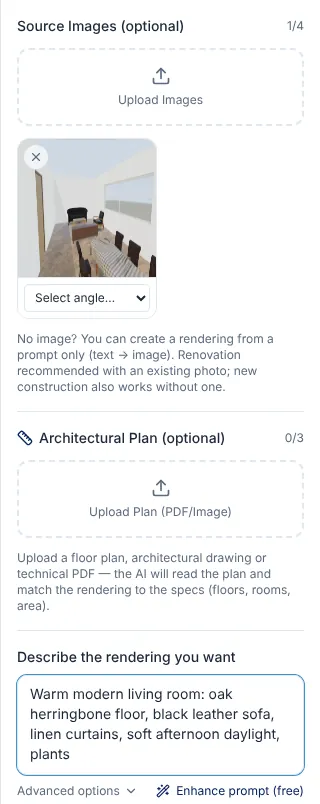
AI Studio turns a 3D view or a photo into a photorealistic image. Buttons that create or change an image use credits; your balance is always shown in the credit counter at the top of the site.
What the AI starts from
- Upload Images
- Uploads up to four photos or views; one rendering is made per image.
Upload a photo of your house from the street. - Take a photo
- Takes a photo with the camera of your phone or tablet.
Stand in the empty room and take the photo directly. - Select angle
- Tells the AI what each image shows: front, rear, side or interior.
Mark the second photo as “Rear”. - Upload Plan
- Adds a floor plan or technical PDF so the rendering matches the rooms, floors and areas.
Upload the plan PDF before you render the facade. - Describe the rendering you want
- Where you describe the result: style, materials, colours, light and surroundings.
“White plaster, black windows, oak cladding, olive trees, golden hour.” - Enhance prompt
- Rewrites your description into a richer prompt. Free.
Type “modern villa” and let it add materials and light.
How the rendering is made
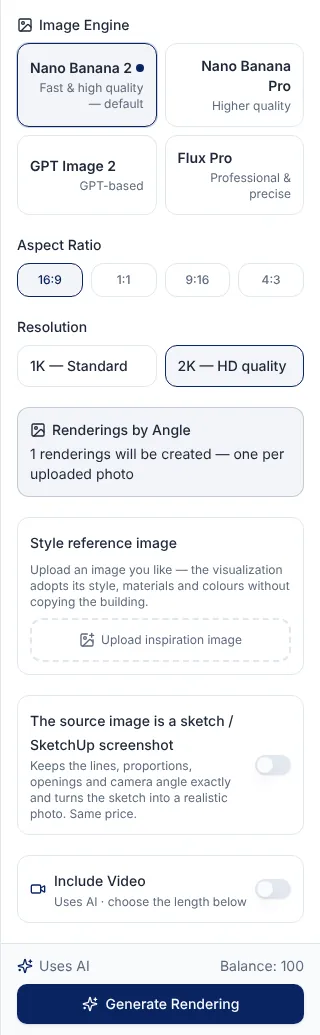
- Advanced options
- Opens the extra options for the rendering.
Open it to keep the existing roof of the house. - Image Engine
- Chooses the AI image engine, from the fast default to higher-quality ones.
Keep the default for drafts, pick a higher-quality engine for the final image. - Aspect Ratio
- The shape of the image: 16:9, 1:1, 9:16 or 4:3.
Pick 9:16 for an Instagram story. - Resolution
- Standard (1K) or HD (2K) quality.
Choose 2K for an image you will print. - Renderings by Angle
- Shows how many renderings will be made — one per uploaded image.
Three photos uploaded → three renderings. - Style reference image
- An image whose style, materials and colours the rendering should follow, without copying the building.
Upload a Pinterest photo of a Japandi living room. - Sketch / SketchUp mode
- For sketches and screenshots: keeps the lines, proportions, openings and camera angle exactly and turns them into a realistic photo.
Turn a SketchUp screenshot into a photo-real rendering. - Include Video
- Adds a short AI video of the result; you choose its length. Uses credits.
Add a slow camera move around the finished facade. - Generate Rendering
- Creates the rendering. Uses credits.
Check the description once more, then click Generate.
Results and refining
- Stage a room
- Virtual staging: upload a photo of an empty room and get it furnished in the style you pick; walls, windows, floor and angle stay.
Furnish an empty apartment photo for a rental listing. - Drag to compare
- Before and after: drag the slider, or switch to side by side.
Check that the AI kept your windows where they are. - Enlarge image
- Opens the image full screen.
Look at the details of the facade up close. - Download
- Downloads the image.
Save the final image for your presentation. - Shares one image with a link.
Send the rendering to the family on WhatsApp. - Edit
- Repaints only the area you brush, following your words. Uses credits.
Brush the front door and write “dark wood door”. - Upscale to 4K
- Makes a sharper 4K version of the image. Uses credits.
Upscale the final image before printing a poster. - Quick edits
- One-click changes: time of day, season, sky, people, planting or removing clutter. Each is saved as a new version and uses credits.
Turn a daytime facade into dusk with the lights on. - Plan setup and AI analysis
- Under a rendering: choose units and style, then let the AI draft an architectural plan for the design. Uses credits.
Get a draft plan of the villa you rendered, then refine it in 2D.
Versions, sharing and credits
- Mark as favourite
- Stars a version so you can find it quickly.
Star the two versions the client liked. - Mark as final
- Marks the version as the final choice.
Mark the approved facade as final. - Delete version
- Deletes a version from the history.
Remove the drafts you will not use. - Project film
- Turns the project's best images into a short film. Uses credits.
Make a 30-second film of the renovation for social media. - Shares the whole Studio project.
Share the project with your architect. - Credits
- Your credit balance, shown at all times; + buys more. Every action that used credits is listed in the usage history in your personal area.
Check your balance before ordering a video.
Try the buttons yourself Open the free 2D editor with the sample project and click around — Undo brings everything back. Open the 2D dashboard
Frequently asked questions
Which buttons use credits?
Only AI actions: requests to the 2D AI copilot, reading a plan from an image, Generate Render in 3D and the 3D AI design tools, and in the Studio Generate Rendering, Edit, Quick edits, Upscale to 4K, video, virtual staging, the project film and the AI plan analysis. Your balance is always shown in the credit counter at the top of the site, and every action that used credits is listed in the usage history in your personal area.
What is the difference between Undo and Versions?
Undo (Ctrl+Z) steps back through your latest edits in this session. Versions keeps named design options and checkpoints of the whole plan, so you can compare them or go back days later.
Why is a button greyed out?
It has nothing to act on yet: Undo and Redo need an edit, Duplicate needs a selection, and some 3D tools work only in the 3D view, not in the flat 2D / top view.
Why do the toolbars look mirrored in my language?
In Hebrew, Arabic, Persian and Urdu the app runs right to left, so every toolbar starts on the right. The buttons, icons and names are the same as in this glossary.
Where are all the keyboard shortcuts?
In the 2D editor click Keyboard shortcuts (the keyboard icon) for the full list, or type a command such as W, DI or MI in the command line at the bottom of the plan.