
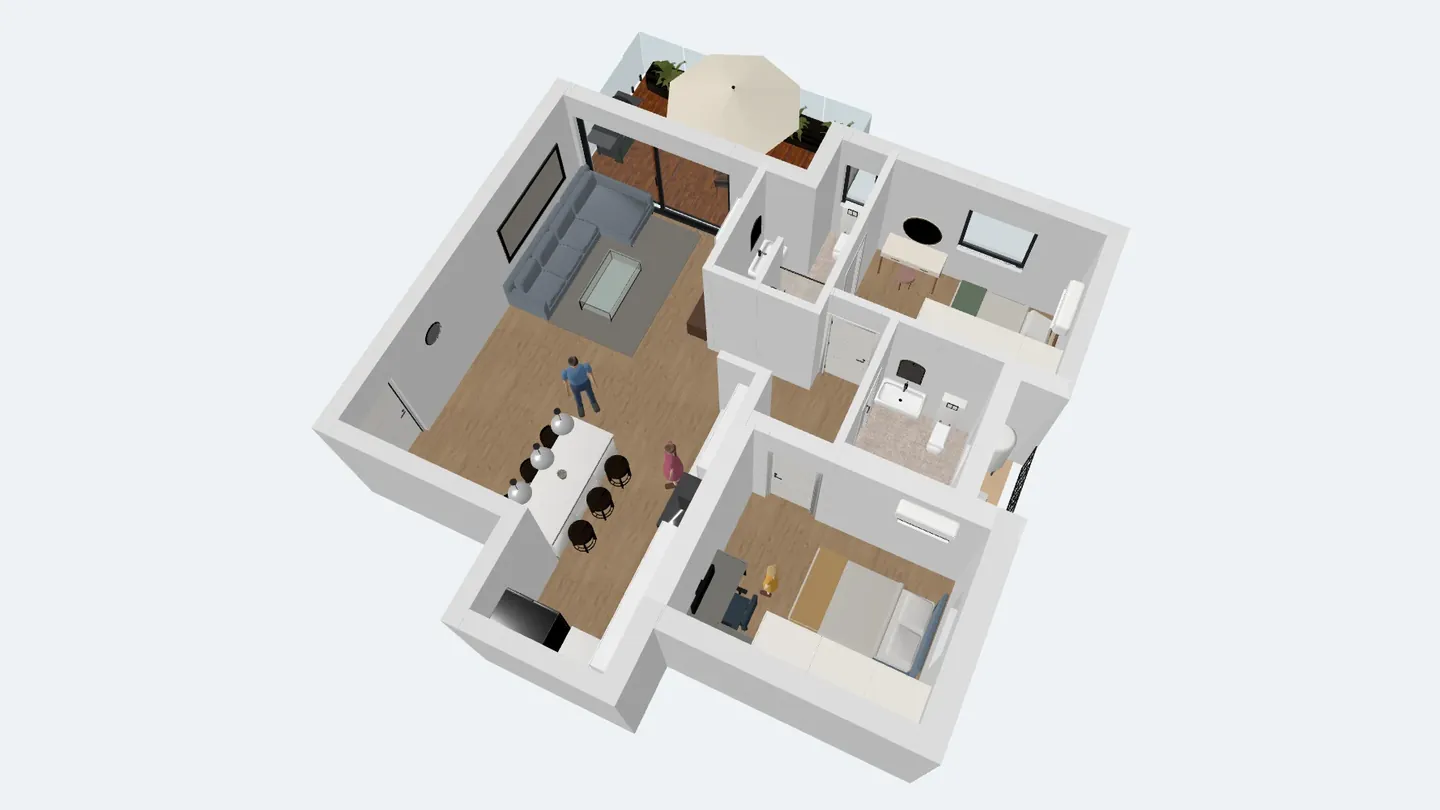
To view your house in AR with ArchHomeAI, open the plan's 3D preview in the 2D editor (or the 3D editor), click Share & view in AR/VR, pick a tabletop 1:50 or real-size 1:1 model and click Create AR link. On an iPhone or iPad the link opens in AR Quick Look, on Android in Google's Scene Viewer, and in a VR headset browser you can walk inside. It is free: no AI and no credits.
Key takeaways
- One click builds a GLB and a USDZ file of your house and a short link; a computer also shows a QR code to scan with your phone.
- Tabletop 1:50 puts a small model of the house on a table; real size 1:1 lets you stand inside rooms at true scale.
- iPhone / iPad open the link in AR Quick Look, Android phones in Scene Viewer (an ARCore phone is needed), Meta Quest-type headsets in VR.
- The link page needs no sign-in: viewers can turn the model, show dimensions, go full screen and, if you allow it, edit their own copy.
- Creating the AR model is free; the model is a visualisation of your design, not a construction drawing.
A floor plan tells you that the living room is 4.2 m (about 14 ft) wide. Augmented reality lets you see it: put a small model of the house on the dining table, walk around it with your phone, or set it to real size and stand in the kitchen you have not built yet. ArchHomeAI turns any plan or 3D scene into an AR model with one button — no app to install, no AI and no credits.
What AR and VR add to home design
Augmented reality (AR) places a 3D model into the camera view of your phone, so the virtual house sits on your real floor or table. Virtual reality (VR) replaces your surroundings: in a headset you stand inside the model. A 3D viewer in the browser is the simplest of the three — you turn and zoom the model on any screen.
For home design the value is the same in each case: proportions you cannot judge from a drawing. How deep is that balcony? Does the kitchen island block the way to the terrace? Is the bedroom corridor too narrow? Clients and family who don't read plans understand a model in seconds, and an architect can show a design option at a meeting without a laptop.
| Mode | Device | What you see | Best for |
|---|---|---|---|
| AR on a phone | iPhone / iPad (AR Quick Look) or an ARCore Android phone (Scene Viewer) | The house on your table or floor, through the camera | Showing the design at a meeting, checking sizes on site |
| VR | A headset browser with WebXR, e.g. Meta Quest | You stand inside the house at real size | Feeling room heights and walking distances |
| 3D viewer | Any phone or computer browser | The model on screen: turn, zoom, dimensions, full screen | Sending to clients and family, quick review |
Tabletop 1:50 or real size 1:1?
The dialog asks for a scale before it builds the file. Tabletop model 1:50 (fits on a table) is the architect's classic model scale: a 10 m (33 ft) house becomes 20 cm (8 in), small enough to walk around on a table and see every room at once. Real size 1:1 (walk in) places the house at its true size — use it in an open space or on the actual plot, where you can step into rooms. In 1:1 the model can't be pinched smaller, so the measurements stay true.
- 1:50 Tabletop model — a 10 m house is 20 cm wide
- 1:1 Real size — walk into the rooms
- 2 m Where you start in VR, in front of the house
- 1 m One step forward per controller trigger press in VR
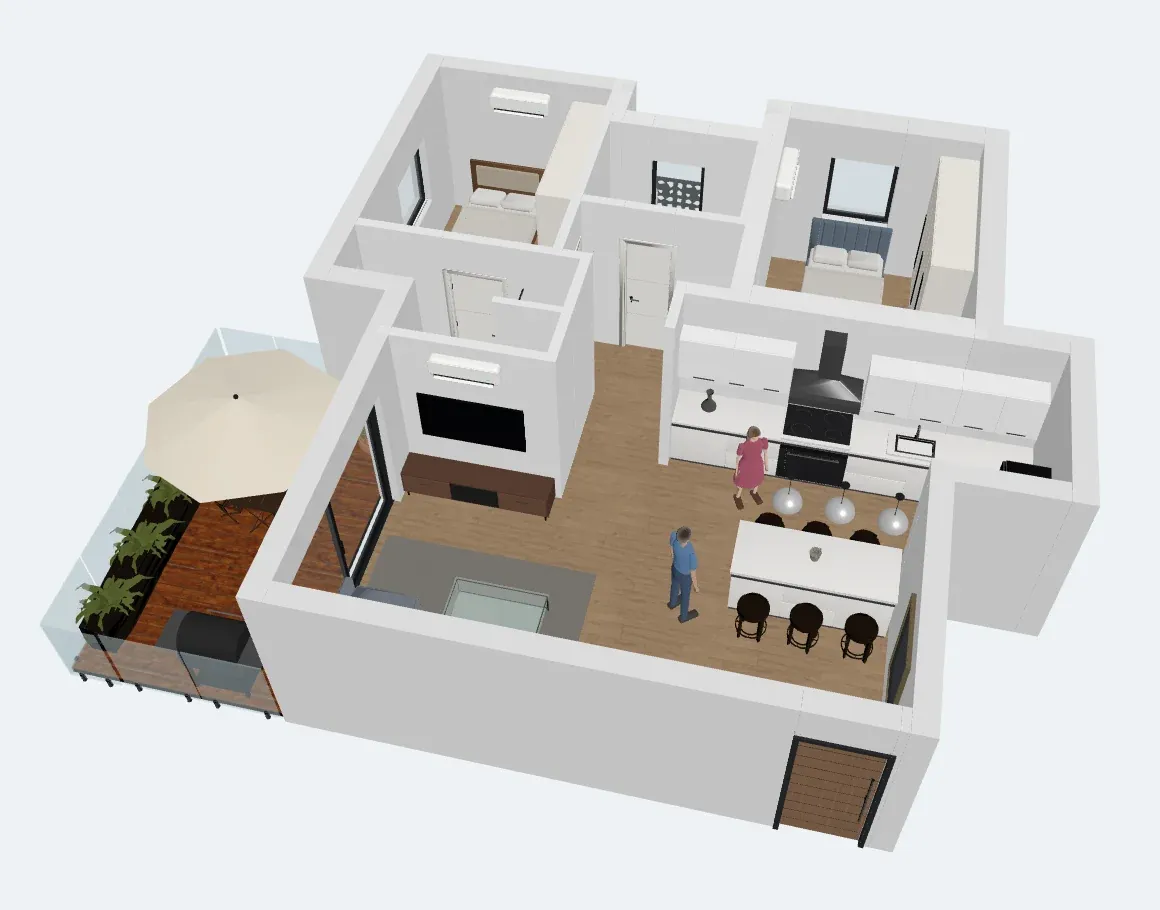
What you need
- iPhone or iPad: Safari opens the link in Apple's AR Quick Look, which is built into iOS — nothing to install.
- Android phone: Google's Scene Viewer opens the model. According to Google it needs an ARCore-supported phone with Android 7.0 or later and Google Play Services for AR.
- VR headset: a headset browser with WebXR, for example the Meta Quest browser. The Enter VR button appears only there.
- Computer: you create the link here and see the model in the 3D viewer; scan the QR code to move to your phone for AR.
- An ArchHomeAI plan or 3D scene with walls. Creating the AR model is free.
Step by step: AR from the 2D floor plan
The quickest way is from the plan itself. The 2D editor has a 3D preview panel, and the AR button lives inside it. If you have no plan yet, see how to turn a 2D floor plan into 3D first.
- Open your plan Open the project in the 2D dashboard. The plan needs at least some walls — with an empty plan the AR button stays disabled.
- Open the 3D preview Click 3D in the editor toolbar. A panel with a live 3D model of the plan opens next to the drawing.
- Click the AR / VR button Under the preview click Share & view in AR/VR. A dialog opens with the options for the file.
- Choose the options Pick the scale (Tabletop model 1:50 (fits on a table) or Real size 1:1 (walk in)). Leave Include furniture on to bring the furniture. On a plan with two or more floors, Up to the current floor, roof off lets you look into the current floor from above.
- Create the link Click Create AR link. The browser builds the 3D model (GLB for Android and the viewer, USDZ for Apple), uploads it and gives you a short link with the file sizes and the model's dimensions.
- Move to your phone On a computer, scan the QR code under Scan with your phone with your phone's camera, or use Copy link. On a phone, the AR button appears right in the dialog.
- Place the house Tap Open in AR (iPhone / iPad) or Open in AR (Android), point the camera at the floor or a table and let the phone find the surface. Drag to move the model, walk around it, and close the AR view when you are done.
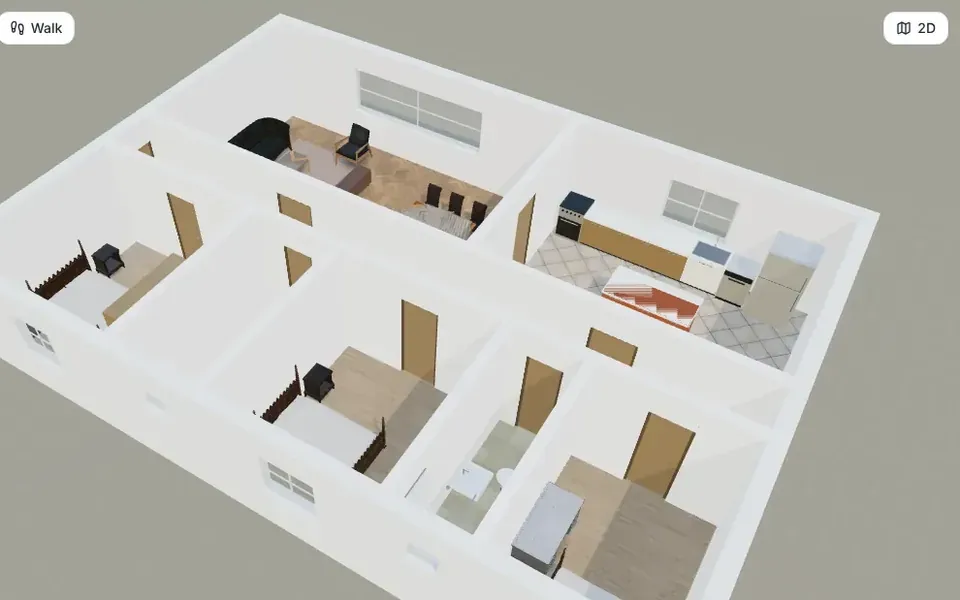
From the 3D editor: the scene exactly as you styled it
If you already worked on the house in the 3D editor — materials, a furniture library, people, your own 3D changes — create the AR model there. It exports the scene as you see it, and hidden objects and layers are left out.
- Find the button In the 3D editor click Share & view in AR/VR at the right end of the toolbar. On phones and tablets it is the first item of the toolbar row, labelled AR / VR.
- Pick the scale Choose Tabletop model 1:50 (fits on a table) or Real size 1:1 (walk in). Walls, furniture, people and your 3D edits go into the model.
- Create and open Click Create AR link, then scan the QR code or copy the link. The box How the link opens in the dialog shows which device opens it how.
- Update when the design changes The link shows the model as it was when you created it. After changes, click Create again and share the new link.
Share it with clients, family or a builder
The link opens a public viewer page — no account and no sign-in needed. On that page, viewers get:
- A 3D viewer they can turn and zoom with a finger or the mouse, with Dimensions and Full screen.
- The AR button for their own phone, and on computers a QR code to scan.
- Download GLB, for people who work in other 3D software.
- Optionally Edit your own copy: if you tick People with the link can edit their own copy (after signing in) before creating the link, a visitor who signs in gets a copy of the project in their own account. Your original never changes.
- For Studio projects you share with a client: Show on the client share link adds a section See the house in AR / VR to the client's share link.
VR: walking inside the house
Open the same link in a VR headset's browser, such as the Meta Quest browser, and the Enter VR button appears. In VR the house is always at real size: you start 2 m in front of it, turn your head and body to look around, and each press of the controller trigger moves you 1 m forward. On phones and computers without a headset the button is not shown; the page explains where it appears instead. Movement is deliberately simple in this early version — no teleport arc or thumbstick turning yet.
Limits and good practice
- Phones handle up to 300,000 triangles and 40 MB per file; above 150,000 triangles or 25 MB the dialog warns that the model may load slowly.
- The 2D preview uses simple colours; the 3D editor brings its materials and textures (reduced to phone-friendly sizes).
- AR scale is as precise as the phone's tracking. Use the model to judge proportions, and the plan's dimensions for real measurements.
- ArchHomeAI is in an early version, and AR viewers differ between devices, so glass and transparency can look a little different on iPhone and Android.
- The model is a visualisation of the design, not a construction drawing or a permit document.
After AR: from model to photorealistic image
AR answers "does it fit and how does it feel?". For "how will it look?", send the same 3D view to AI Studio and turn the plan into a render, or record a virtual house tour. AI renders use credits; your balance is shown in the credits counter at the top of the page.
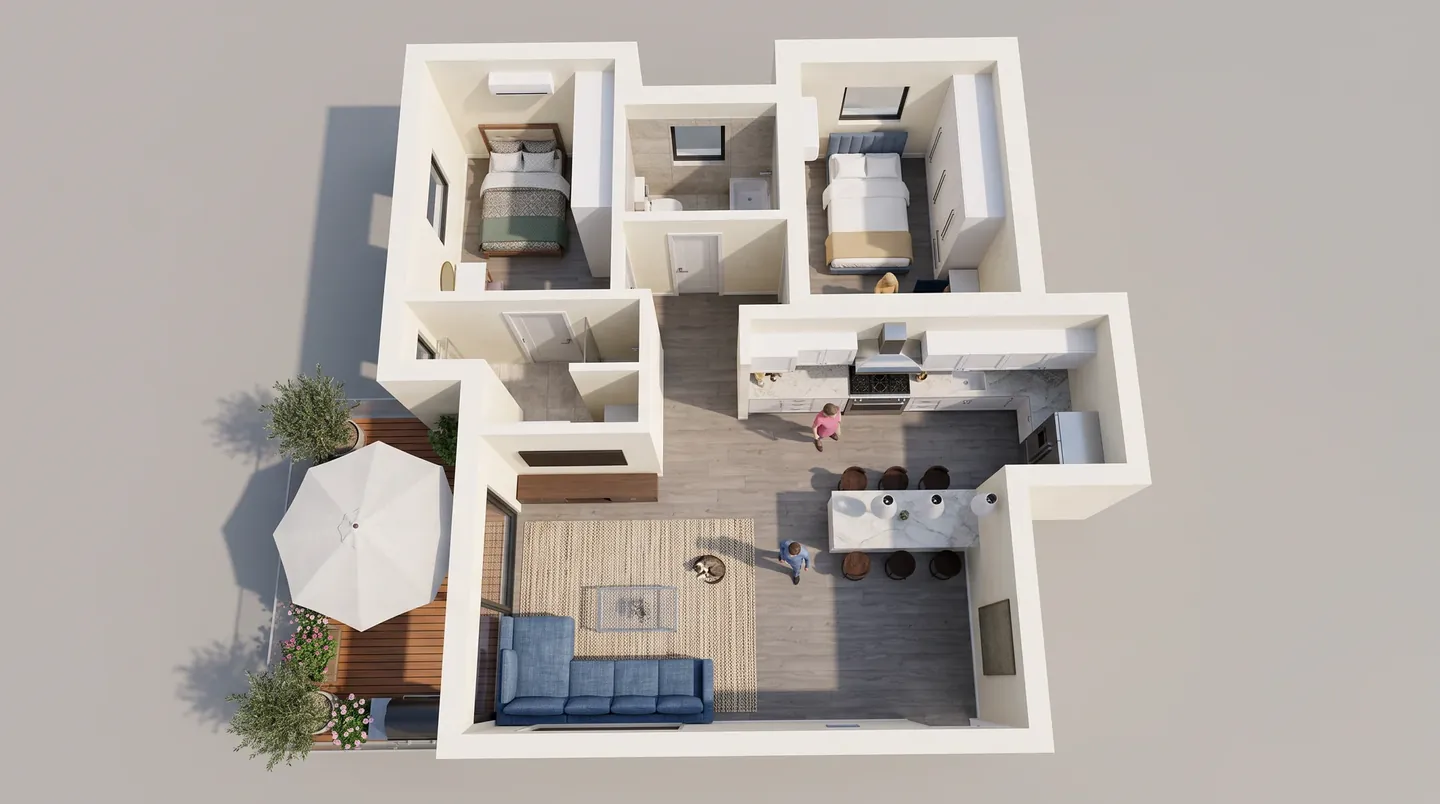
See your plan in AR Draw or open a plan, click 3D and then the AR / VR button. It's free. Open the 2D dashboard
Frequently asked questions
Do I need to install an app to see my house in AR?
No. On an iPhone or iPad the link opens in AR Quick Look, which is part of iOS. On Android it opens Google's Scene Viewer, which needs an ARCore-supported phone with Google Play Services for AR. ArchHomeAI itself runs in the browser.
Is viewing my house in AR free?
Yes. Building the AR model, the link, the QR code and the 3D / VR viewer use no AI and no credits. Only AI actions such as renders and videos use credits.
What is the difference between 1:50 and 1:1?
1:50 is a tabletop model: a 10 m house becomes 20 cm, so you can see the whole design on a table. 1:1 is real size: the house appears at its true dimensions and you can step into the rooms, which works best in a large open space or on the plot.
Can my client see the model without an account?
Yes. The link opens a public viewer page with the 3D model, dimensions, full screen and the AR button — no sign-in. If you allowed it, the client can also sign in and edit their own copy without changing yours.
Why is there no Enter VR button on my phone?
VR needs a headset browser that supports WebXR, such as the Meta Quest browser. The button appears only there; on a phone, use the AR button instead.
Which file formats does ArchHomeAI create for AR?
Two files: GLB (glTF binary) for Android, the web viewer and VR, and USDZ for Apple's AR Quick Look. You can download both from the dialog.
Sources
How we wrote this guide: every figure comes from the sources listed at the end and was checked in September 2026. Prices vary by city, specification and year.
- AR Quick Look — Apple Developer
- Using Scene Viewer to display interactive 3D models in AR from an Android app or browser — Google for Developers (ARCore)
- Meta Horizon OS web and browser documentation (WebXR) — Meta for Developers