
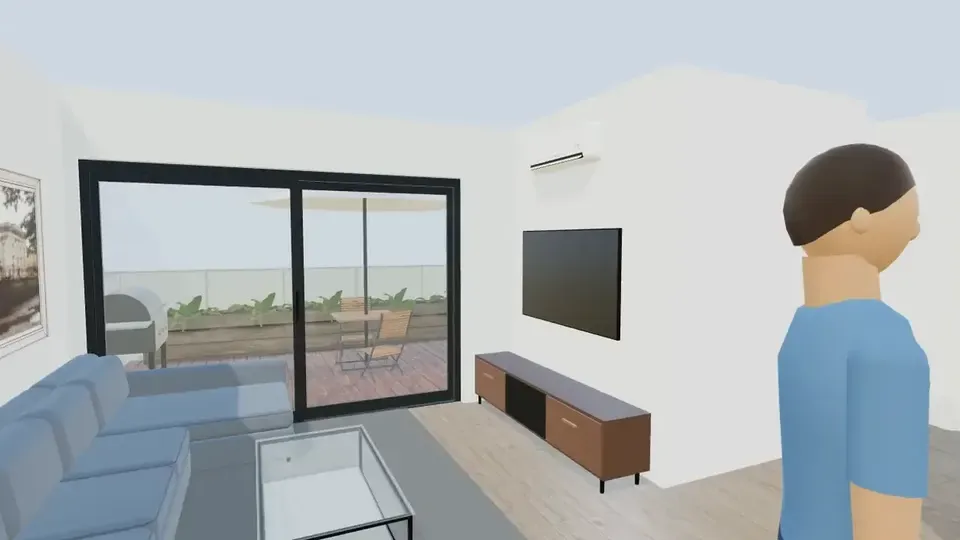
To create a virtual house tour in ArchHomeAI, open your floor plan as a 3D model, then click Walk to move through it at eye height or Auto tour for a guided walk through every room, floor and the garden. To share it, use Export → 360° image, then Save & share and Create link — all of this is free and uses no AI.
Key takeaways
- Three ways to tour the same 3D model: Walk (you steer), Auto tour (a guided route at about 1.6 m eye height) and 360° images you can send by link.
- No camera or scanner needed: the tour is built from your floor plan, so it works for a house that does not exist yet.
- The automatic tour follows the route a real visit takes — street, gate, entrance, every room, the stairs, the garden — and never walks through a wall.
- Walk, Auto tour, 360° images and share links are free and use no AI or credits.
- It is a 3D model in an early-version product: proportions and layout are real, materials are simplified — for photoreal images use AI Studio.
What a virtual house tour is — and the four kinds you will meet
A virtual house tour lets someone move through a home on a screen instead of visiting it. For houses that already exist, tours are usually made from 360° photos linked by clickable hotspots, or from a 3D scan that also gives a "dollhouse" view. For a house that is still a drawing, the tour is made from a 3D model of the design. A short video walkthrough is the fourth, non-interactive option (what counts as a virtual tour).
| Type | Made from | Best for | In ArchHomeAI |
|---|---|---|---|
| 360° photo tour | Panoramas shot with a 360° camera | Selling or renting an existing home | 360° image from any point of your 3D model |
| 3D scan tour | A scanner or phone that captures the rooms | Existing homes with an accurate floor plan | Not offered — we start from your plan, not a scan |
| 3D model walkthrough | A 3D model built from the floor plan | New builds, renovations, off-plan sales | Walk and Auto tour in the 3D editor |
| Video walkthrough | A recorded or generated video | Ads, social media, a quick first impression | AI video in AI Studio (uses credits) — see the AI walkthrough video guide |
When a virtual tour really helps
- Before building or renovating: you feel room sizes, corridor widths and the view from the sofa while walls are still lines on a plan — when changes cost nothing.
- Clients and family far away: a link to a 360° image travels by WhatsApp or e-mail; nobody needs to install anything.
- Selling off-plan: buyers understand the flow of a home faster by walking it than by reading a plan.
- Design decisions: compare a kitchen island against a peninsula, or two furniture layouts, at eye height instead of from above.
Real-estate guides recommend shooting a photo tour the way a visit flows: start outside, enter through the front door, go room by room, then the outdoor areas (NAR step-by-step guide). ArchHomeAI's automatic tour follows the same logic — calculated from your plan instead of filmed.
Before you start: a 3D model of the house
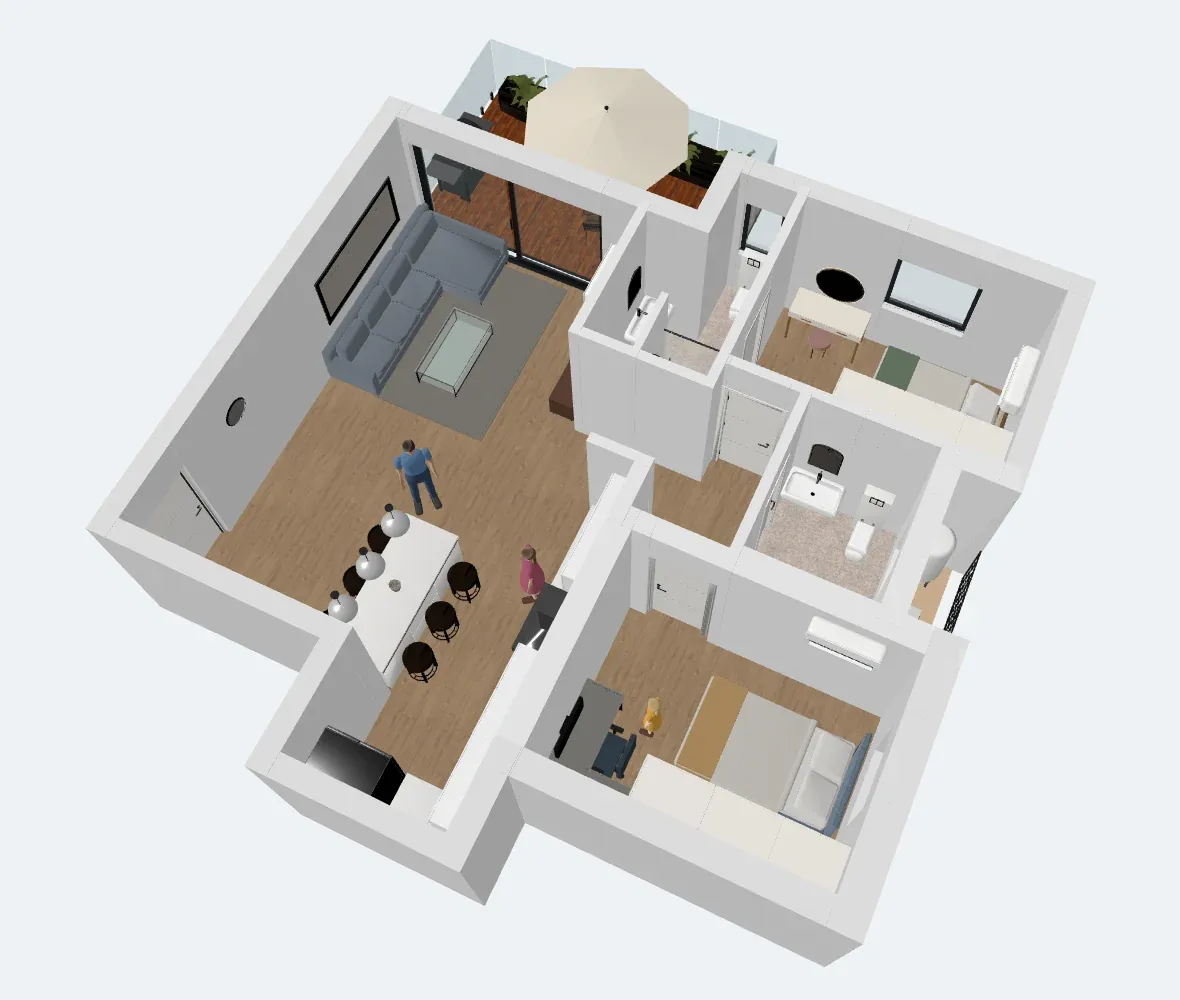
Every tour in ArchHomeAI runs inside the 3D editor. If you have a 2D plan, click 3D in the flow bar or Create linked 3D — walls with real openings, floors, stairs and furniture are built for you (from 2D plan to 3D model). No plan yet? Start one in the free 2D editor, or open New Project in the 3D dashboard. The more furnished the model, the better the tour: Realistic look swaps simple shapes for real furniture models, Materials sets plaster, wood or tiles, and Lighting adjusts the light.
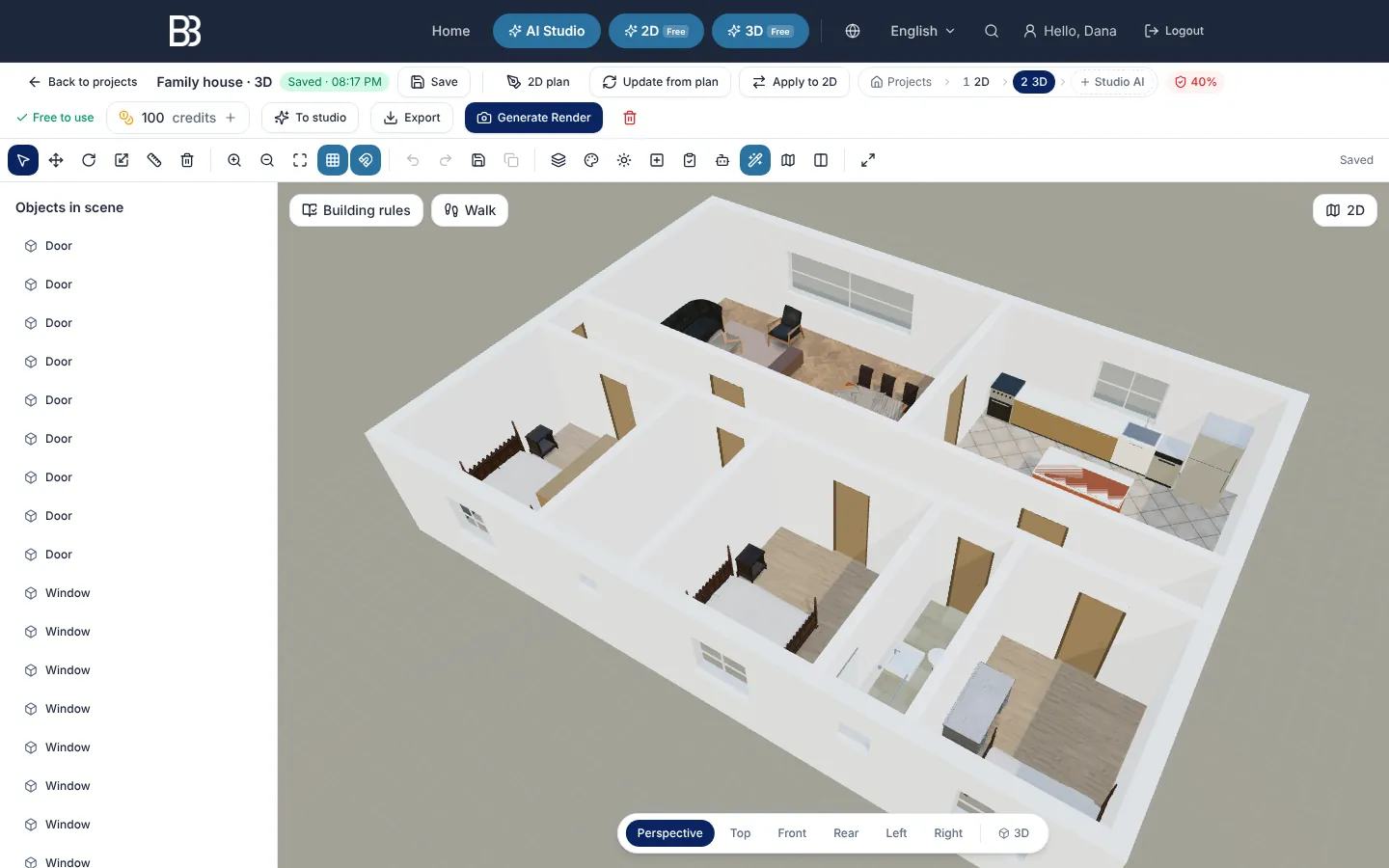
- Walk — Starts the first-person walk. It appears when the scene has objects. In the current version Auto tour sits right next to it.
- Export — The menu with 360° image, 360° gallery and the GLB / OBJ model downloads. It is disabled in the 2D view or for an empty scene.
- To studio — Sends the current view to AI Studio as the source of a photoreal rendering (the rendering uses credits).
- Camera views — Tours need the perspective view. Clicking any view while walking ends the walk.
Option 1 — Walk through the house yourself
Walk puts you inside the model at an eye height of 160 cm, looking the way the camera was looking. You decide where to go and how long to stay — ideal for checking a door swing, the view from the kitchen sink or whether a bed leaves enough room to pass.
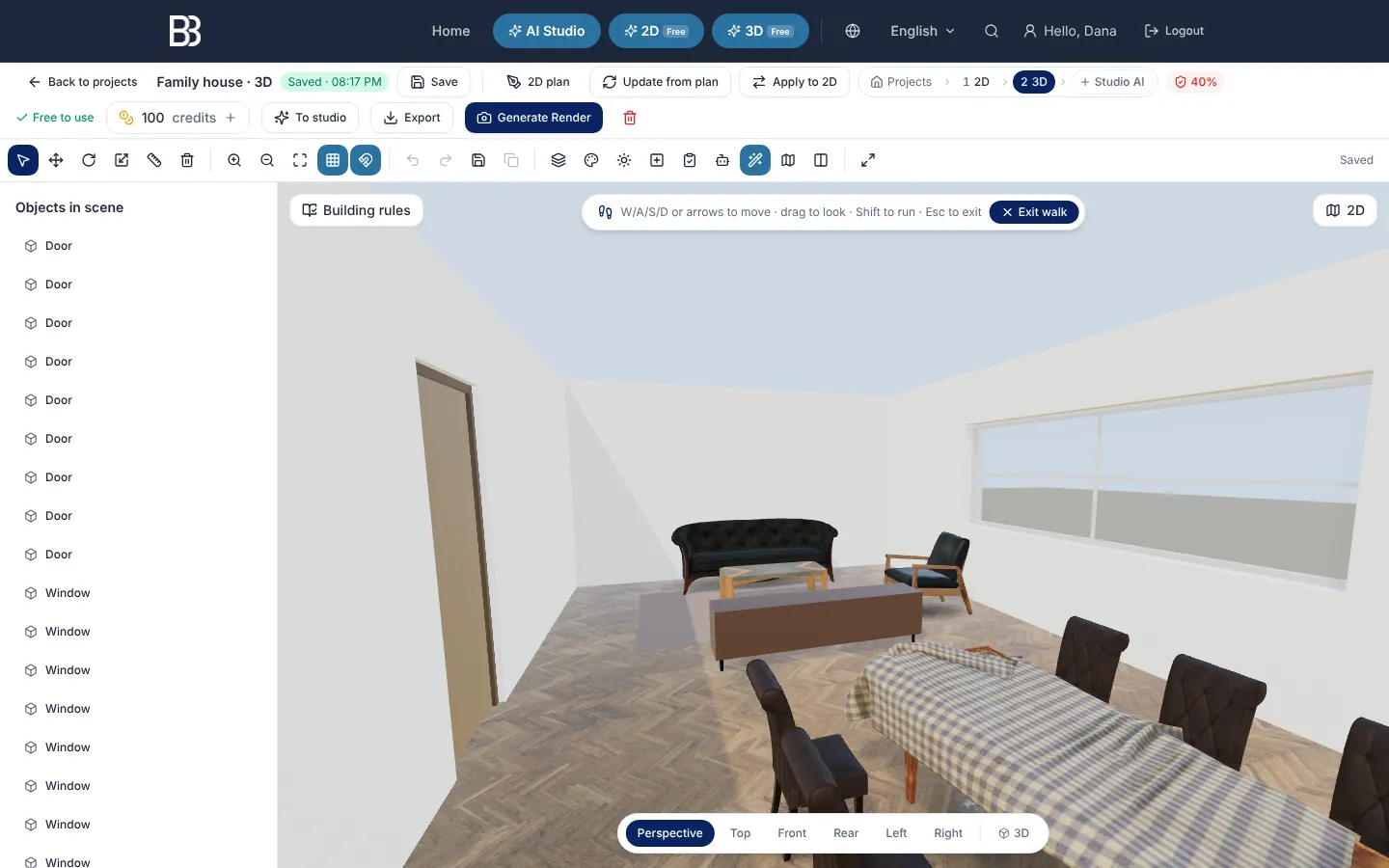
- Controls — W/A/S/D or the arrow keys to move, drag to look around, hold Shift to run.
- Exit walk — Ends the walk (or press Esc). The camera returns exactly where it was before.
- Export — While you walk, 360° image captures a panorama from where you are standing.
- Camera views — Picking a view also ends the walk.
Option 2 — The automatic tour: a guided visit, room by room
Auto tour plans a route through the whole model and plays it like a calm visit at about 1.6 m eye height with a wide, panoramic field of view (100° horizontally). It is calculated in your browser in a fraction of a second — no AI, no credits.
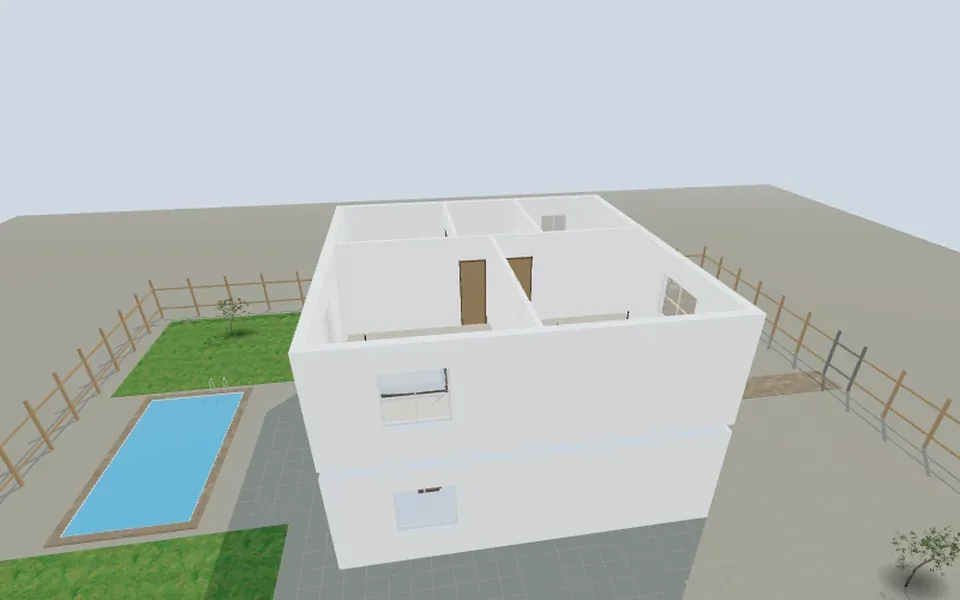
- With a plot: from the street, through the front gate and the front yard to the entrance, then the living room, kitchen, dining area and the other rooms, up the stairs and through the upper floor, back down, out to the back garden (past the pool if there is one), around the house and back out to the street.
- Without a plot (an apartment, a single room): it starts just outside the main door, walks in and visits each space.
- In every room the camera stops, turns slowly to look all around, and in larger rooms adds views from the corners.
- At the end a slow rising overview shows the whole model, then the camera glides back to where it started.
- Never through a wall: each leg is a path around walls, fences and the pool; doors are the way through, and stairs are climbed along the steps.
The control bar shows where you are ("Next: Kitchen"), the stops on a progress bar you can click, previous / next stop, pause, Speed 0.5× / 1× / 1.5× / 2× and Stop tour. Keys: Esc stops, Space pauses, ← / → jump between stops. The length grows with the house: a single room takes about two minutes, a two-storey house with a garden around nine minutes at 1×.
Option 3 — 360° panoramas you can share with a link
Walk and Auto tour run inside the editor. To show the design to someone who has no account, capture 360° images: full spherical panoramas (4096 × 2048 JPEG) taken from your current viewpoint — or from where you stand in Walk. The file carries the standard 360° metadata (Photo Sphere XMP), so 360° viewers that read it recognise it as a panorama.
- Open the 3D model From your 2D plan click 3D in the flow bar or Create linked 3D, or open a project in the 3D dashboard.
- Furnish and finish it Use Realistic look, Materials, Lighting and Add element so the rooms read as real spaces, not empty boxes.
- Switch to the perspective view Both tours need it; the flat top and side views are orthographic.
- Walk through it Click Walk and move with W/A/S/D or the joystick. Note anything you want to change, then press Esc.
- Play the automatic tour Click Auto tour. Use Speed and the stops on the bar to slow down where it matters; Stop tour returns your camera exactly as it was.
- Capture 360° images Stand in the middle of a room in Walk (eye height) and choose Export → 360° image. Drag in the viewer to check it, or Download (JPEG).
- Share by link In the 360° viewer click Save & share, then open the 360° gallery and click Create link — the link is copied and you can send it.
Managing shared panoramas
The 360° gallery (Export menu) keeps up to 10 images per project — saving an 11th removes the oldest. For each image you can Open it, Create link / Copy link, Stop sharing or Delete it. People with the link see only that one image in an interactive viewer (drag, wheel or pinch) — not your project. After Stop sharing the page shows "This link isn't available"; sharing again makes a new link. The image file itself stays in storage, so anyone who saved its direct file address may still open it — share only what you are happy to show.
Tips for a tour that convinces
- Furnish before you tour: an empty room looks smaller and colder than it will be.
- Draw the plot, gate and garden in 2D if you want the outdoor part of the automatic tour.
- Name the rooms in the 2D plan — the tour shows those names as it moves.
- For a client, pick 3–5 panoramas: the entrance, the living area, the kitchen, the main bedroom and the garden.
- Need a photoreal image of a view from the tour? Send it To studio — renderings are visualisations, not construction drawings, and use credits.
Limits in this early version
- There is no single shareable link for the whole walk or the automatic tour — share 360° images, or a copy of the project with Share for editing, or a model for AR / VR (view the house in AR or VR).
- Scenes made from a 2D plan have no ceilings or roofs, so the sky is visible above the top floor.
- Curved walls are treated as straight for walking; materials are simplified compared with a rendering.
- The interior design wizard has its own Walk through the room and Auto tour for a single room — see the online room planner guide.
Walk through your house before it is built Open the 3D editor, load your plan and press Auto tour. Open the 3D editor
Frequently asked questions
Can I create a virtual tour of a house that hasn't been built yet?
Yes — that is what ArchHomeAI's tours are for. Draw or import the floor plan, open it as a 3D model and use Walk or Auto tour. No camera, scanner or photos of a real house are needed.
Is the virtual tour free?
Yes. Walk, Auto tour, 360° images, the 360° gallery and share links are free and use no AI. Only AI actions such as photoreal renderings and AI videos use credits; your balance is shown in the counter at the top of the page.
Can I send the whole tour to a client as one link?
Not yet. The walk and the automatic tour play inside the editor. You can share 360° panoramas by link (one link per image), share a copy of the project with Share for editing, or send a 3D model for AR / VR viewing.
Does it work on a phone?
Yes. Walk uses an on-screen joystick and drag-to-look on touch screens, and the automatic tour has a compact control bar. Shared 360° links open in the phone's browser with drag and pinch.
How accurate is the tour?
The model uses the dimensions of your plan, so room sizes and proportions are real, and the camera stands at about 1.6 m like a person. Materials and light are simplified; it is a planning aid, not a construction document.
Sources
How we wrote this guide: every figure comes from the sources listed at the end and was checked in September 2026. Prices vary by city, specification and year.
- Virtual tour — Wikipedia
- A Step-by-Step Guide to Creating a Virtual Home Tour — National Association of REALTORS
- Photo Sphere XMP Metadata — Google for Developers