
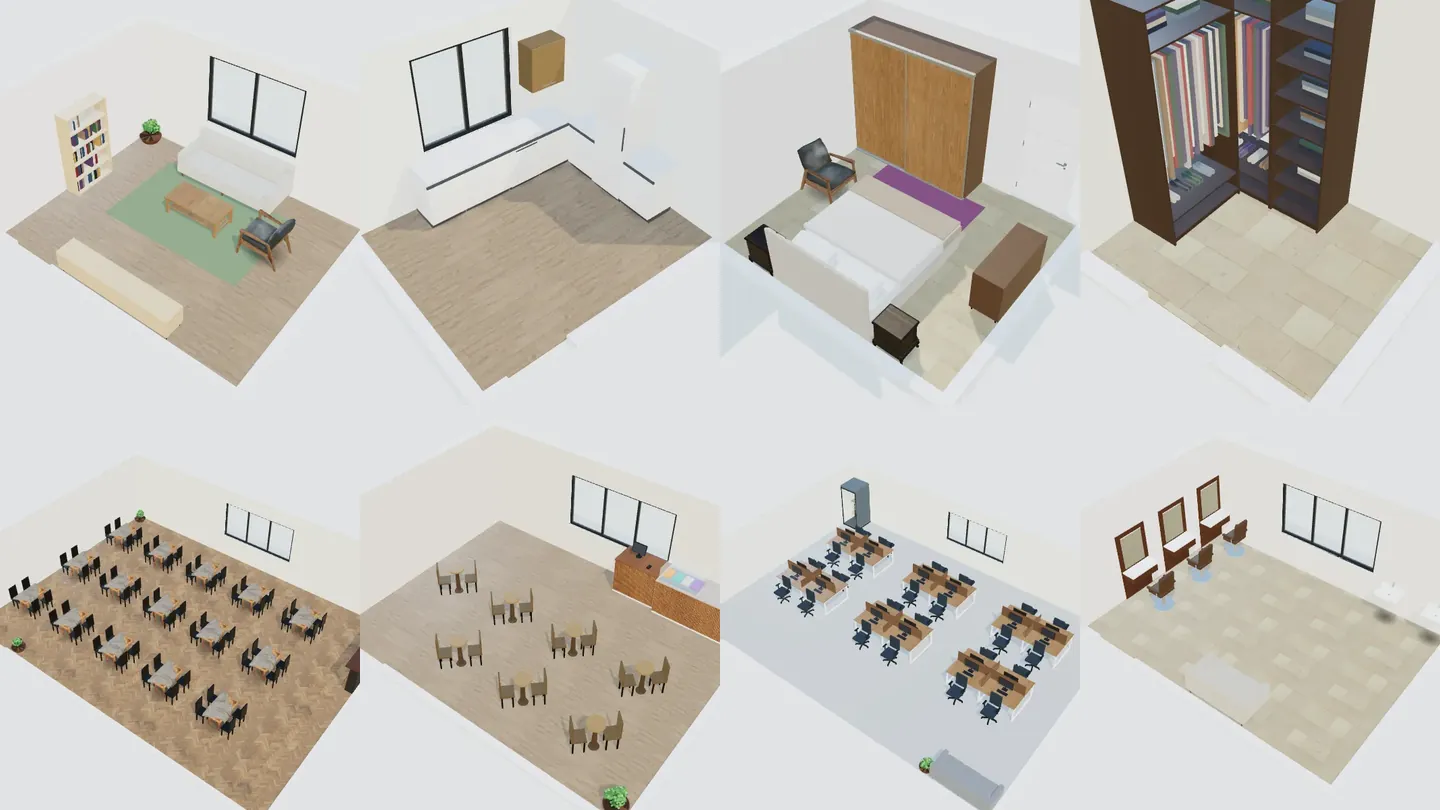
An online room planner lets you enter a room's real size, place furniture at scale and look at the result in 3D before you buy or build anything. In ArchHomeAI you open Interior design, pick one of 26 spaces, start from your dimensions or a ready template, choose a style and budget, and get three furnished layouts that you refine in the 3D design room — all free; only optional AI renders use credits.
Key takeaways
- Plan in order: measure, mark the zones and walkways, then choose furniture, and only then colours and materials.
- ArchHomeAI's wizard covers 26 spaces — 14 at home and 12 for business — with three ready layouts for each.
- Your room is built from real dimensions as a linked 2D plan and 3D model, so sizes and clearances stay honest.
- The design room lets you replace furniture, paint walls, change floors and light, save versions and share a design board — free.
- AI renders of the room use credits (your balance is shown in the counter at the top of the page) and are visualisations, not construction drawings.
- Choose space and style — 26 spaces, your dimensions or a template, 18 styles. Free.
- Refine in 3D — Swap furniture, paint, floors, light and versions in the design room. Free.
- Render with AI — Turn the view into a photorealistic image. Uses credits.
What an online room planner does (and what it doesn't)
A room planner is a scale model of one room: walls, door, windows and ceiling height at their real size, and furniture that keeps its real width and depth. Its job is to answer practical questions before you spend money — does a three-seat sofa fit opposite the TV, is there still a comfortable path to the balcony door, will a 160 cm bed leave room for wardrobes? A good planner also lets you see the room in 3D, because proportions, light and colour are hard to judge from a plan alone.
What a planner does not do is check building codes, structure or services. Moving walls, plumbing and electrics is a job for an architect or contractor. In ArchHomeAI the Interior design category is for designing what goes *inside* the walls: the layout, the furniture and the finishes of one space. For a whole home, start from a floor plan with dimensions; for redesigning a room from a photo, see AI interior design.
Before you start: zones, clearances and a palette
Designers plan a room in a fixed order, and it saves a lot of rework: measure the room (wall lengths, ceiling height, door and window positions), mark the zones — where you sit, sleep, eat or work — and the paths between doors, then choose the main furniture for each zone. Colours and materials come last, because they don't change whether things fit.
| Where | Typical clearance | Why |
|---|---|---|
| Main walkway through a room | about 90 cm (36 in) | Two people can pass furniture comfortably; 36 in is also the US accessible-route minimum |
| Sofa to coffee table | 40–45 cm (16–18 in) | Close enough to reach a cup, far enough for knees |
| Beside and at the foot of a bed | 60–75 cm (24–30 in) | Room to make the bed and open wardrobe doors |
| Table edge to a wall behind diners | about 90 cm (36 in) | Space to pull a chair out and sit down |
| Kitchen work aisle, one cook | about 107 cm (42 in) | Open the dishwasher and oven while someone passes |
The walkway and dining figures follow the NKBA kitchen planning guidelines and the ADA accessible-route width; the others are common practice. Kitchens have their own rules — see kitchen layout planning — and so do closets: walk-in closet dimensions.
For colour, a simple rule of thumb is 60-30-10: about 60% of the room in one main colour (walls, large floor areas), 30% in a secondary colour (big furniture, curtains) and 10% in an accent (cushions, art, a single chair). Pick the style first and the palette follows from it — which is exactly how the ArchHomeAI wizard works.
How to design a room in ArchHomeAI, step by step
- Open Interior design Click Interior design in the top menu, then Start designing. Signed in, you land on My interior designs; click New design.
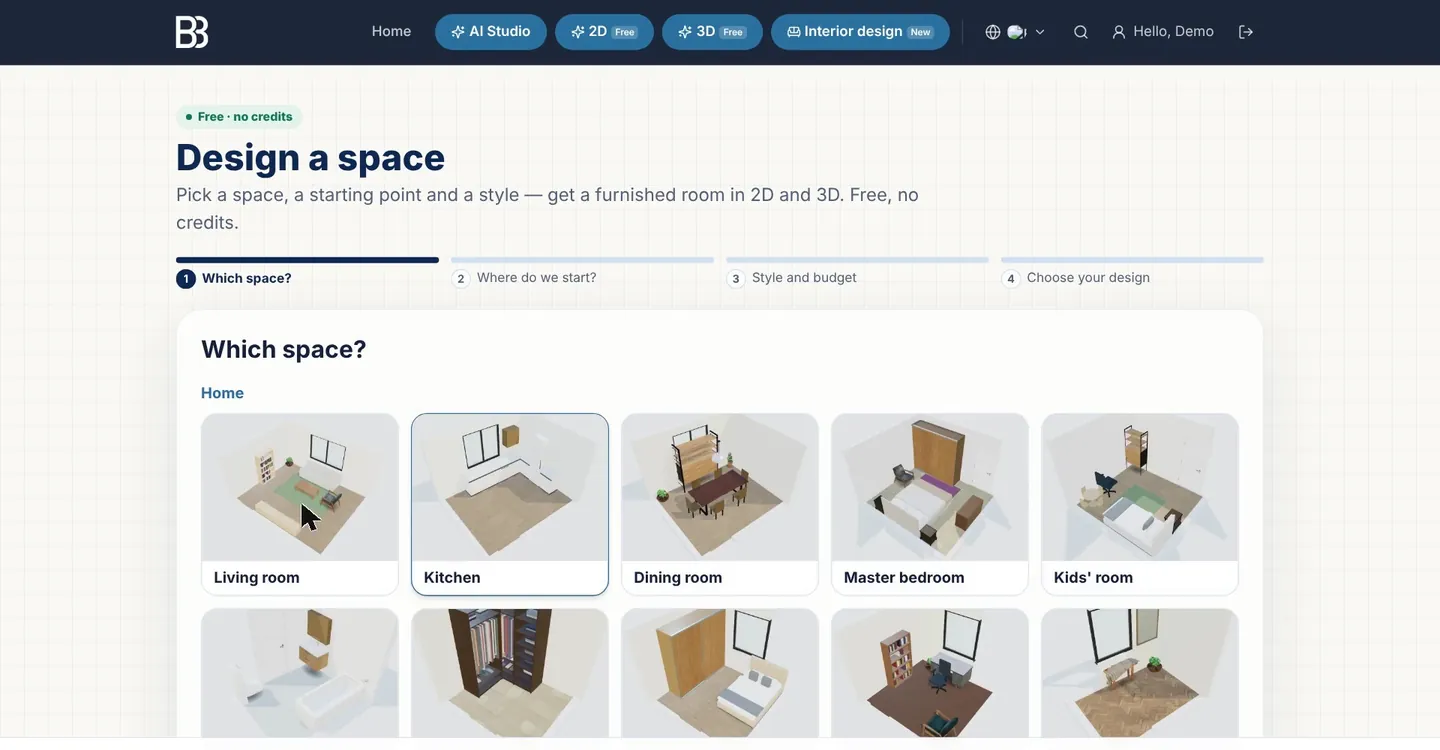
- Choose the space In Which space? pick one of 26 spaces — living room, kitchen, bedroom, bathroom, walk-in closet… or a café, office, shop or clinic.
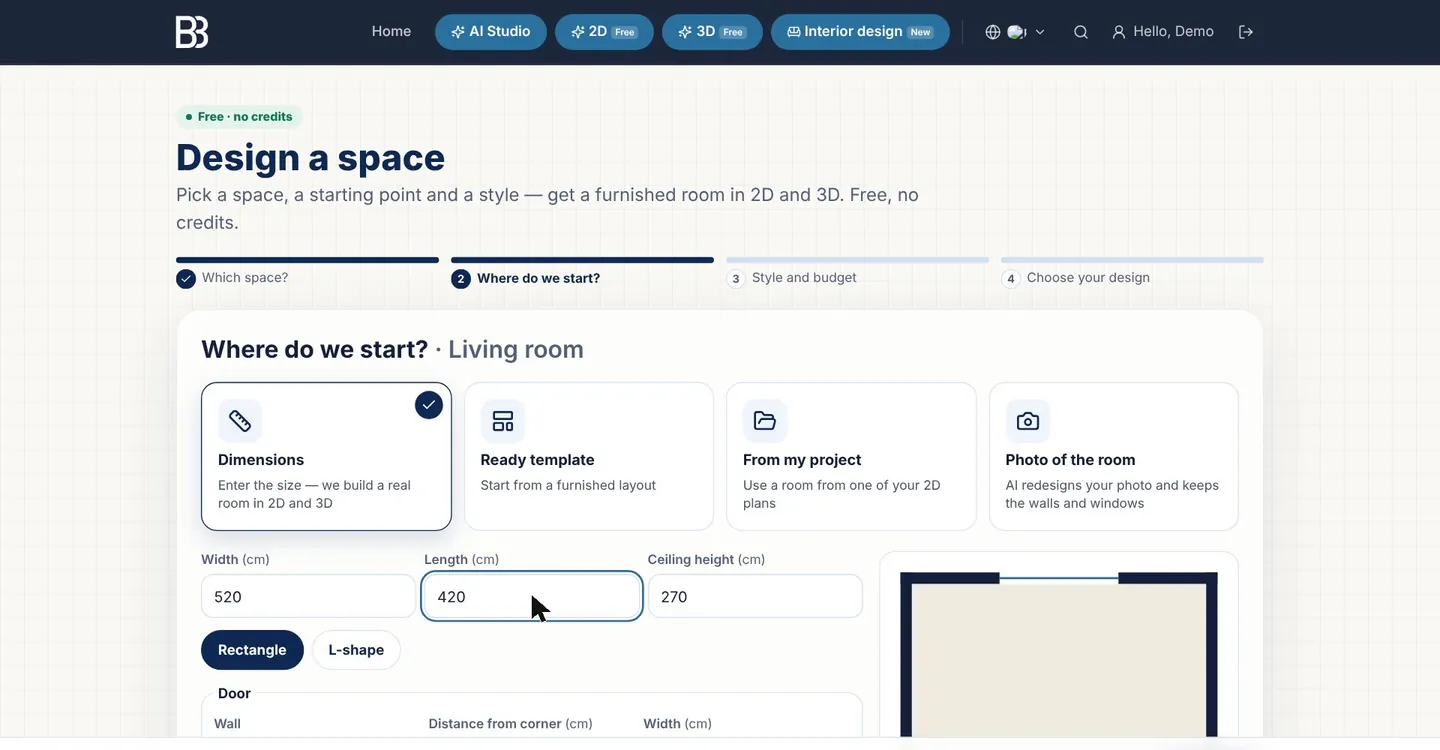
- Pick a starting point In Where do we start? choose Dimensions (type your room's size, door and windows), Ready template, From my project (a room of one of your 2D plans) or Photo of the room (continues in AI Studio).
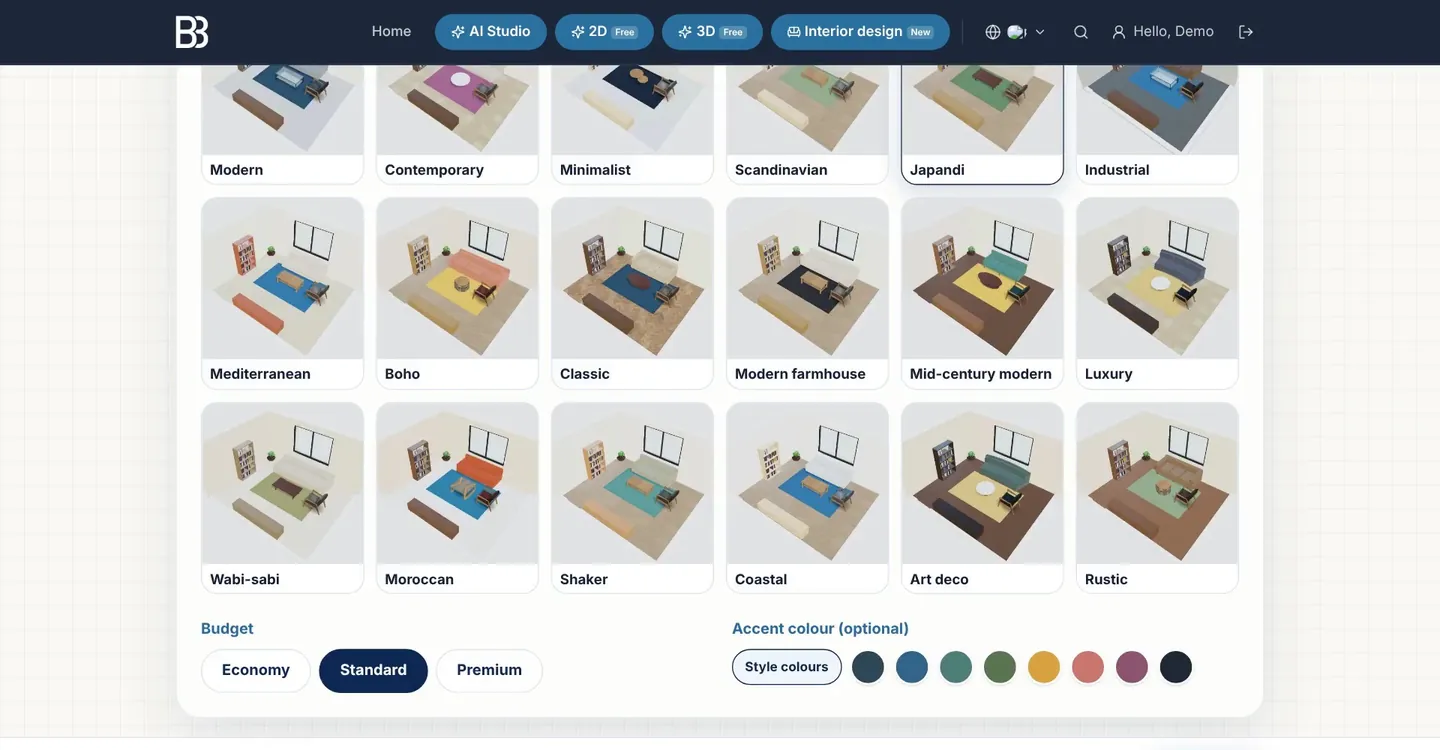
- Choose style and budget Pick one of 18 styles, a budget — Economy, Standard or Premium — and, if you like, an accent colour. For business spaces you can also set a target, such as the number of seats.
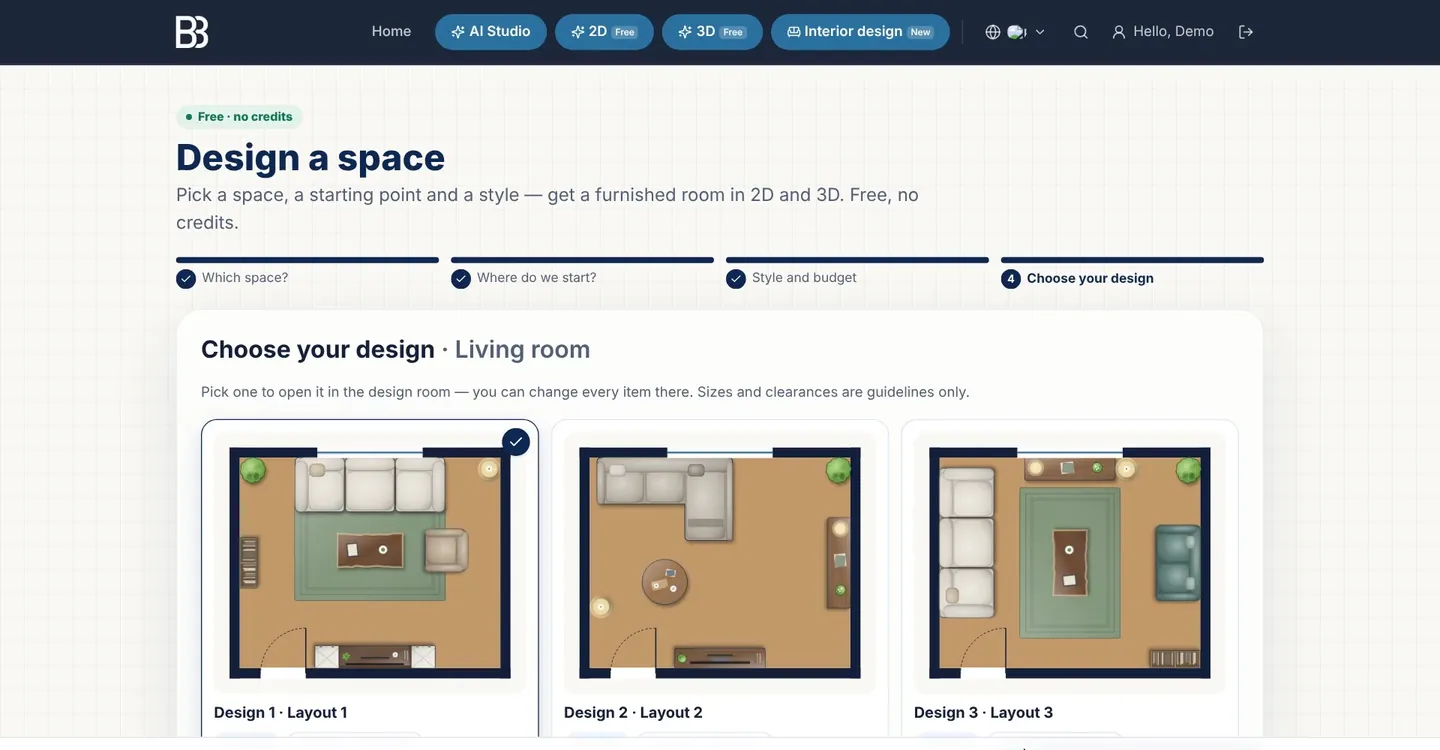
- Choose your design You get three furnished layouts drawn as plans. Pick one and click Open in the design room. The wizard creates a linked 2D plan and 3D model; you sign in at this point if you haven't.
- Refine the room in 3D Use the Furniture, Surfaces, Lighting and Layout tabs to swap items, paint walls, lay floors, set the light and look at the room from eye level.
- Save versions and share In Compare click Save as a version to keep options; Design board & share gives you a PDF, a print view and links for your client.
- Render it (optional) The AI tab sends the current view to a photoreal render or to AI Studio. This uses credits; your balance is shown in the counter at the top of the page.
Step 1 — choose the space
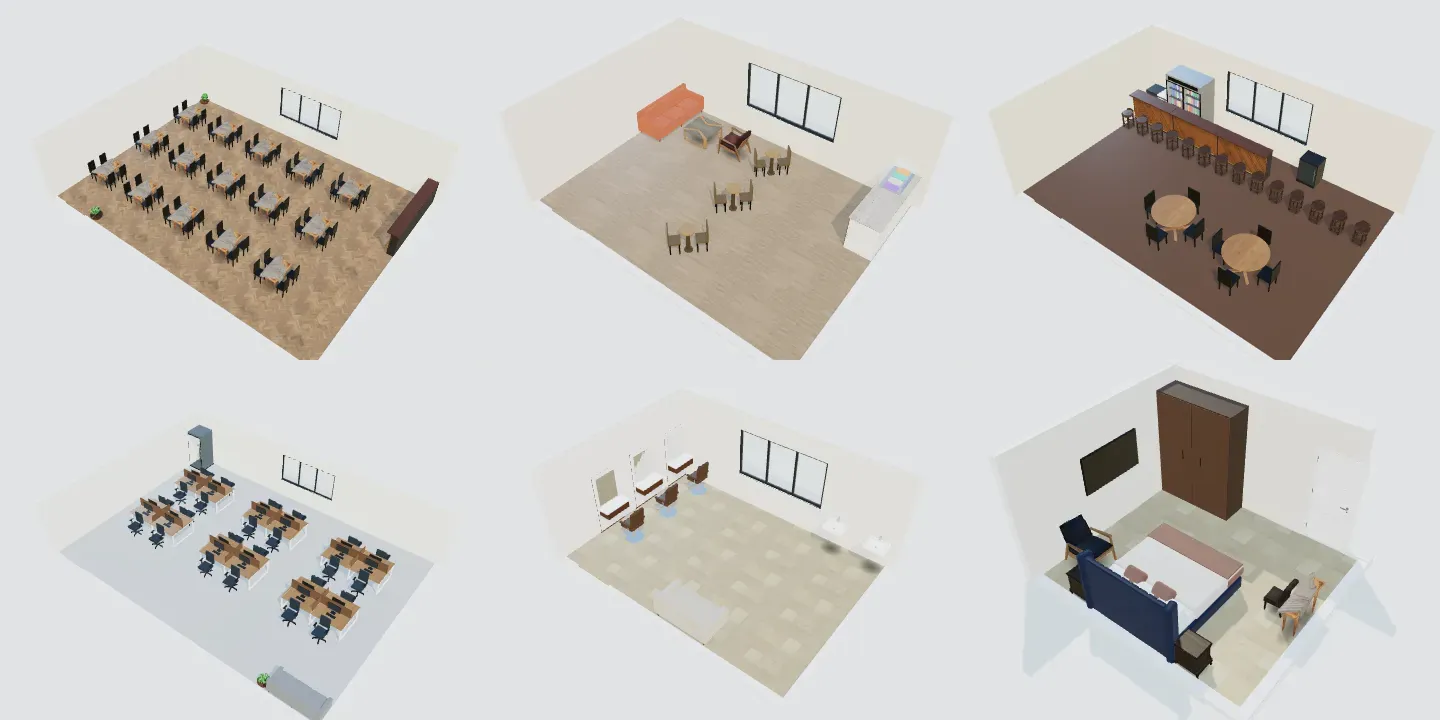
The first screen shows every space as a card with a real 3D picture: 14 home spaces (living room, kitchen, dining room, master bedroom, kids' room, bathroom, walk-in closet, wardrobe wall, home office, entrance hall, laundry room, storage room, safe room, balcony) and 12 business spaces (fast food, restaurant, café, bar, tech office, meeting room, reception, shop, beauty salon, clinic, hotel room, gym). The space decides the default room size, the three templates and which furniture the library shows first.
Step 2 — your dimensions, a template, your plan or a photo
Dimensions is the most accurate start: enter the width, length and ceiling height (in the length unit of your working preferences — mm, cm, m or feet), choose Rectangle or L-shape, place the door on a wall by its distance from the corner, and use Add a window for up to three windows. The plan beside the form redraws as you type. Measure the clear inside size of the room — wall to wall, as you would with a tape.
Ready template starts from one of three furnished layouts in the space's default size. From my project takes a rectangular or L-shaped room, with its door and windows, from one of your 2D plans — your original plan is not changed. Photo of the room skips the 3D model and continues in AI Studio, where the AI restyles your photo; that path is covered in AI interior design from a photo.
Step 3 — style, palette and budget
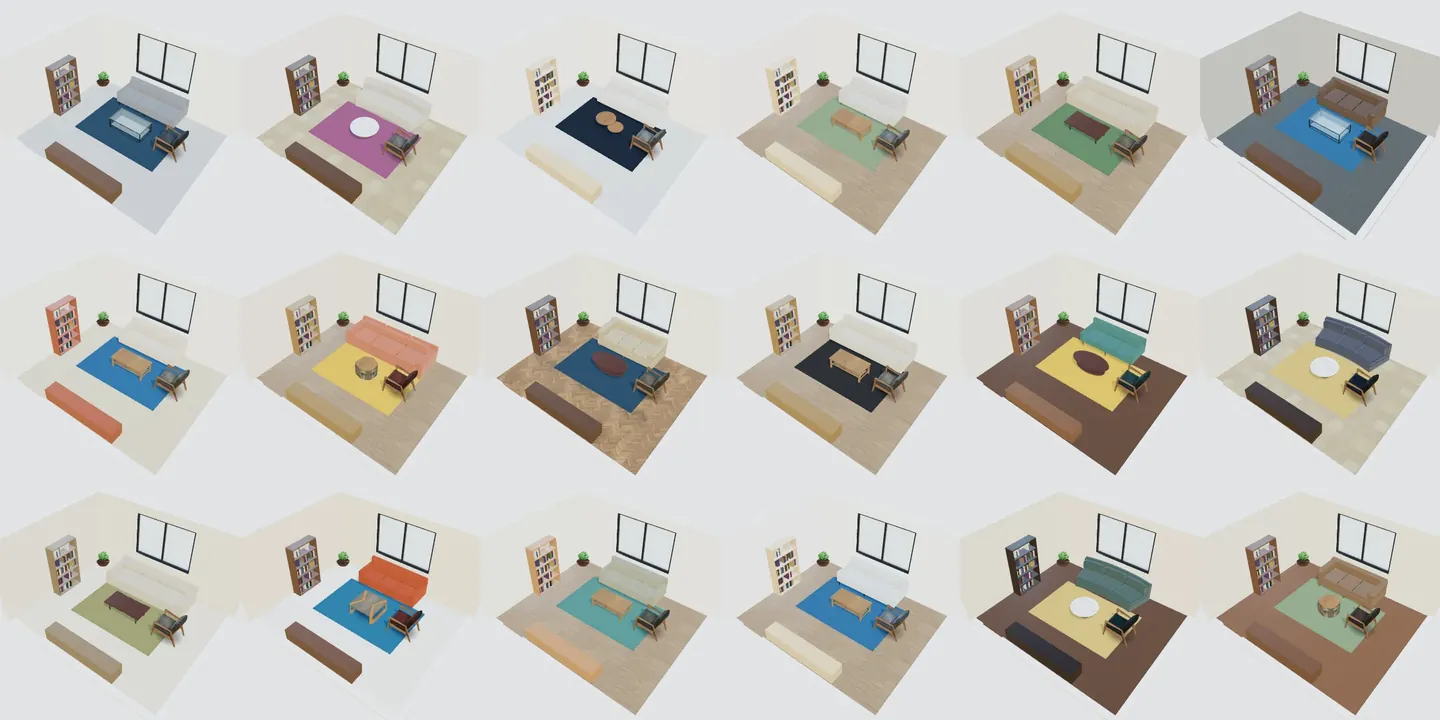
Each of the 18 styles comes with its own palette: floor finish and colour, wall paint, fabric, wood, cabinet fronts and an accent — and it also picks a fitting sofa, table and bed. The budget level changes the materials, for example laminate or porcelain at Economy and parquet or marble at Premium. Accent colour (optional) adds one colour of your own on top of the Style colours.
Step 4 — three furnished layouts
The last step draws three layouts in *your* room. They are not random: items are placed relative to the door, slide along their wall, fall back to a smaller model when space is short, never overlap, keep the door swing clear and don't put tall units in front of a window. Each card shows the number of items — and for business spaces a count such as seats, workstations or stations. Pick one and click Open in the design room.
Inside the design room
The design room is a live 3D model of your space. Drag to orbit, scroll or pinch to zoom; the tools sit on the right (in a bottom sheet on a phone). Walls, door and windows are locked here so you can't move them by accident — to change the room itself, use Open in full 3D or Open plan in 2D. Your work is saved automatically.
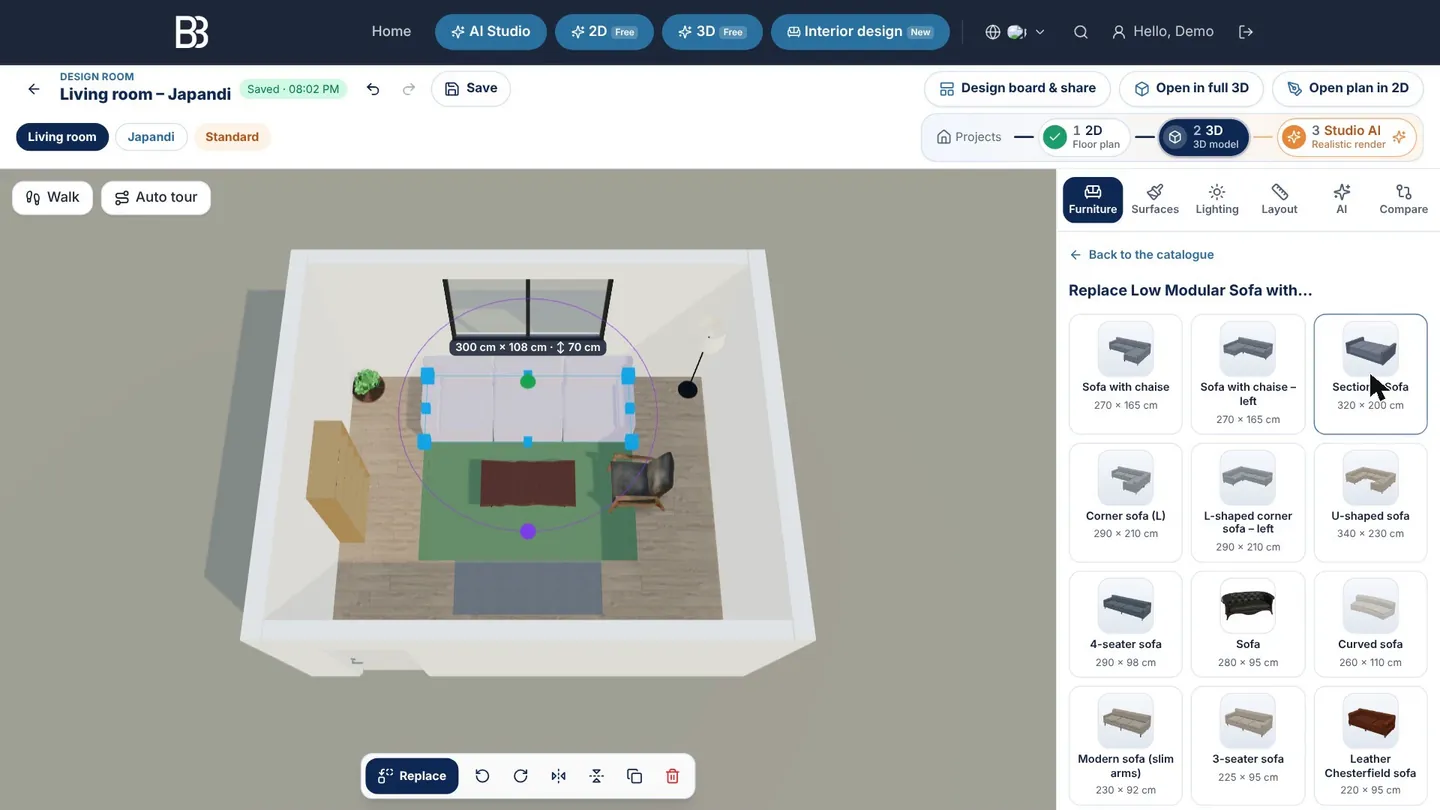
- Space, style, budget — What you chose in the wizard.
- Undo, redo, Save — Every change can be undone; the design also saves on its own.
- Project flow — Projects › 2D floor plan › 3D model › Studio AI — the same design as a plan, a model and renders.
- Design board & share — The board, its PDF and the client links.
- Open in full 3D / Open plan in 2D — Edit walls and openings in the full editors.
- Tool tabs — Furniture, Surfaces, Lighting, Layout, AI and Compare.
- Replace list — Alternatives of the same kind, with their sizes.
- Selected item — Width × depth and height shown on the model.
- Selection bar — Replace, rotate 90°, flip, duplicate and delete.
- Walk / Auto tour — Walk through the room or let the camera tour it.
Furniture: add, replace, rotate
The Furniture tab shows the 3D library already filtered for your space — for example kitchen cabinets for a kitchen, bunk beds and cribs for a kids' room, counters and booths for a café. Tap an item to place it in a free spot of the room. Select a piece and press Replace to swap it for another of the same kind — a sofa for a corner sofa or a sectional — without rebuilding the layout. For closets there is also Build the closet: choose sections, shelves, drawers, doors, handles and materials.
Surfaces and lighting
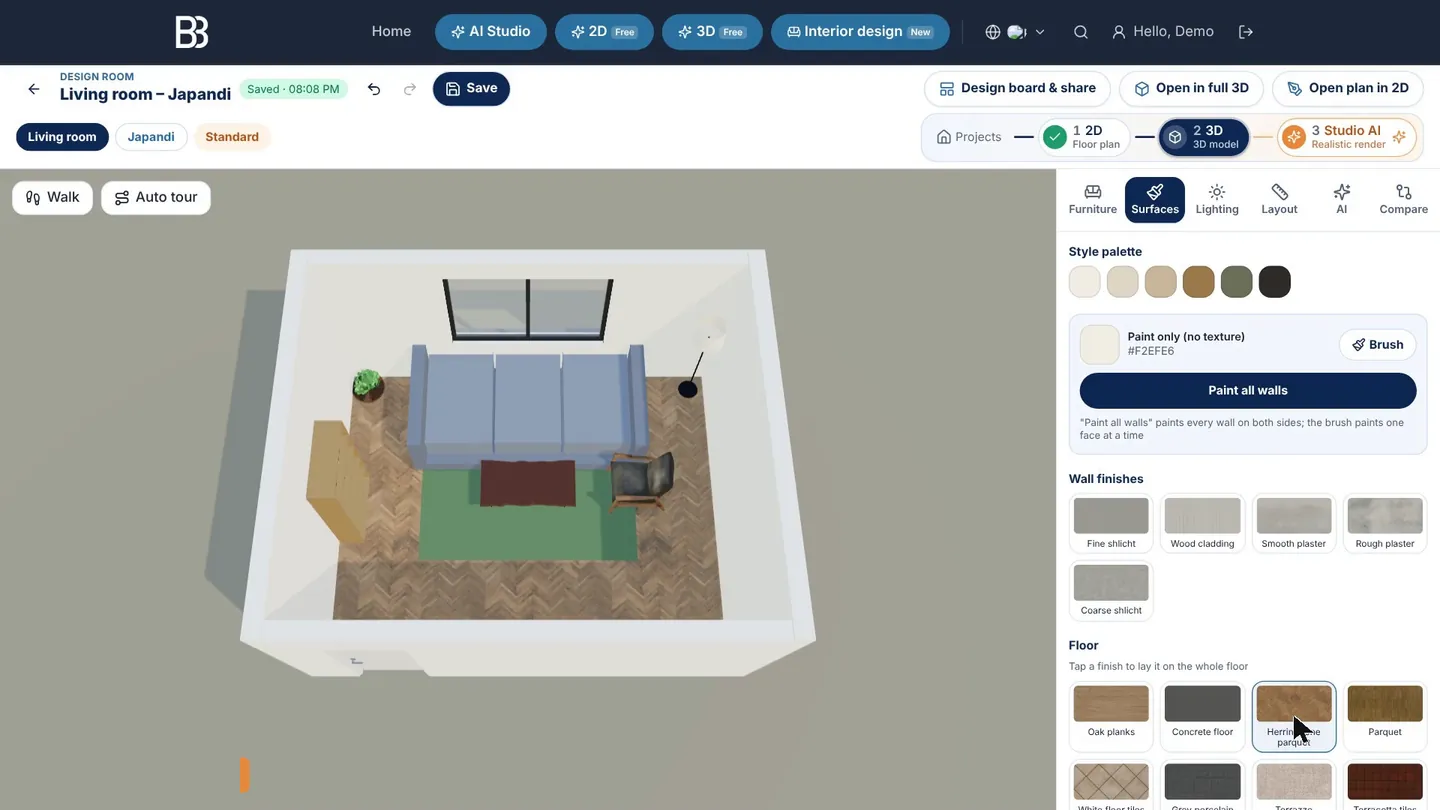
In Surfaces the Style palette comes first; Paint all walls paints every wall in one tap, a floor finish covers the whole floor, and Brush paints a single wall face. Lighting sets the time of day and weather and the brightness, so you can see the room in the morning or at night.
Layout: views, measuring and walking
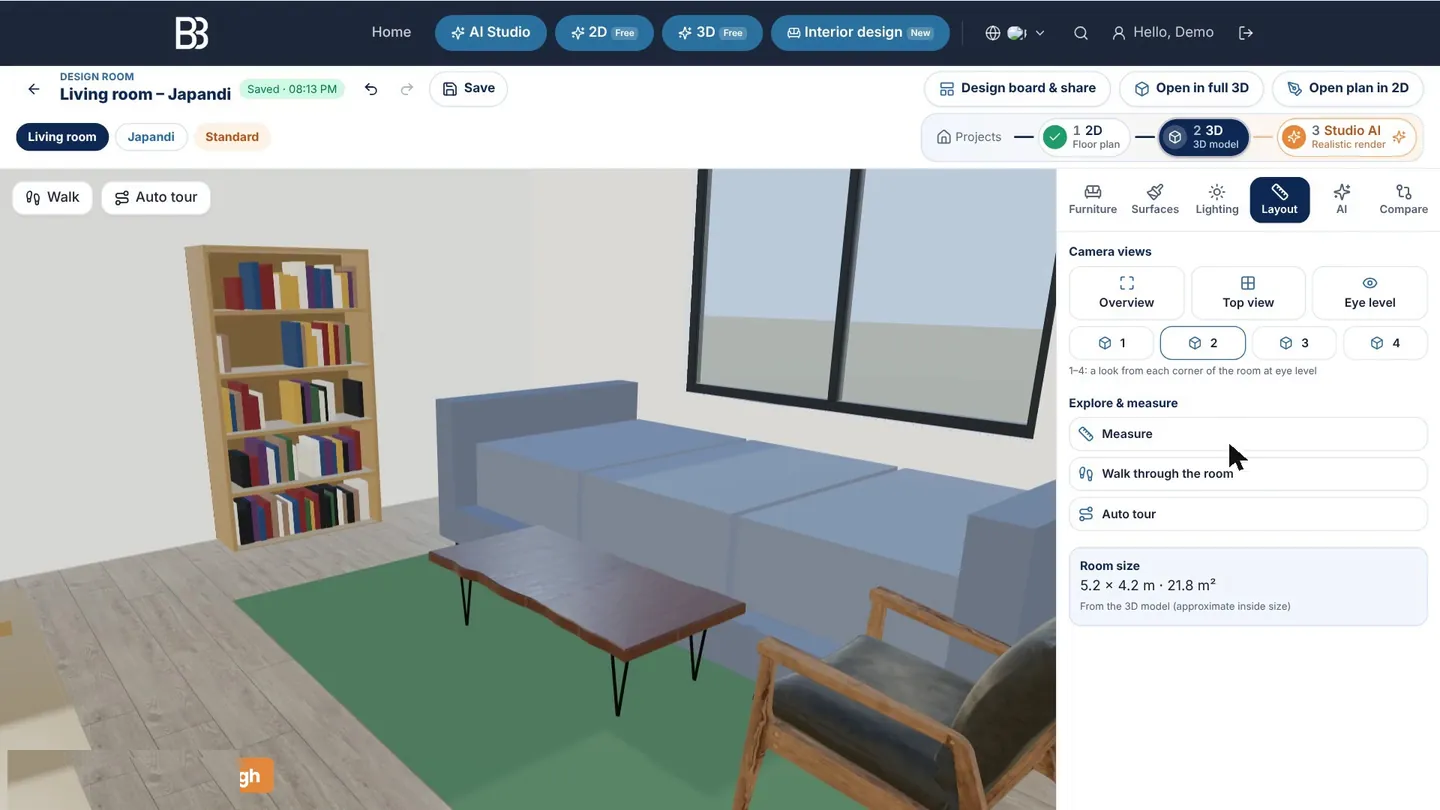
The Layout tab jumps to Overview, Top view, Eye level or a view from each corner, and has Measure, Walk through the room and Auto tour. Eye level is the best test of a layout: if a path feels tight here, it will feel tight in real life. The tab also shows the room's size and floor area.
Versions, the design board and sharing
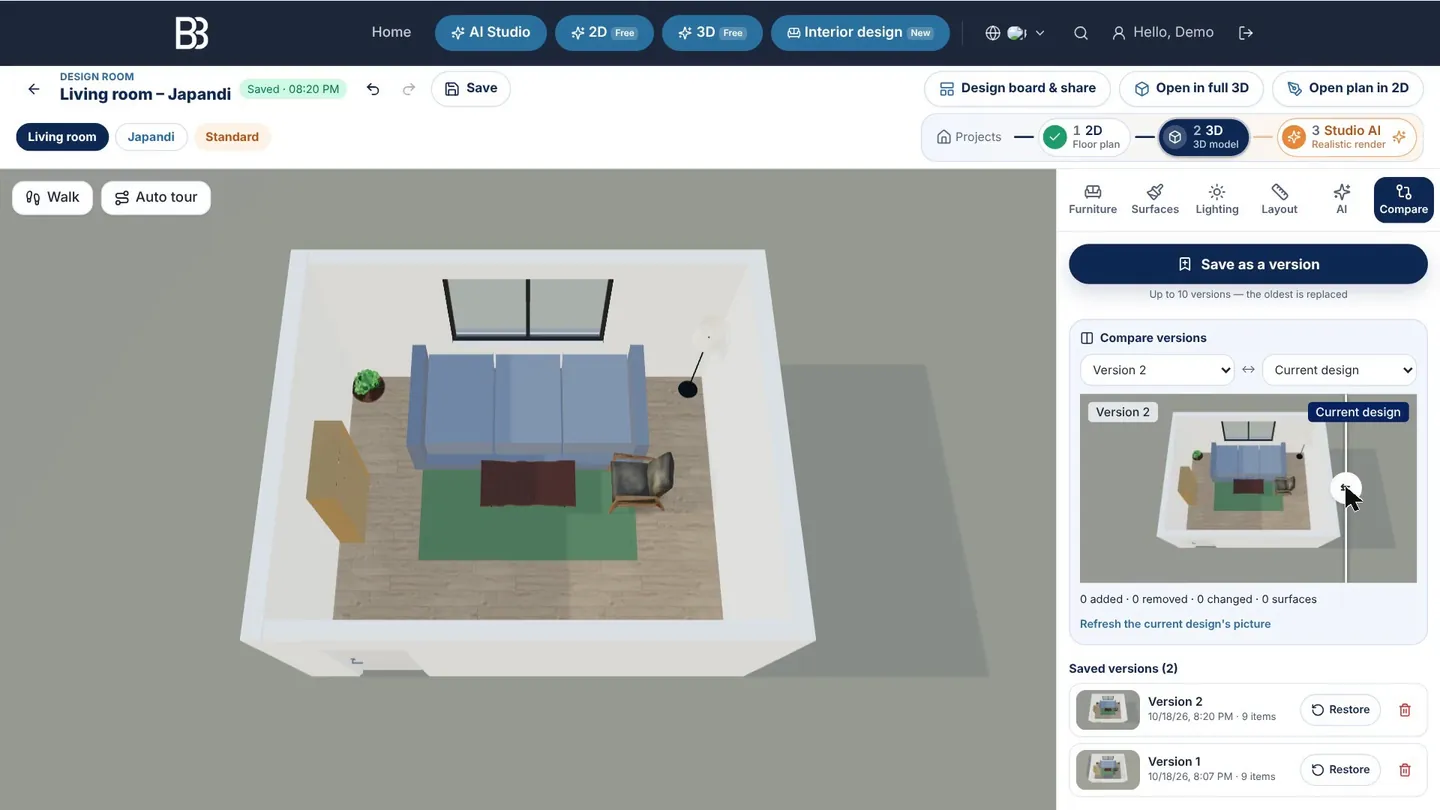
Try ideas without losing the old ones: in Compare click Save as a version (up to 10 per design, with a picture), then slide between any two versions or the current design — the tab also lists what was added, removed or changed. Restore brings a version back, and one undo takes you back again.
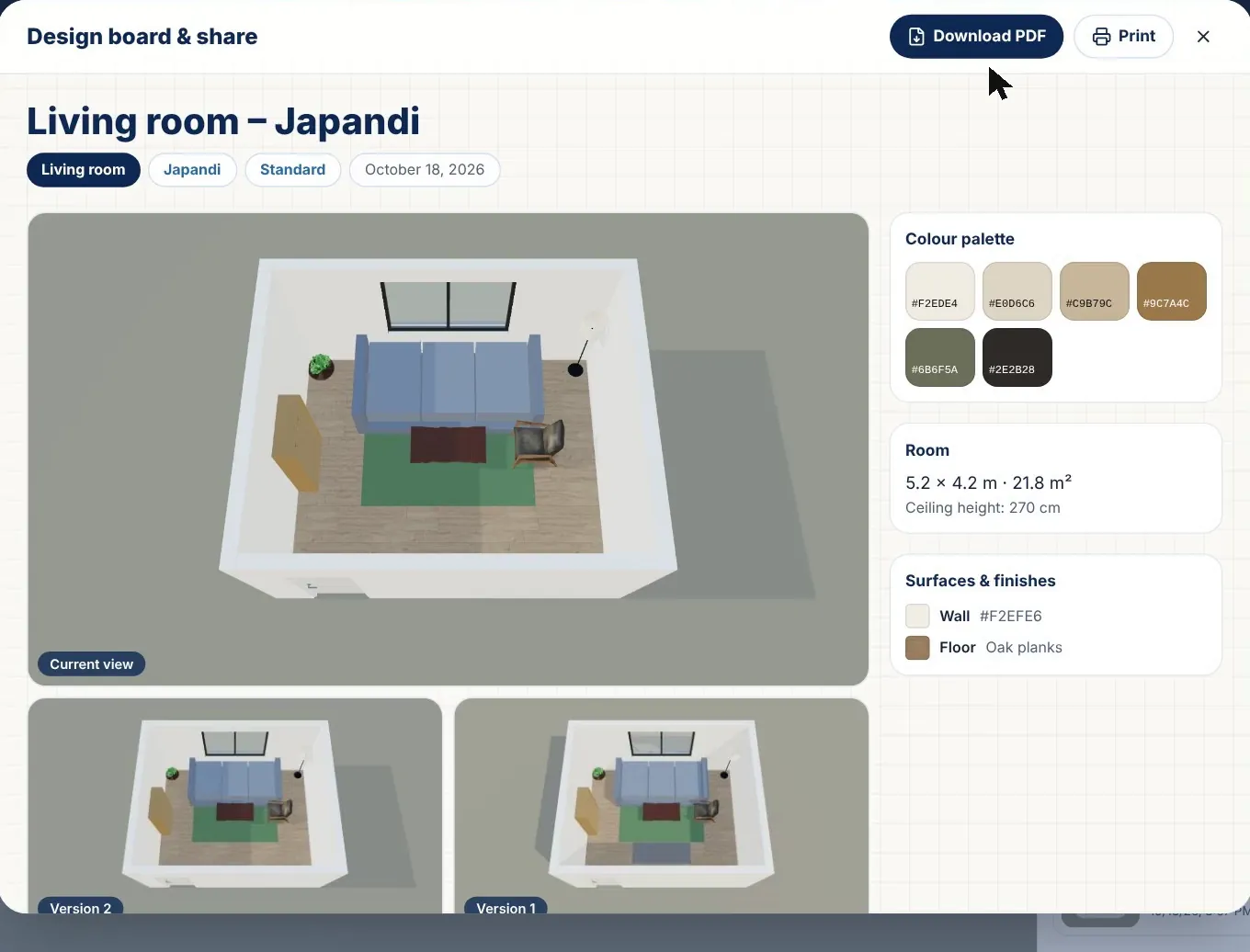
Design board & share puts the design on one page: the current view and versions, the colour palette, the room size, the surfaces and the full furniture list with sizes and quantities. Download PDF or Print it, open a private Client portal where your client can comment or approve, or Copy a link to the board picture to send by message or email. For a whole house there is also a Mood board & finishes tab in the house project, with a finishes schedule.
From the 3D room to a photorealistic image
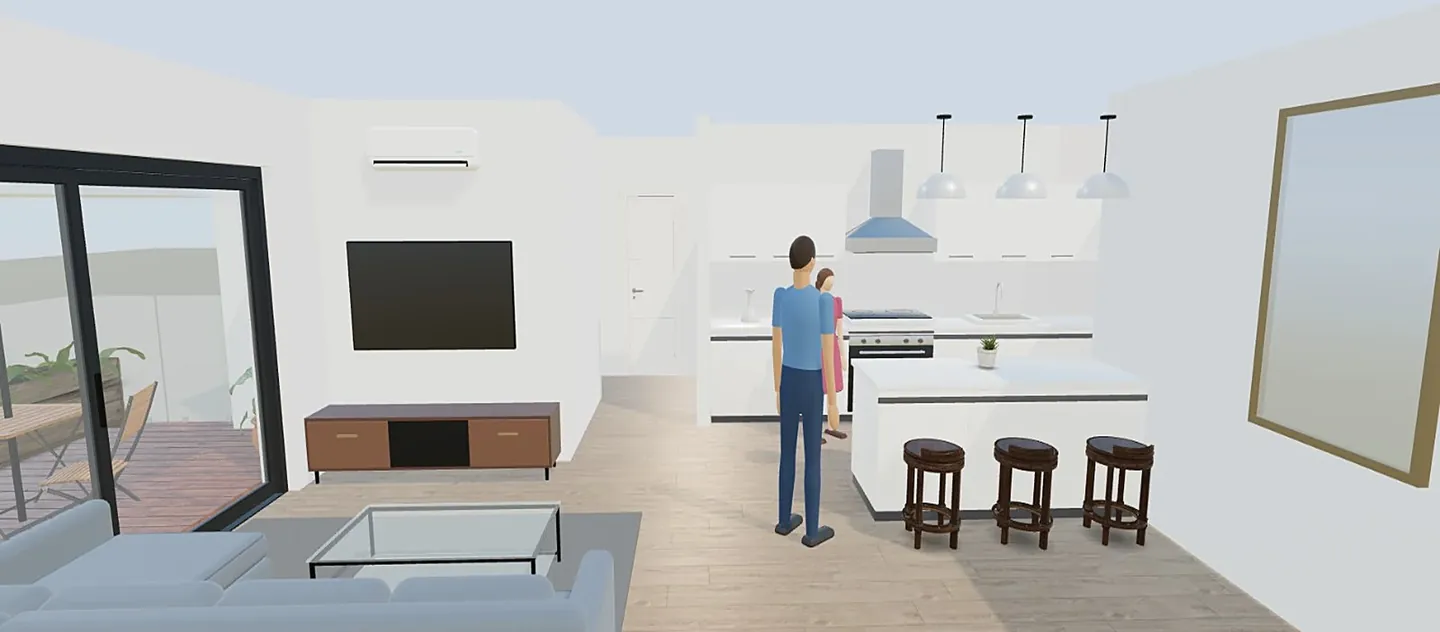
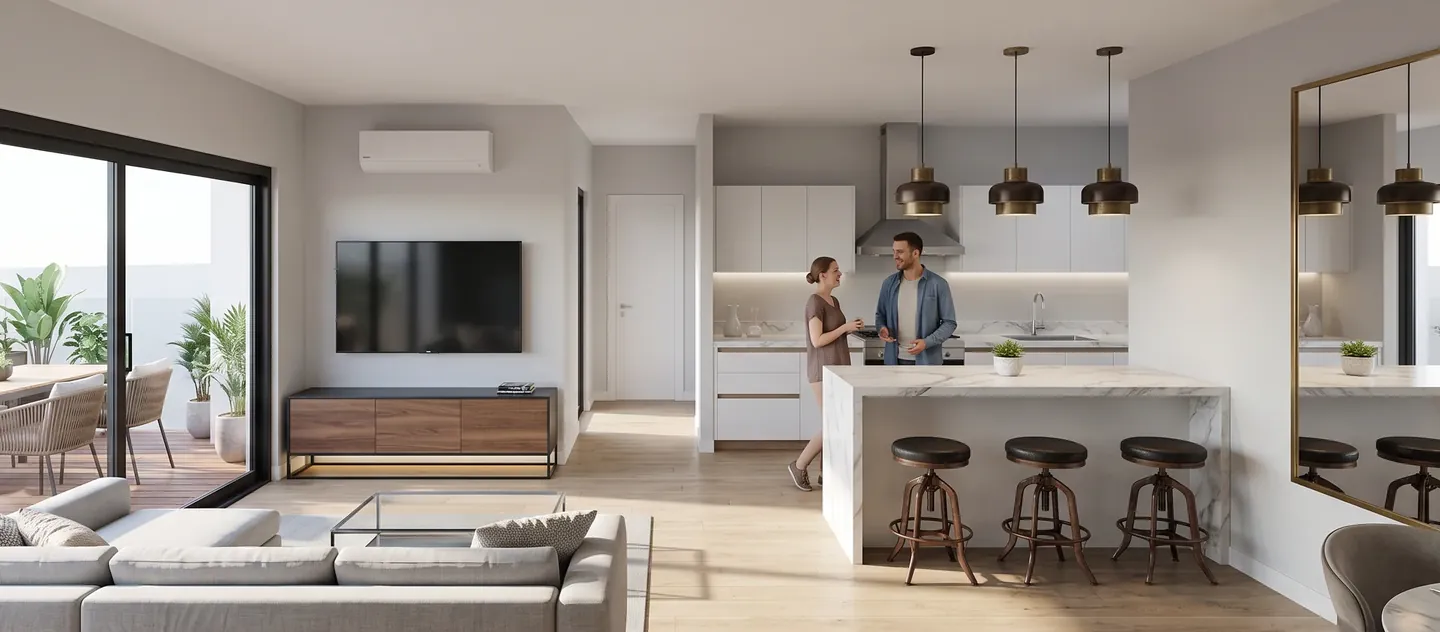
Everything so far is free. When you want a picture that looks like a photograph, the AI tab hands the current view to the site's AI tools: Photoreal render of this view keeps the walls, layout and camera angle; Redesign in AI Studio and Stage / restyle with AI open the view in AI Studio. These use credits — your balance is shown in the counter at the top of the page, and a failed job is not charged. More on this in from floor plan to AI render.
Tips and current limits
- Measure twice and enter the clear inside size; a few centimetres decide whether a wardrobe or sofa fits.
- Keep one main walkway of about 90 cm (36 in) from the door to the window or the next room, and check it at Eye level.
- Try two styles as two versions before you buy anything — the slider makes the difference obvious.
- In the wizard, rooms are rectangles or L-shapes. For other shapes, open the plan in 2D and edit the walls there.
- This is an early version of the Interior Design category: the furniture library is generic (not a shop catalogue), and sizes are a guide — check on site before ordering.
Design your room now Choose a space, enter its size and get three furnished layouts in 2D and 3D. Planning is free. Open Interior design
Frequently asked questions
Is the ArchHomeAI room planner free?
Yes for planning: the wizard, the three layouts, the 3D design room, versions, the design board and its PDF are free. Only AI actions — photorealistic renders, AI redesigns and edits — use credits, and your balance is shown in the counter at the top of the page.
Can I plan a room with my exact measurements?
Yes. Choose Dimensions in step 2 and enter the width, length and ceiling height in mm, cm, m or feet, choose a rectangle or an L-shape, then place the door and up to three windows. You can also take a room from one of your 2D plans.
Which rooms and spaces can I design?
26 spaces: 14 at home (from living room, kitchen and bedrooms to bathroom, walk-in closet, laundry, safe room and balcony) and 12 for business (fast food, restaurant, café, bar, tech office, meeting room, reception, shop, beauty salon, clinic, hotel room and gym).
Can I see my room as a realistic photo?
Yes. In the design room's AI tab, Photoreal render of this view turns the current 3D view into a photorealistic image, or you can continue in AI Studio. These use credits, and the result is a visualisation, not a construction drawing.
Does the room planner work on a phone?
Yes. On a phone the 3D view is at the top and the tools open in a sheet at the bottom; on a tablet they float beside the view. A bigger screen is more comfortable for long sessions.
Do the layouts follow building codes?
No planner can promise that. The templates use common planning guidelines for clearances and walkways, but rules differ by country and building type, so check with a qualified professional before you build or order.
Sources
How we wrote this guide: every figure comes from the sources listed at the end and was checked in September 2026. Prices vary by city, specification and year.
- Kitchen Planning Guidelines with Access Standards — National Kitchen & Bath Association (NKBA)
- 2010 ADA Standards, Chapter 4: Accessible Routes (403.5.1 clear width) — U.S. Access Board